












.thumb.png.6cba57c5e88519e419516e3ed1152e01.png)
By Troy
Hacking GM Global-B modules
I'm on a mission to create a bench setup for some GM Global-B architecture modules. My aim is to figure out some method which can be used to recycle GM Global-B modules, including changing VIN and PIN. I have some Global-B modules coming from the USA, an IPC, BCM and an ECM for starters.
Things I need to know before those modules arrive.
I need to know if I can connect a Global-B BCM direct to the power and Canbus data line and have DPS read the VIN, similar to the Global-A modules?
Will I need to route the BCM through another module, like the Network Gateway Control Module to read the Global-B VIN with DPS?
This article is a placeholder for future experiments and findings.
Update 8/March/2023
Today I received my new toys from the USA. An IPC and a BCM, from a 2022 Sierra 1500 Global-B. A BCM and an ECM from a 2022 Silverado 1500 Global-B. A BCM and an ECM from a Chevy Onix Global-B. I don't have the wiring loom, so I'll need to connect them using jumper wires which is going to take me a long time to figure out. Hopefully, I'll have this bench setup up and running.
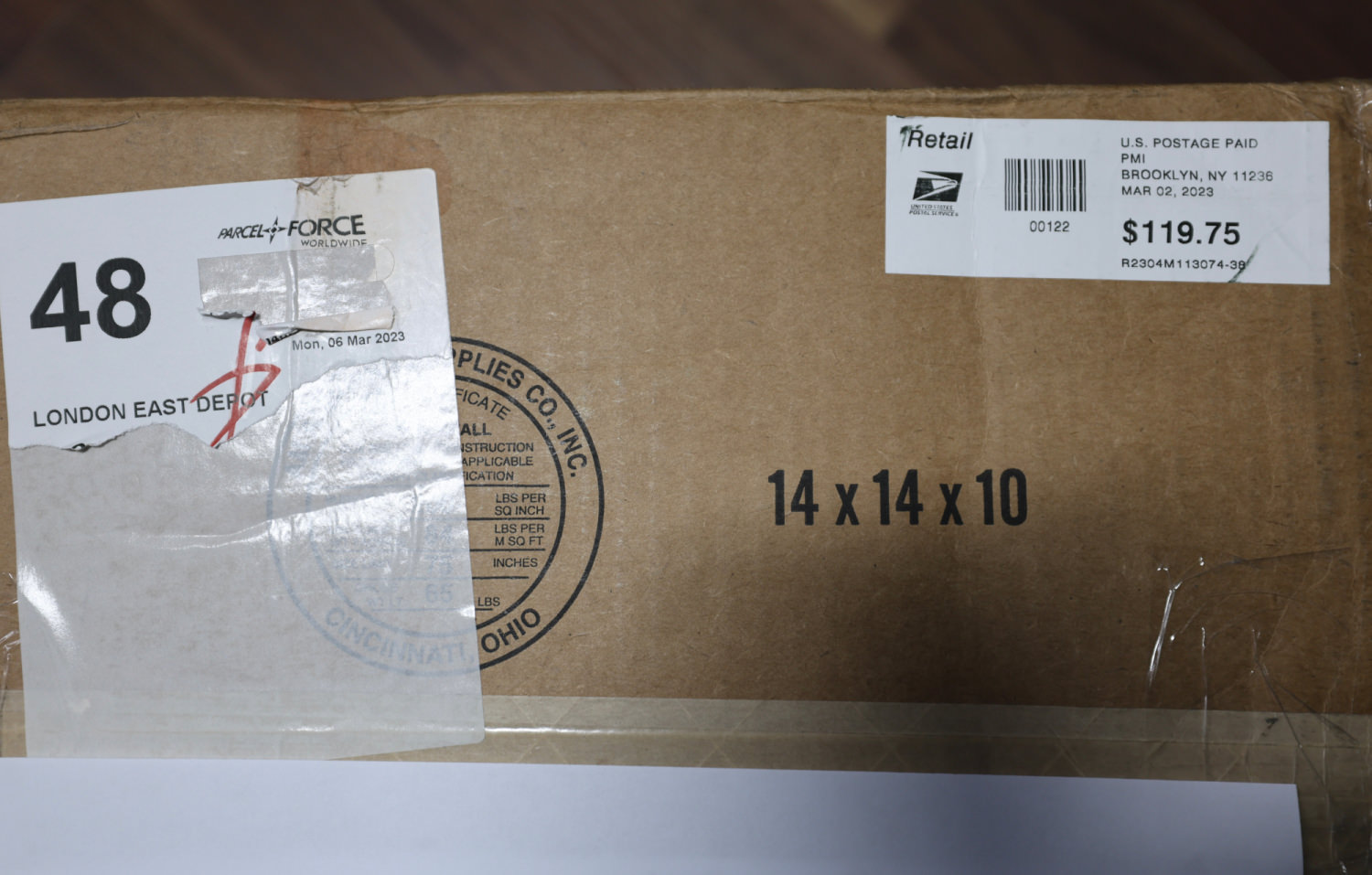

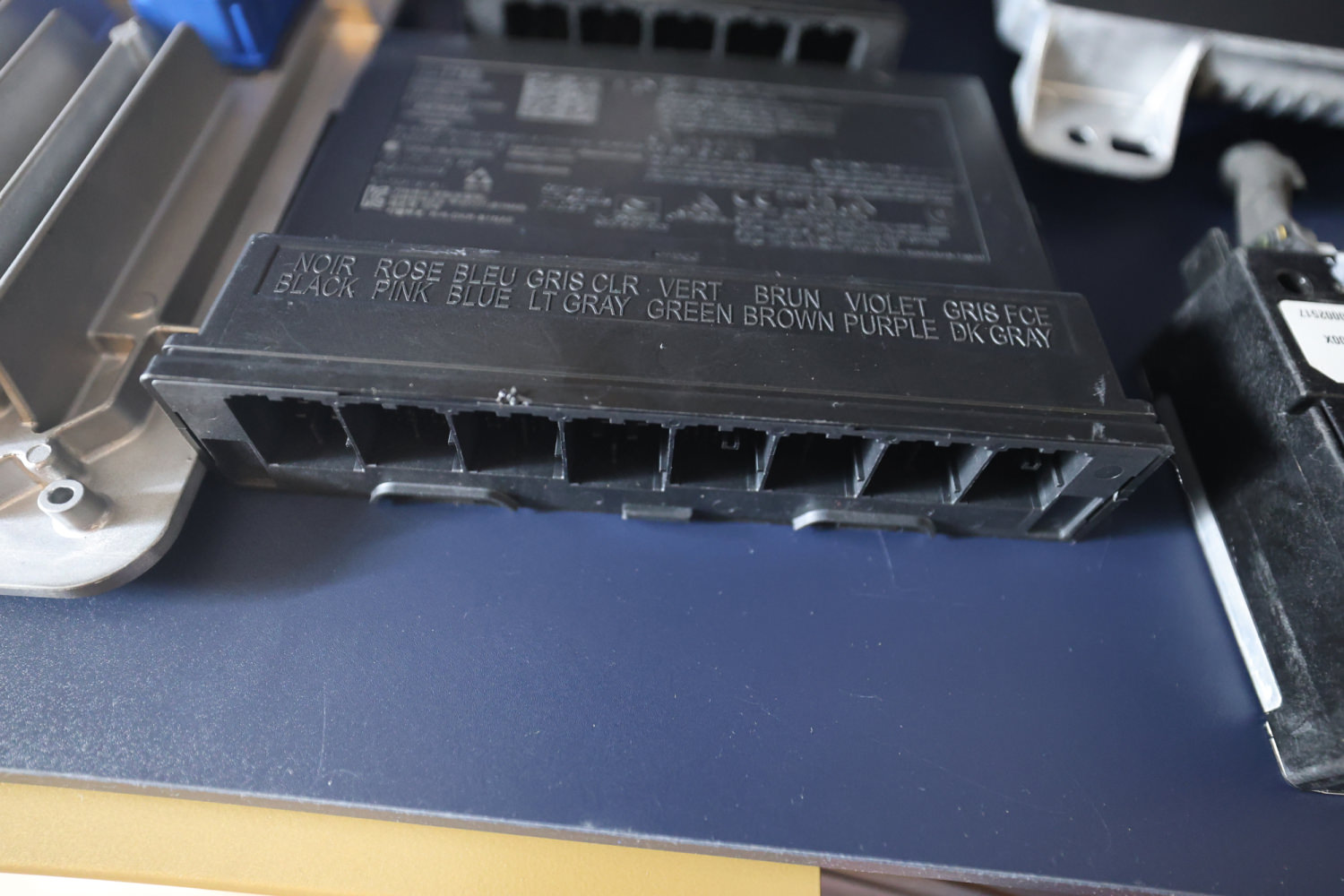
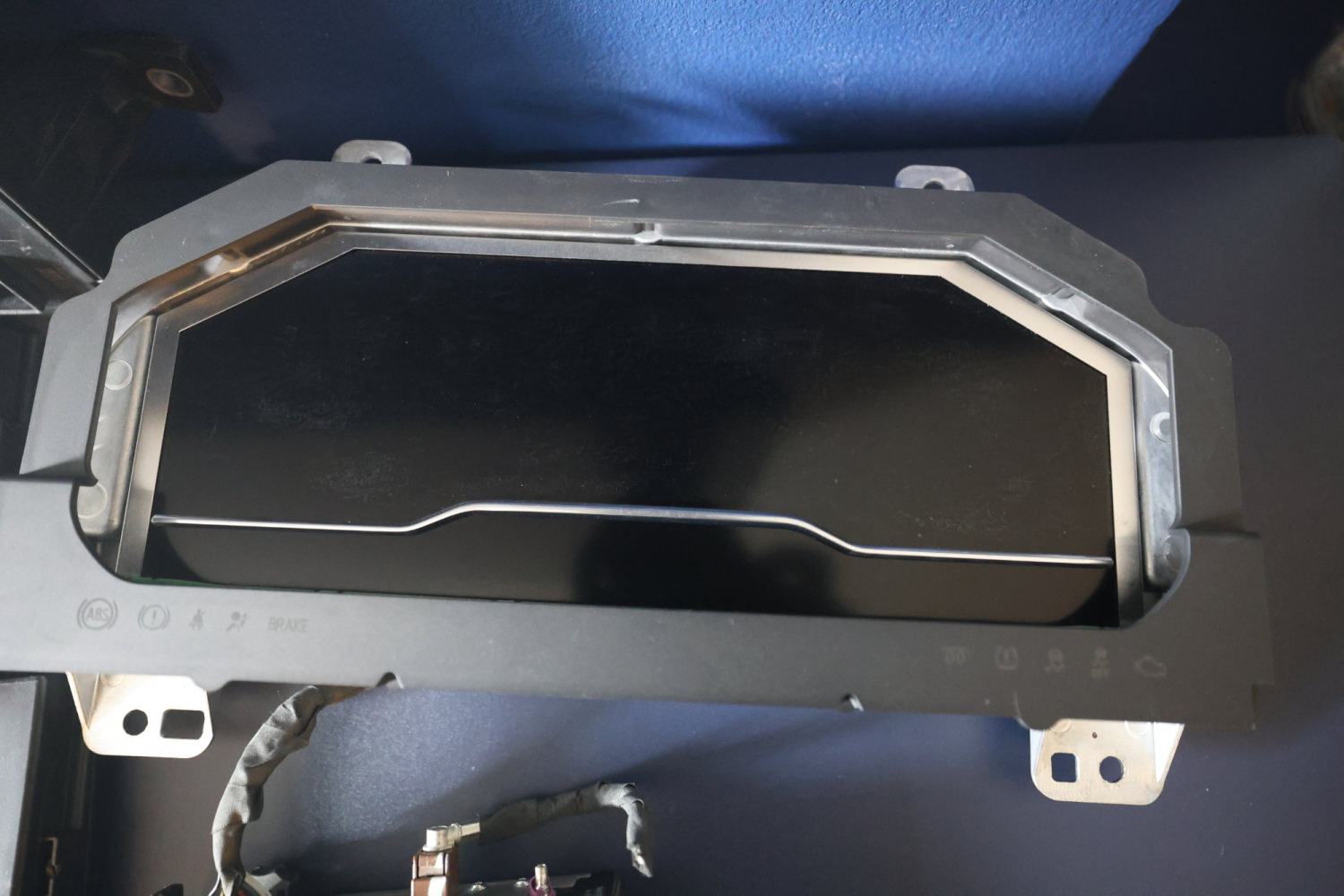
Update 17/March/2023
I've tried for a few days to get DPS to read the VIN in these modules without any success. Anyone has info and a working Global-B bench setup, can you tell me which data pin number on the OBD connector and the BCM pin number for reading VIN with DPS?
Looking at the data OBD connector schematics, I can see the 4 data lines going directly to the gateway module. On the gateway schematics, I can see two 60Ω resistors, do you think I need to add 2 60Ω resistors to the data lines in order to read the VIN with DPS?

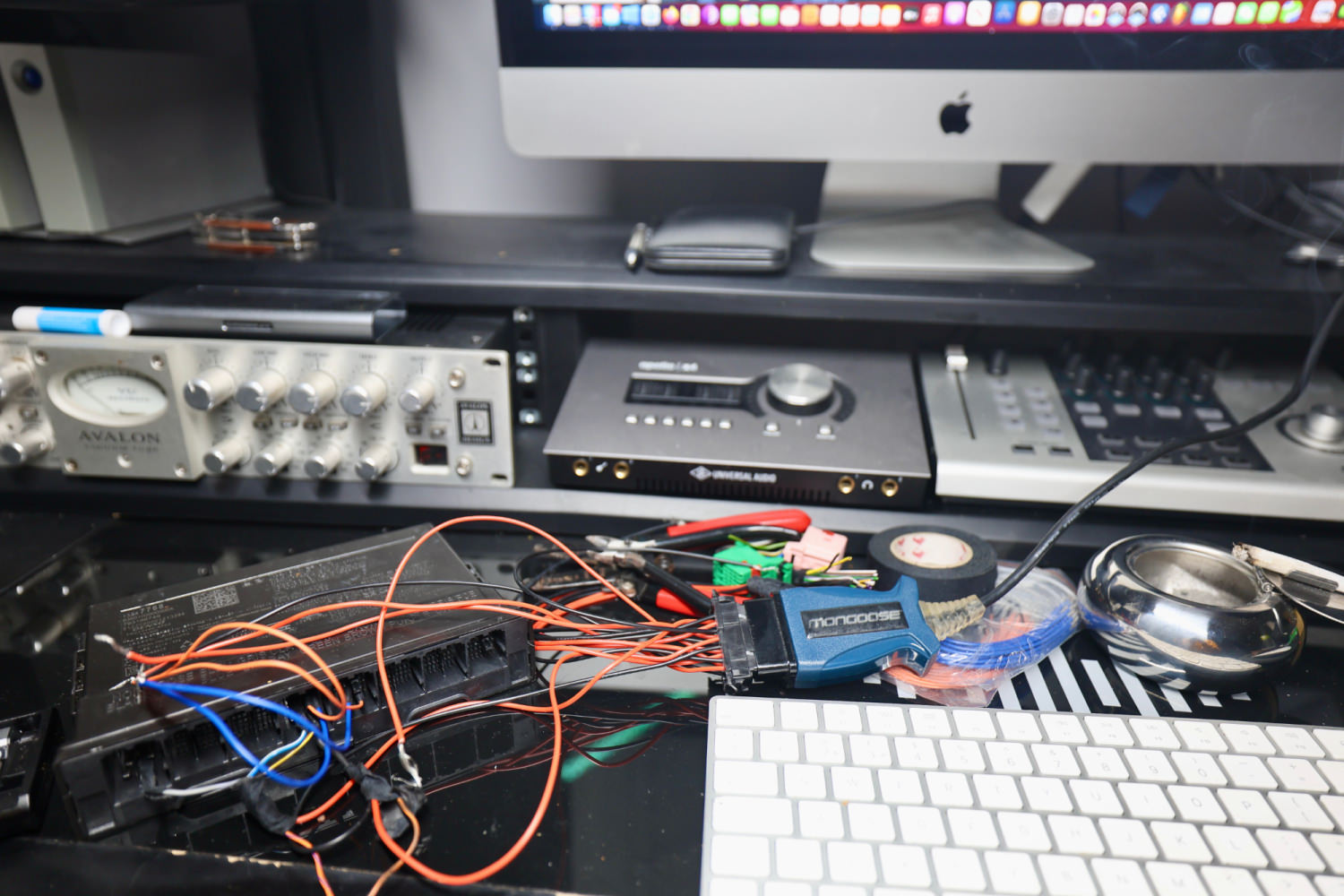
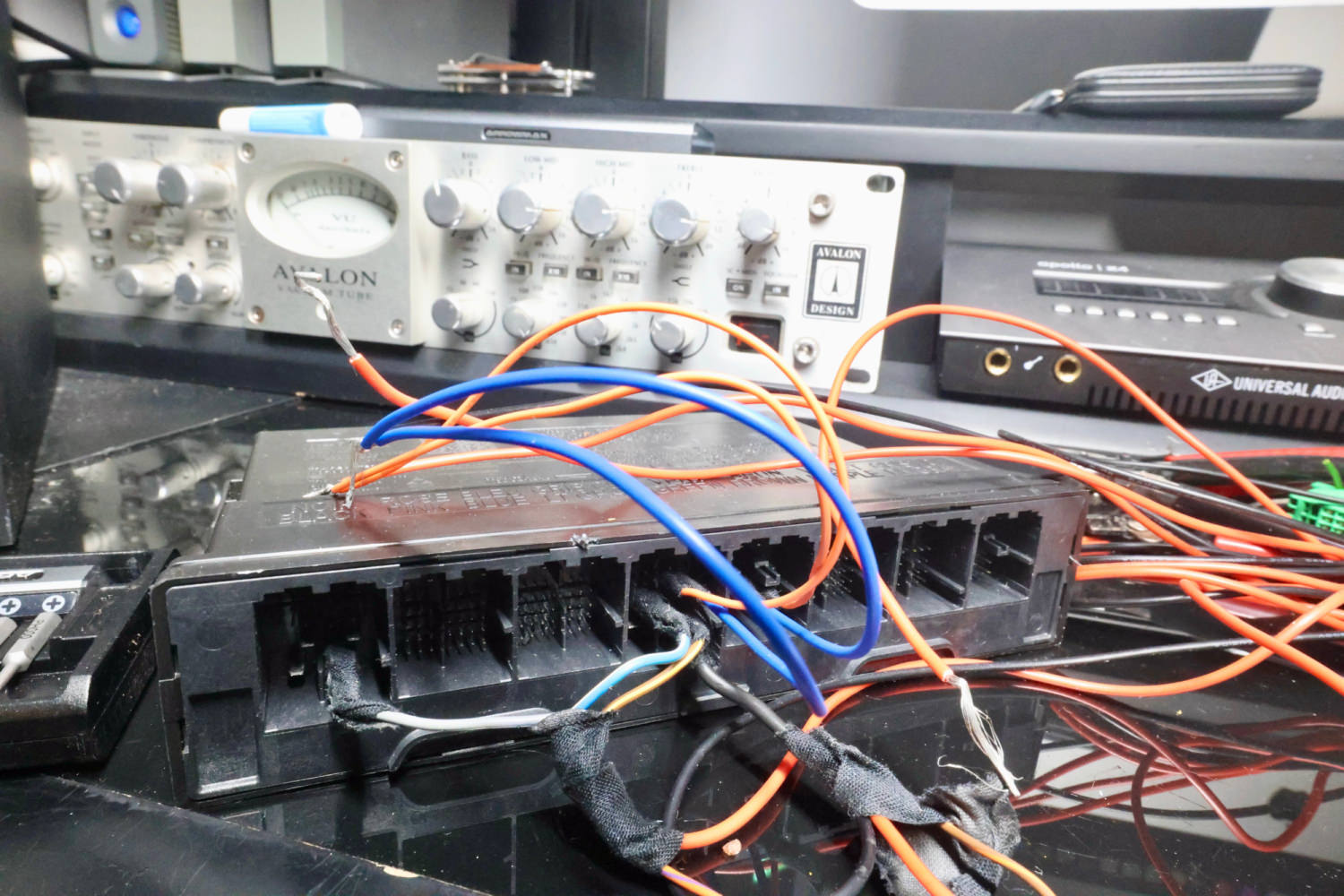
Update 19/March/2023
I've added the 2 60Ω resistors to PIN 6 and 14 data lines. However, I still can't get DPS to read the VIN from the BCM. My next route is to source a Global-B 2022, 3-plug port K56 serial data gateway module. Until then, I'll have to place this puzzle on pause.
I see that DPS has the option for "with or without gateway".

K56 Serial Data Gateway Module
The K56 Serial Data Gateway Module gates messages between the CAN networks described in the Controller Area Network (CAN) Bus Description section below. The K56 Serial Data Gateway Module needs to know what CAN control modules are present on a given vehicle in order to enable/disable loss of communication DTCs and to know what CAN control modules to track for their communication status. The K56 Serial Data Gateway Module has the ability to learn the diagnostic addresses list of CAN control modules to identify what CAN control modules are equipped on the vehicle and what CAN buses they are on. If the K56 Serial Data Gateway Module is replaced, this learn/verification process will have to be done again through K56 Serial Data Gateway Module programming and setup procedure in SPS. This learn process will not cause any previously learned contents to be forgotten/overwritten. If the learn process is not done on a new K56 Serial Data Gateway Module, DTC U1977 will be set until the learn procedure is executed. If the learn is invalid due to control module internal malfunction or a K56 Serial Data Gateway Module swap, DTC U3000 42 or DTC U3002 56 will be set. If any of these DTCs sets, the K56 Serial Data Gateway Module will enable loss of communication for all CAN control modules. This will result in loss of communication DTCs being set against CAN control modules that are not equipped on the vehicle.
A fault can be localized by monitoring the normal mode messages on a CAN bus. The K56 Serial Data Gateway Module will monitor one signal per CAN control module per CAN bus to determine control module status. When a signal times out, a loss of communication event will be started.
Update 27/March/2023
Using @T c suggestion for reading the VIN with DPS at the beginning when ECM is powered on. That worked, and I can read the VIN with DPS in the 2021 global-B Chevy Onix ECM. The Onix doesn't have a separate gateway module like some of the other GM vehicles. I think the Onix gateway module is combined in its BCM. My BCM seems faulty, so I couldn't test with both modules fully connected.
I should receive the global-B gateway module sometime this week, hopefully then I'll get the other modules working.
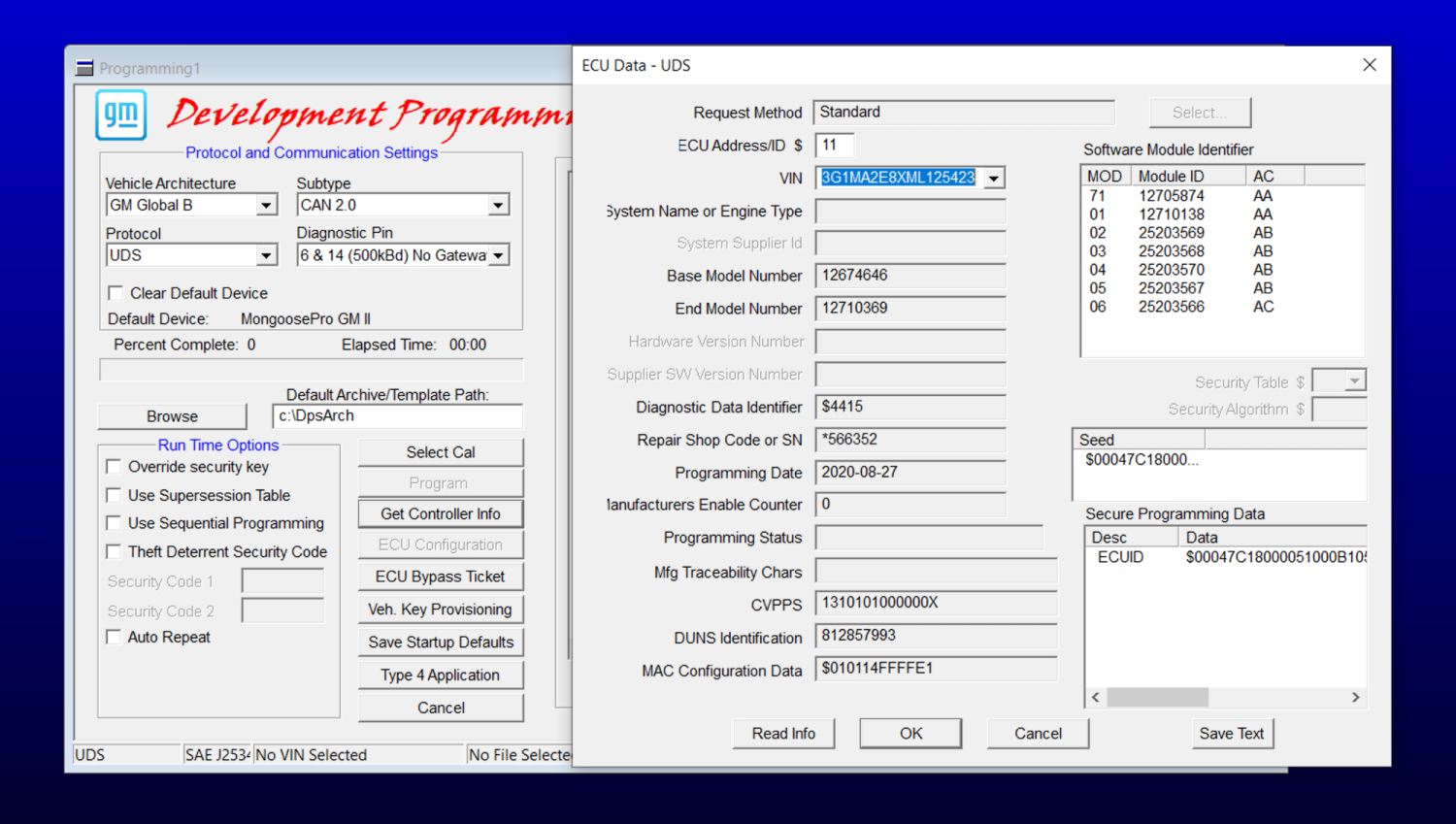
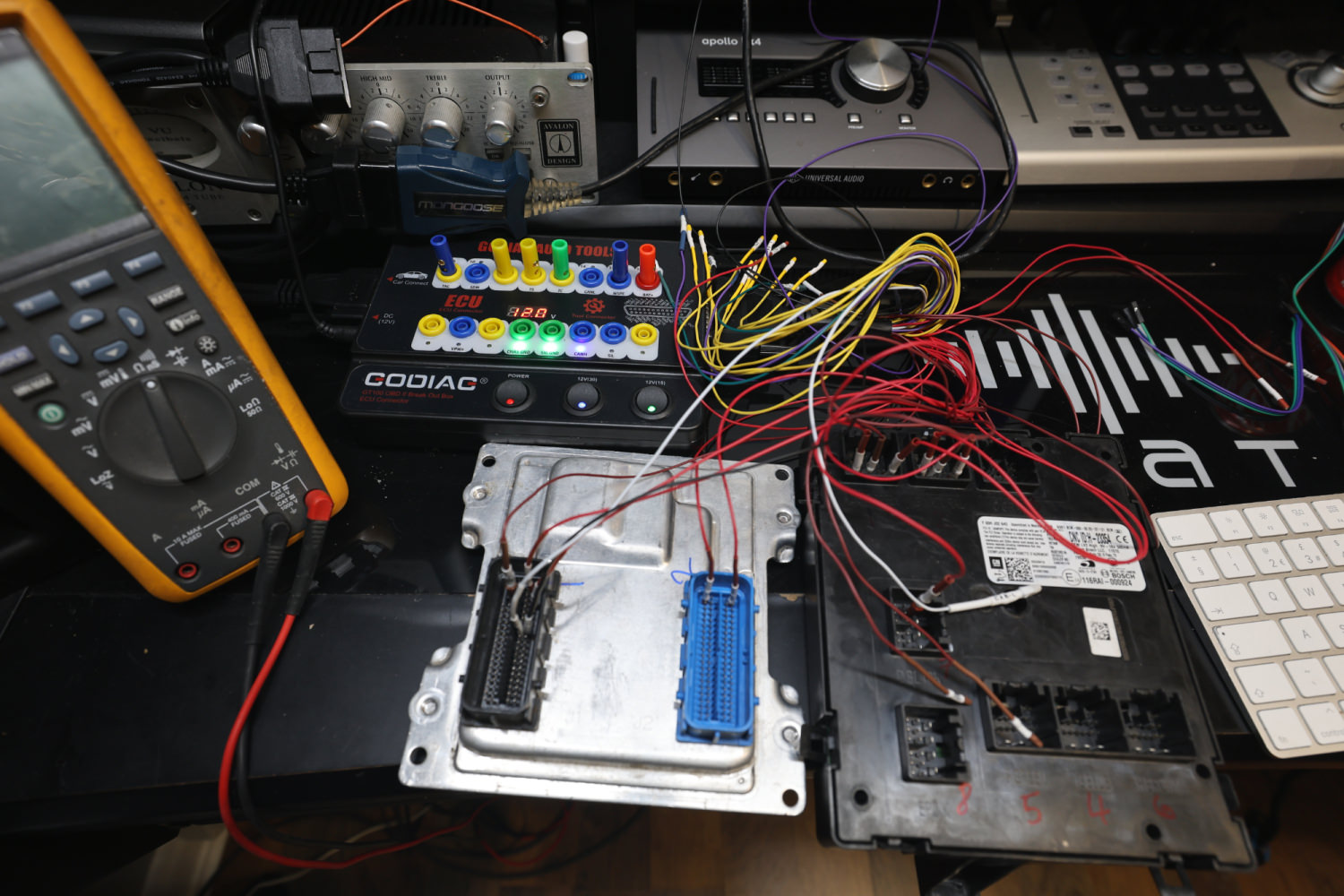
GM Techlink article, which has some info.
Update 12/April/2023
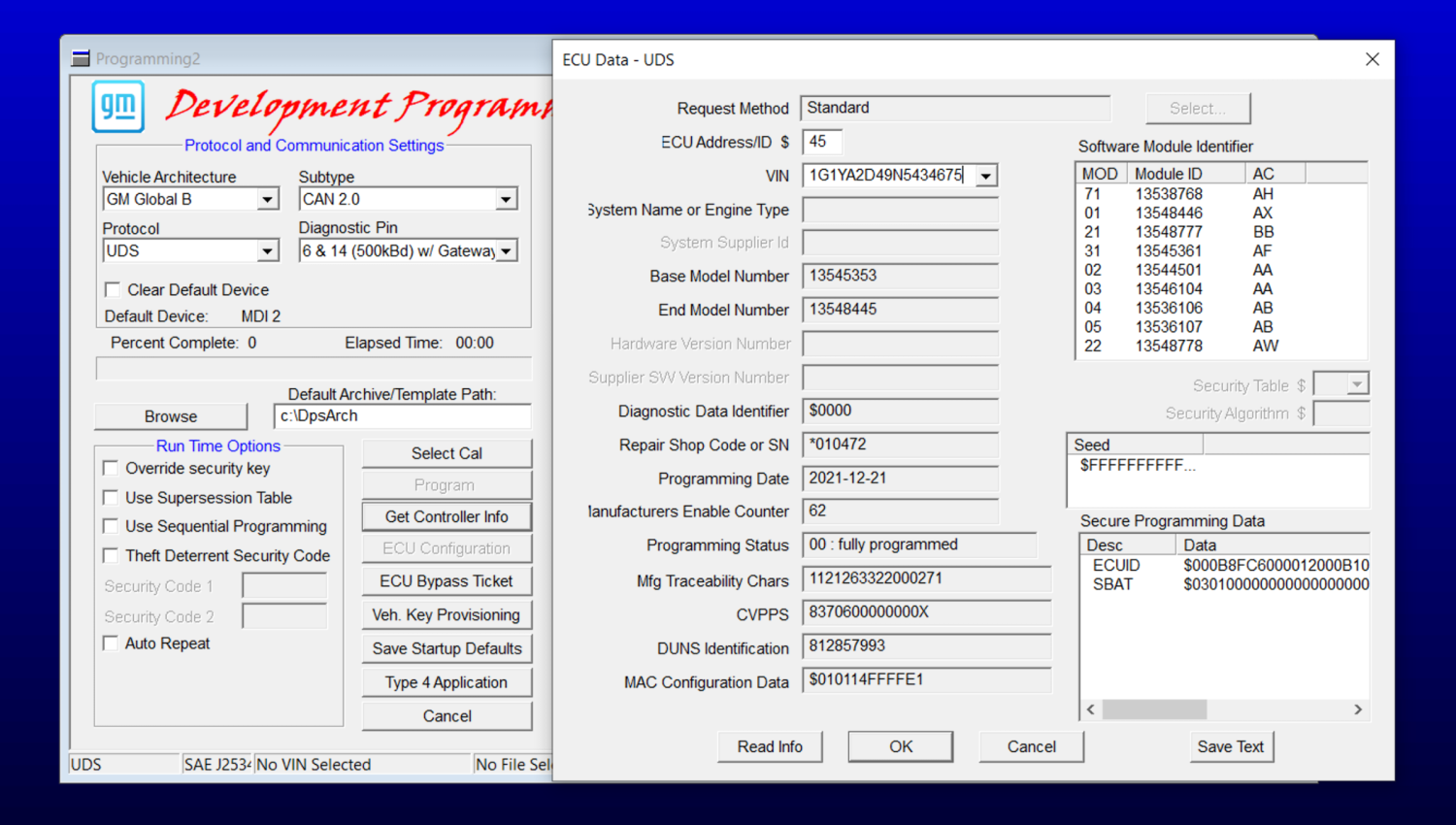
I received and connected the serial gateway module with the other modules, as shown in the GM SI schematics. I can now read the VIN with DPS anytime for all modules and perform partial programming, which is excellent. One step further.
Global-B command functions differ from Global-A, which will take me some time to understand fully.
You will need the serial data gateway module and a genuine MDI2 to do any programming for a Global-B bench setup.

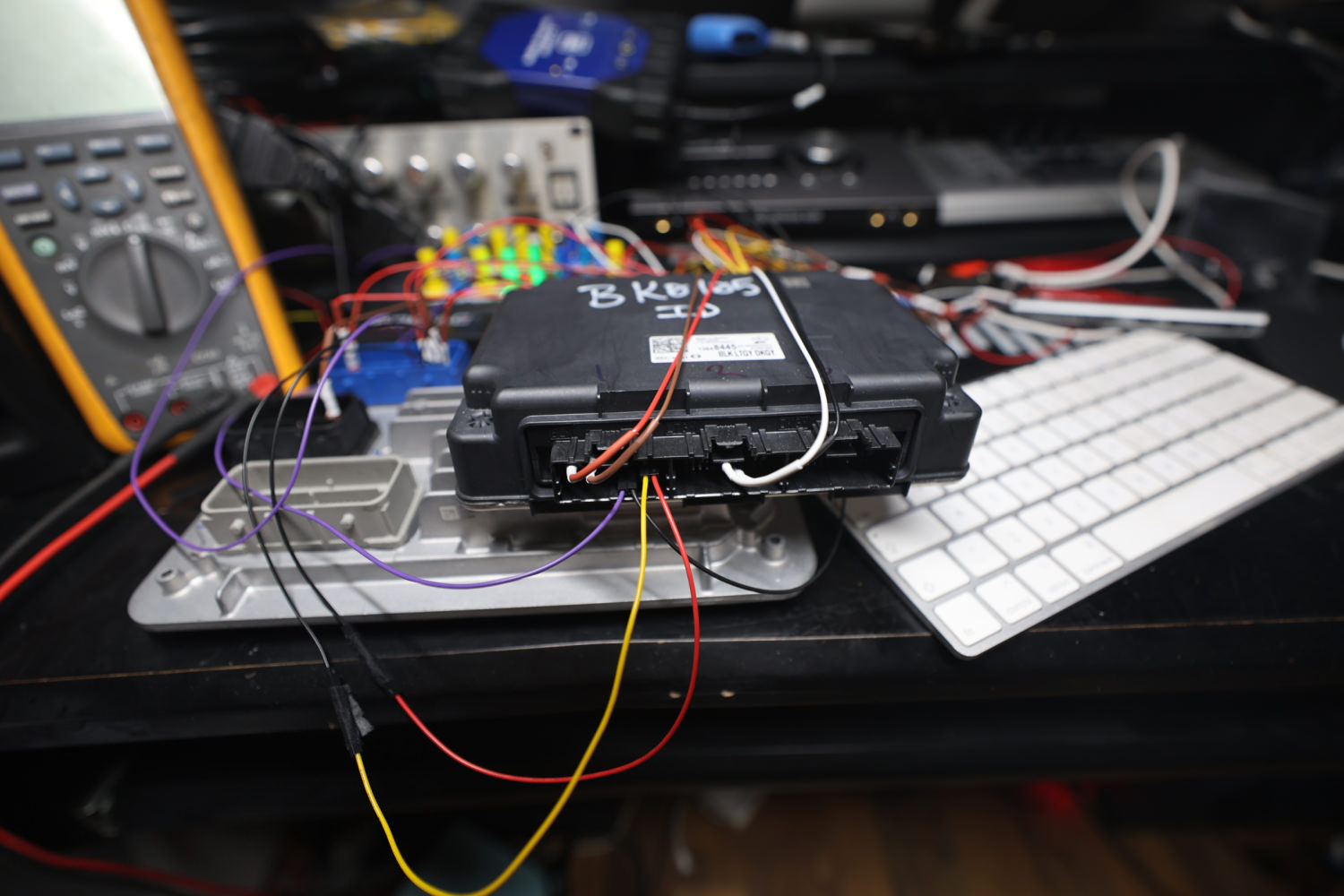
Data Link Communications Description and Operation.pdf
Update 18/October/2024
It is now possible to change the VIN and program General Motors Global-B UDS VIP 12-byte seed security electronic modules using the GM DPS tool. This is an excellent option for those who want to replace a faulty GM Global-B module in their vehicle by recycling a used module purchase from a scrap yard or eBay. More info to follow later.
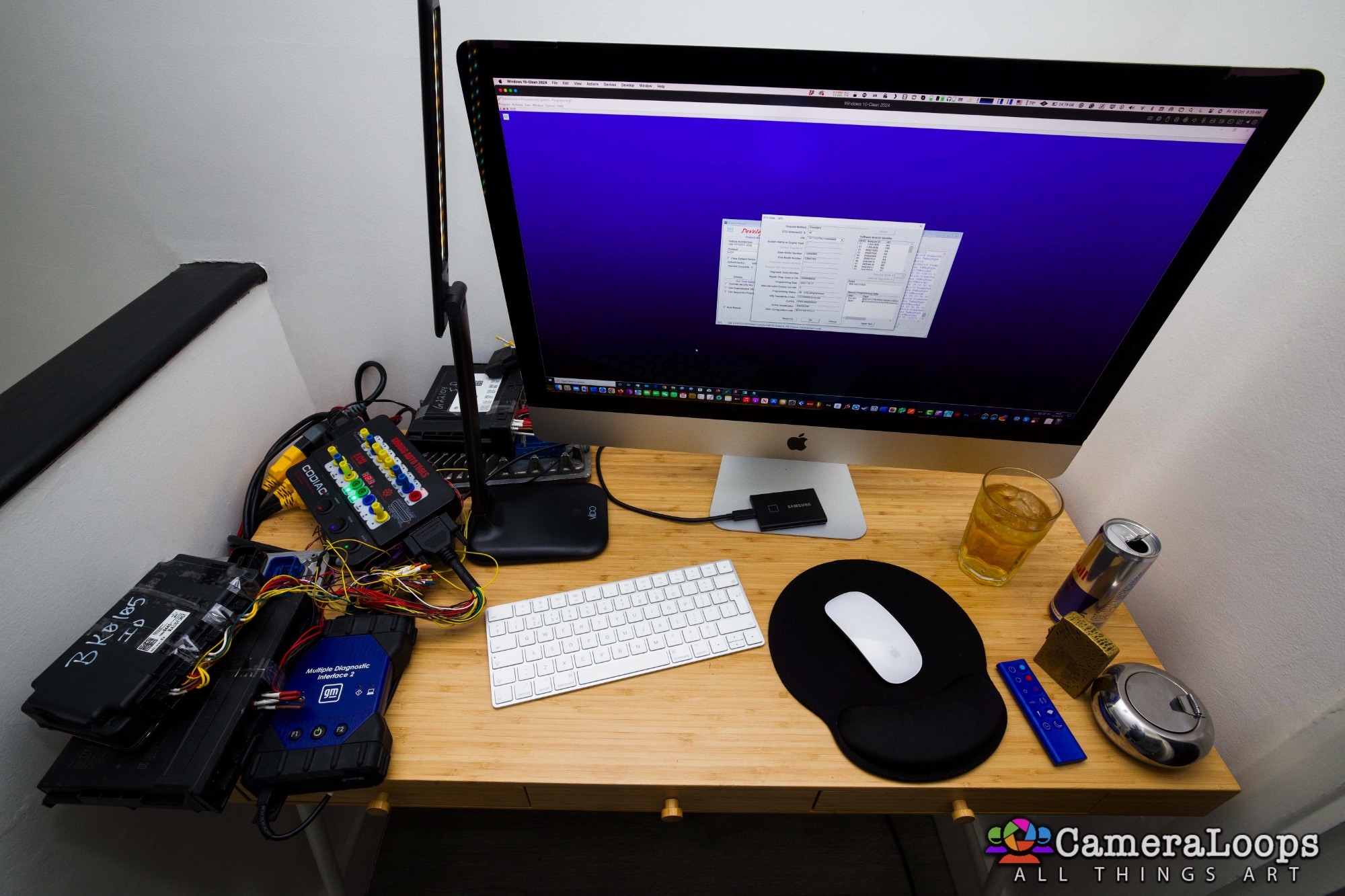
In the video below, I demonstrate changing the VIN in a GM Global-B BCM module from a 2022 Chevrolet Silverado using a GM DPS file I created.
Update 1/October/2025
Today, I assisted a member who required information to connect the BCM to the Gateway module for a Global-B bench setup. I post the information here in case anyone needs it.
Info for connecting the BCM to the Gateway module for a Global-B bench setup.
Six pins are used to connect the BCM to the Gateway module.
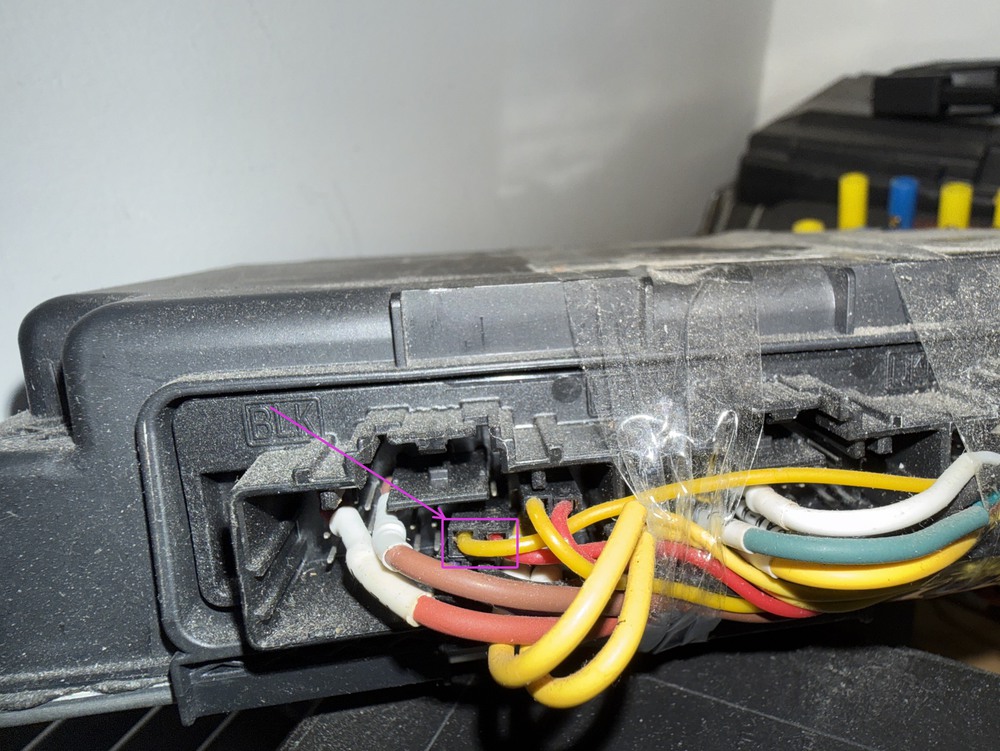
Two battery positive and two battery negative pins need to be connected, along with two AUTOSAR pins. In total, six pins are used for connecting the BCM to the Gateway module.
For the AUTOSAR PINS: Connect the Gateway connector port X1 PIN-18 to the BCM connector port X4 PIN-19, and the Gateway connector port X1 PIN-17 to the BCM connector port X4 PIN-20.
I hope this helps anyone who needs this info.
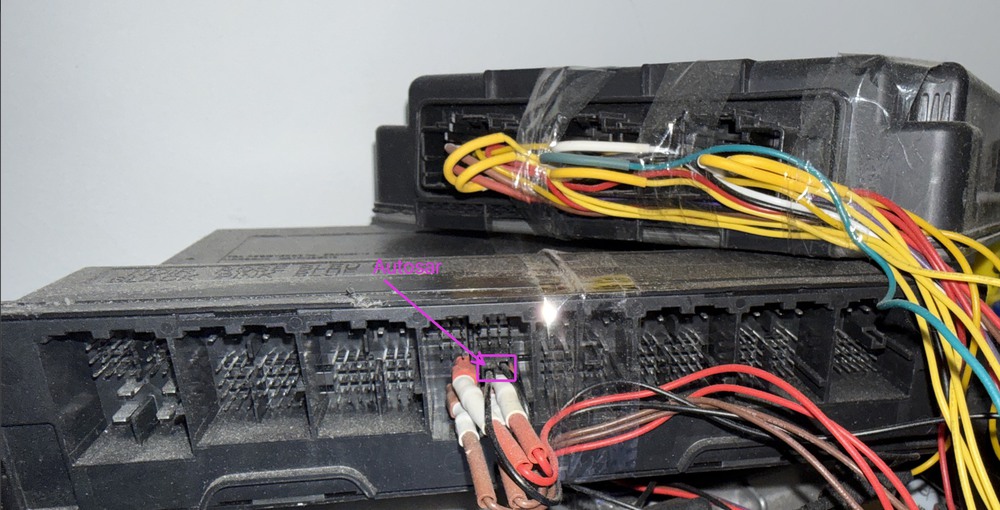
Global-B Sierra 1500 BCM X4 connector pinouts.
Global-B Gateway module X1 connector pinouts.
-
 2
2












































.jpg.434408b0b61b4552ae25cde5c0b5a388.jpg)





.jpeg.503ad3cbf167f180662b9e06a35f1911.jpg.4256ffb79777f00833ddbf666186ef55.jpg)



-min.jpeg.e57f393a5b1034dc5ead0fdf0e5be0a7.jpg.8b0eac9dbd8dd2120749a61afa119519.jpg)



.jpeg.7788c0ed0981e43684ee21be2e0cfd0c.jpg.5fe699189bcf0d18517707ce4222e81a.jpg)

.thumb.jpg.0f819d95317e386a92453772edb75c6b.jpeg.61f2c44081948bc780313ab6fcfdc53b.jpeg)









.jpeg.c58f6a017dba02d1386e26ad62d32fe5.jpeg)

.jpg.9dd8d45a3fad0a651bb2bc39ddead936.jpg.7a19f233d3331becb9d93ee7cfc63379.jpg)




.jpg.3dfde5099751bef5f6e2d27f3d463275.jpg.edf3062b4fb37e14c71ab2caa86c1053.jpg)



















Recommended Comments
Join the conversation
You can post now and register later. If you have an account, sign in now to post with your account.