











.thumb.png.6cba57c5e88519e419516e3ed1152e01.png)
By Troy
CameraLoops.com Now have An App
CameraLoops.com push notifications.
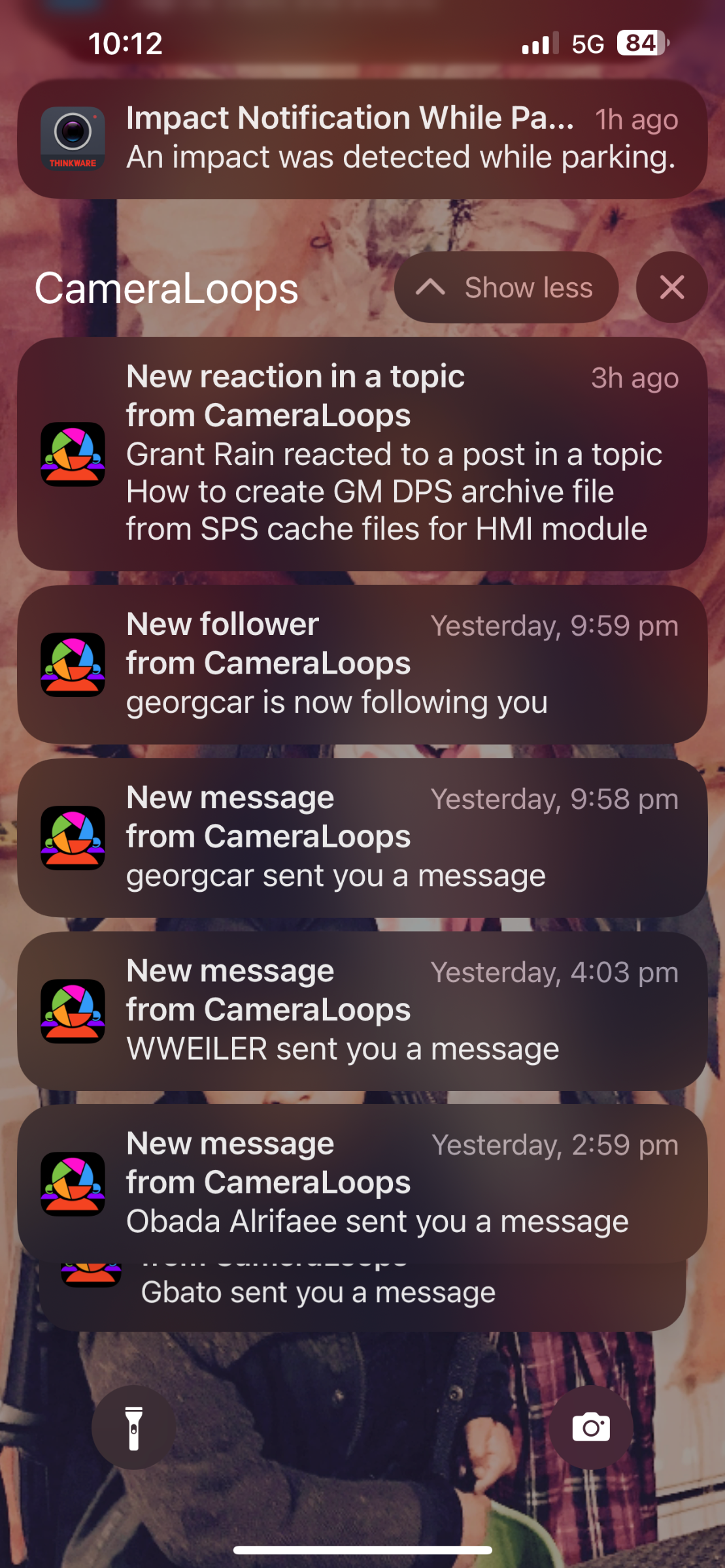
You can now install CameraLoops.com as an app on your phone and tablet. It's not in the app store: it's called a Progressive Web App, or PWA for short.
The advantages are you can get various push notifications on your phone or tablet when someone replies to your post, sends you a message, etc. The app will work on iOS devices that have iOS v16.4 and up or Android v10 I think.
For iOS device
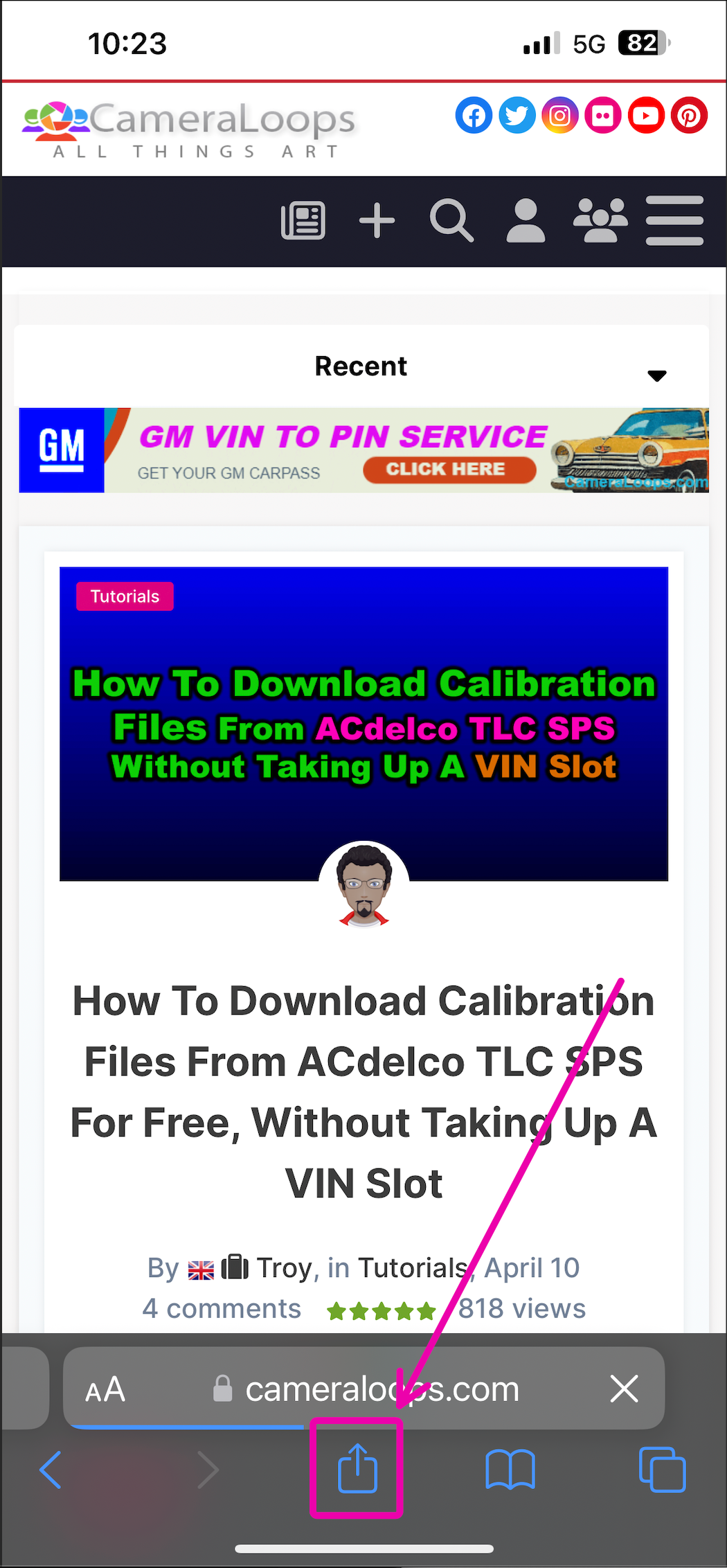
On iOS devices, open CameraLoops.com in Safari and click the share icon at the bottom of the Safari window.
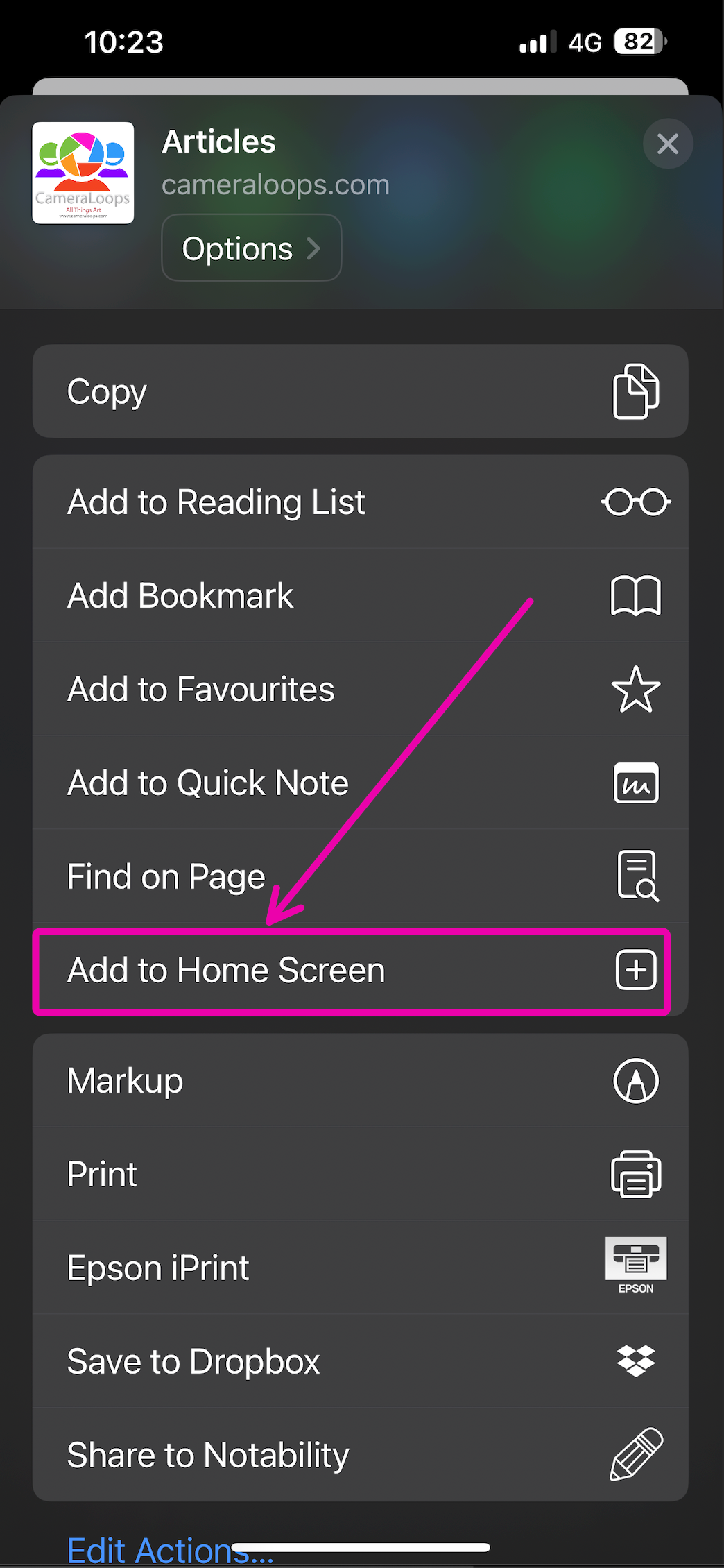
Scroll down and click "Add to Home Screen".
You now have an icon for CameraLoops.com on your home screen.
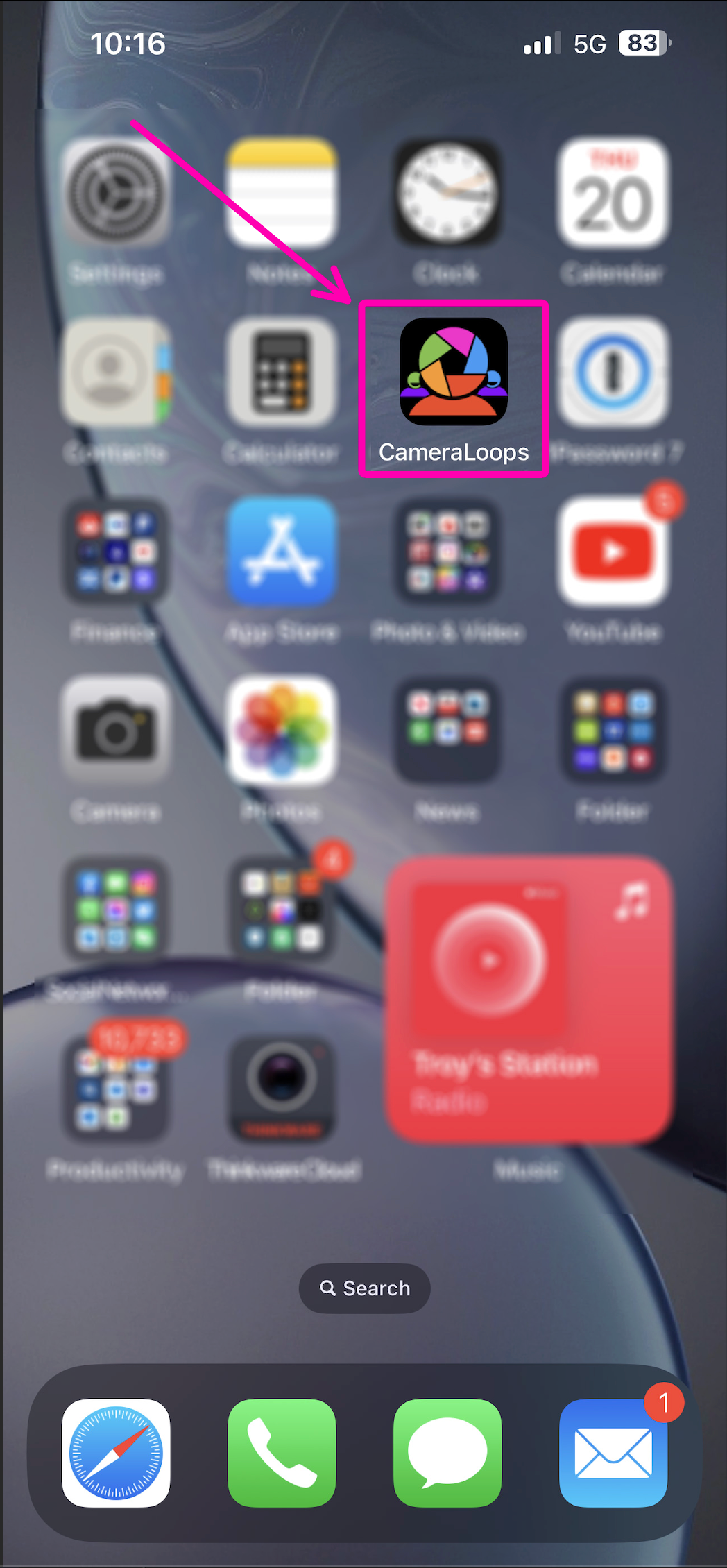
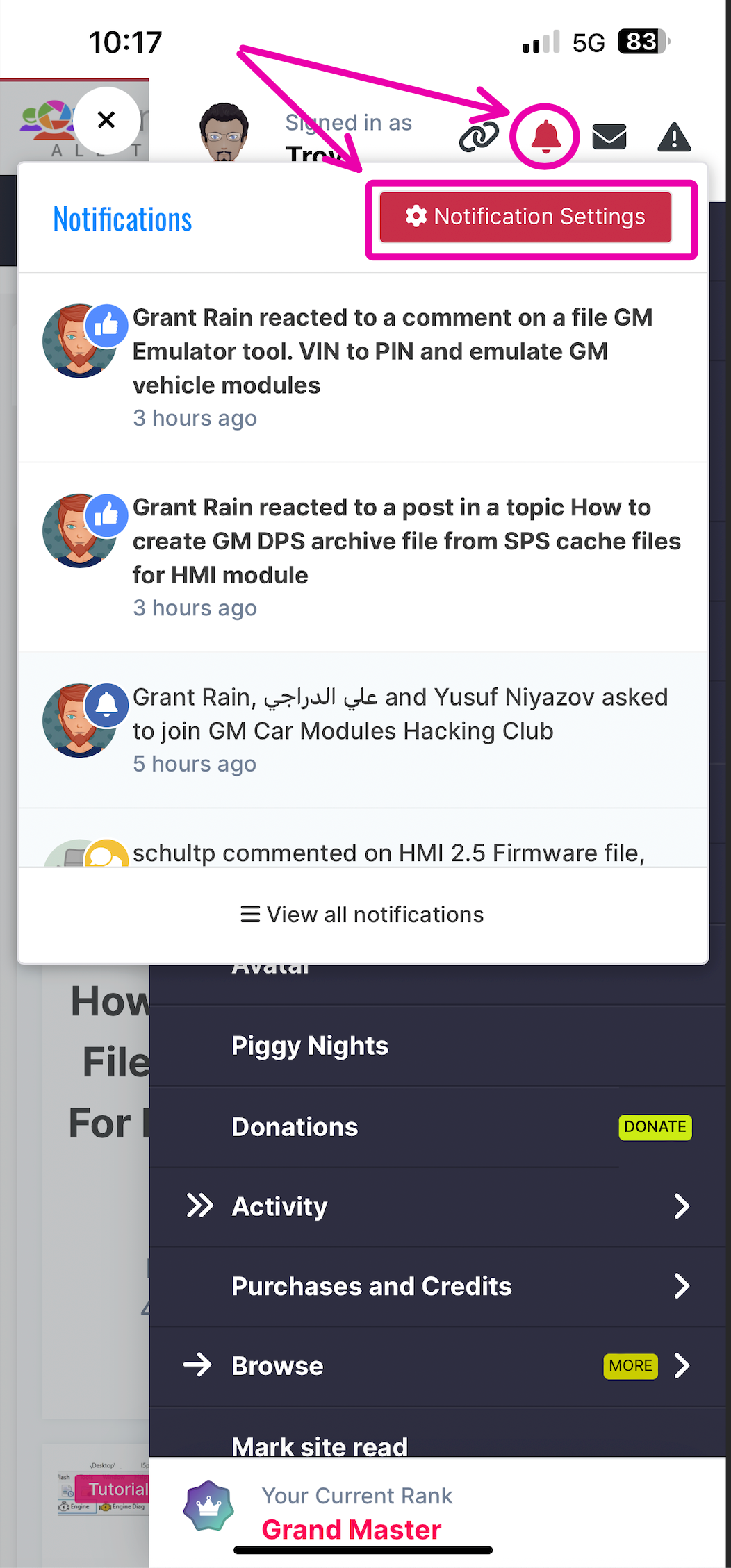
You must open the app, sign in to your CameraLoops.com account and activate push notifications by clicking the hamburger icon (top right of the screen), click the "notification bell", and then click the "Notification Settings".
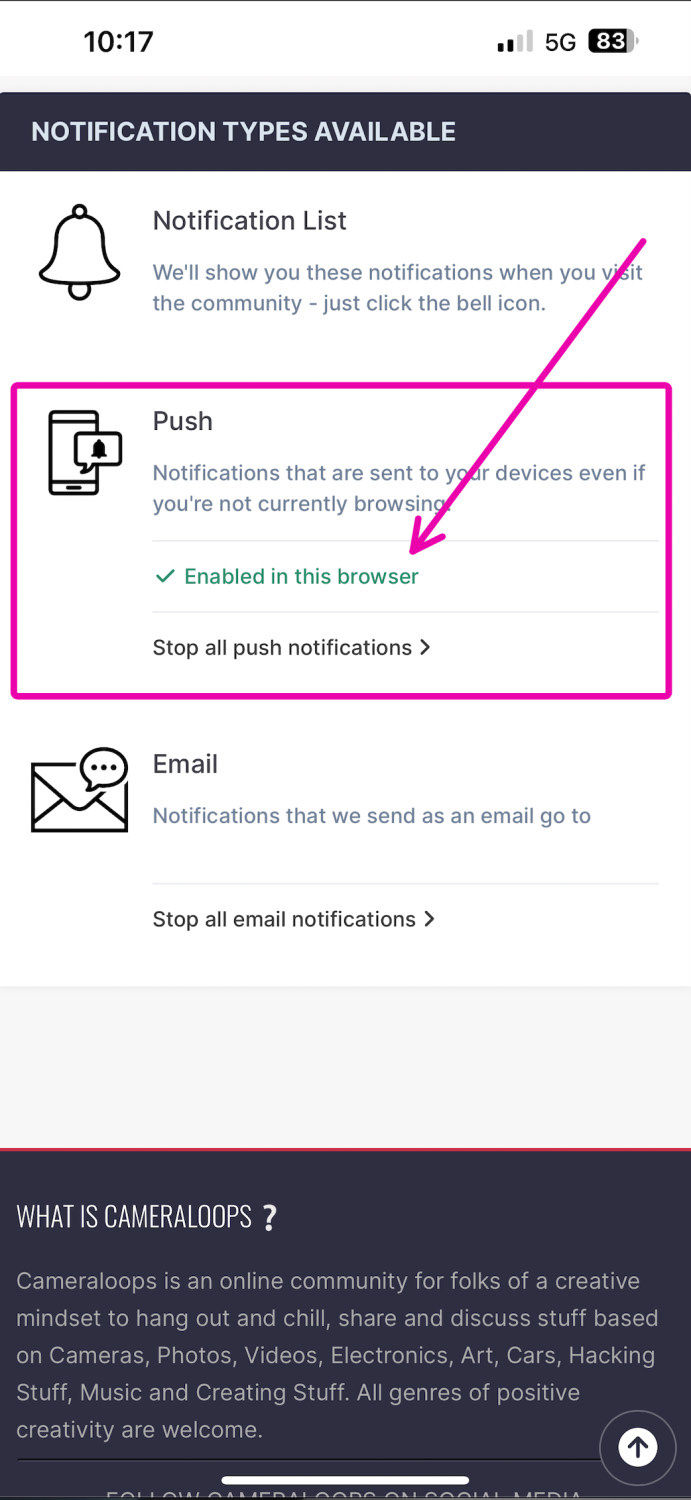
Scroll down to the Push notification settings and select "Enabled in this browser". Once enabled, scroll up and adjust the various content types to your liking. To get notifications on your phone, select the Notification + Push Option.
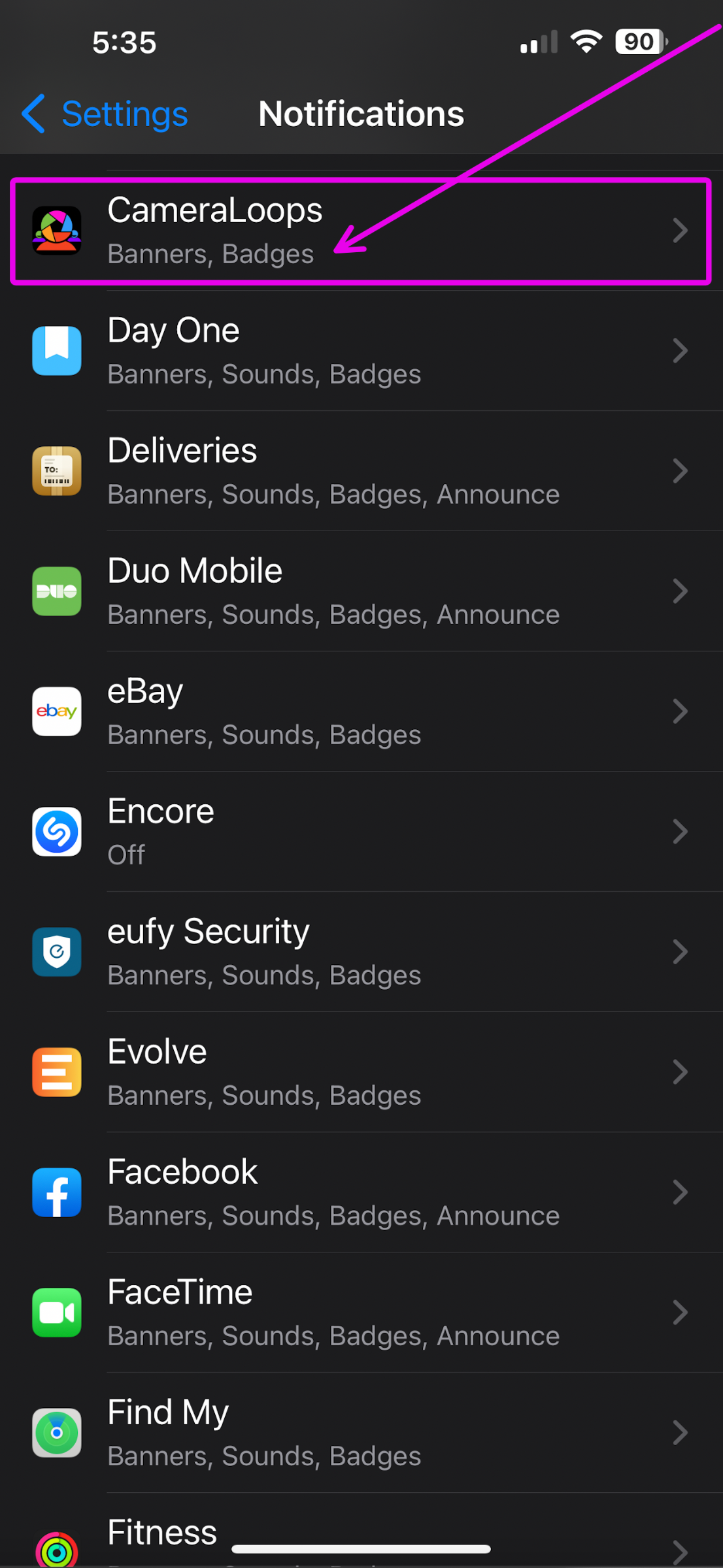
You can customise the CameraLoops app notification settings like a regular app in your device settings.
For Andriod device.
I don't have an Android phone at hand to display the process.
On Android devices, open CameraLoops.com in Chrome
Click the three verticle dots in the upper right corner and scroll down to Install. This will add CameraLoops.com to your app drawer, and you'll need to move it to your home screen if you wish.
On iOS and Android, you must log in using your new app icon before proceeding. Both systems treat this as a new app and will not copy your login from Safari or Chrome.
Tip: The app does not have a browser back button. To navigate back and forth, use your finger to swipe left for back and swipe right for forth.
-
 1
1
-
 1
1
-
 1
1

















































.jpg.434408b0b61b4552ae25cde5c0b5a388.jpg)





.jpeg.503ad3cbf167f180662b9e06a35f1911.jpg.4256ffb79777f00833ddbf666186ef55.jpg)



-min.jpeg.e57f393a5b1034dc5ead0fdf0e5be0a7.jpg.8b0eac9dbd8dd2120749a61afa119519.jpg)



.jpeg.7788c0ed0981e43684ee21be2e0cfd0c.jpg.5fe699189bcf0d18517707ce4222e81a.jpg)

.thumb.jpg.0f819d95317e386a92453772edb75c6b.jpeg.61f2c44081948bc780313ab6fcfdc53b.jpeg)







.jpeg.c58f6a017dba02d1386e26ad62d32fe5.jpeg)

.jpg.9dd8d45a3fad0a651bb2bc39ddead936.jpg.7a19f233d3331becb9d93ee7cfc63379.jpg)


.jpg.3dfde5099751bef5f6e2d27f3d463275.jpg.edf3062b4fb37e14c71ab2caa86c1053.jpg)















Recommended Comments
Join the conversation
You can post now and register later. If you have an account, sign in now to post with your account.