




Skip to content
View in the app

A better way to browse. Learn more.

www.CameraLoops.ru

A full-screen app on your home screen with push notifications, badges and more.

To install this app on iOS and iPadOS
  1. Tap the Share icon in Safari
  2. Scroll the menu and tap Add to Home Screen.
  3. Tap Add in the top-right corner.
To install this app on Android
  1. Tap the 3-dot menu (⋮) in the top-right corner of the browser.
  2. Tap Add to Home screen or Install app.
  3. Confirm by tapping Install.

How to correct checksum after editing GM's calibration files

Update 2/October/2025

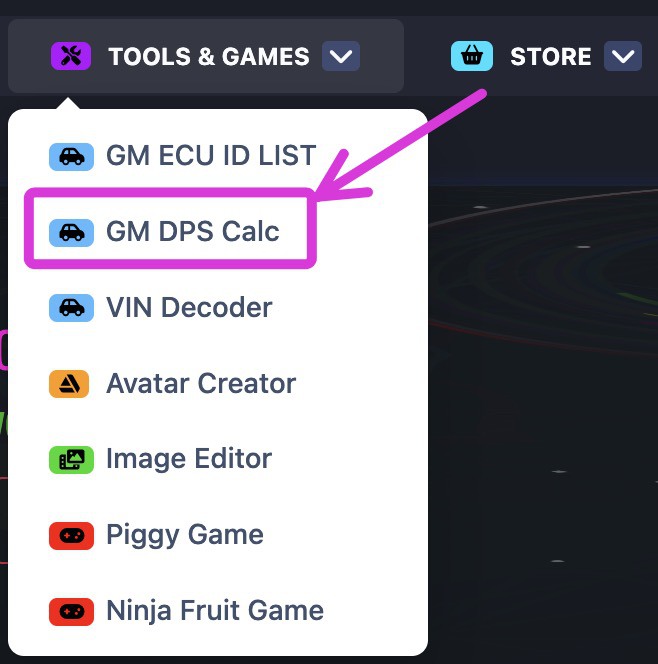
You no longer need to manually correct the checksum of the GM calibration files. You can automatically correct the checksum of modified GM calibration files online using this checksum tool, which was created by a CameraLoops member.

The online checksum tool can be accessed from the website's top menu, under the "Tools & Games" button, or via the following web link. GM Online Checksum Calculator

Massive thanks to ECU-Online.com
Screenshot 2025-10-02 at 7.33.39 am.jpg

In this tutorial, I will explain in steps how to correct the checksum after editing a GM module calibration file.

This process illustrates correcting the checksum for the first four bytes.


It's beneficial to read up on these other tutorials to familiarise yourself with GM's calibration files concept if you're new. 


Tools you will need.

 Hex Editor Neo


Step 1.

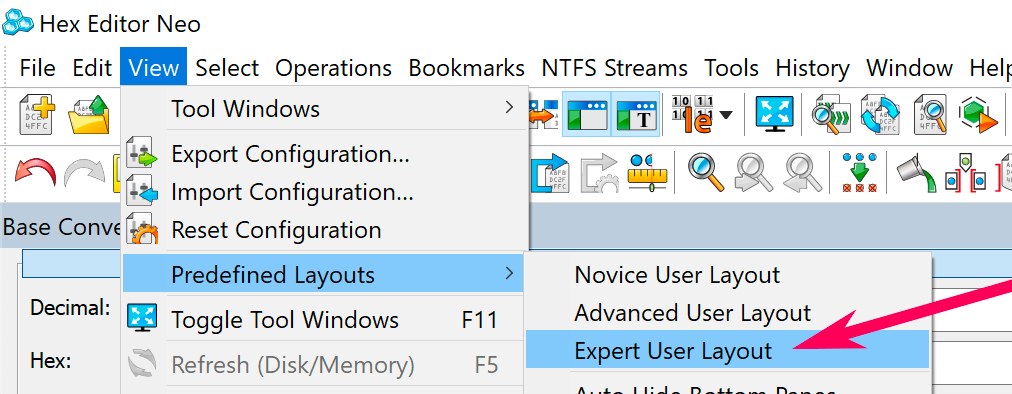
Open the calibration file in Neo and edit your file.

Set Predefined Layouts as Expert User Layout.
Screenshot 2021-08-01 at 11.43.56 am copy.png


Step 2.

Select all the codes in the calibration file except the first four bytes/code.

How to correct checksum after editing GM's calibration files


Step 3.

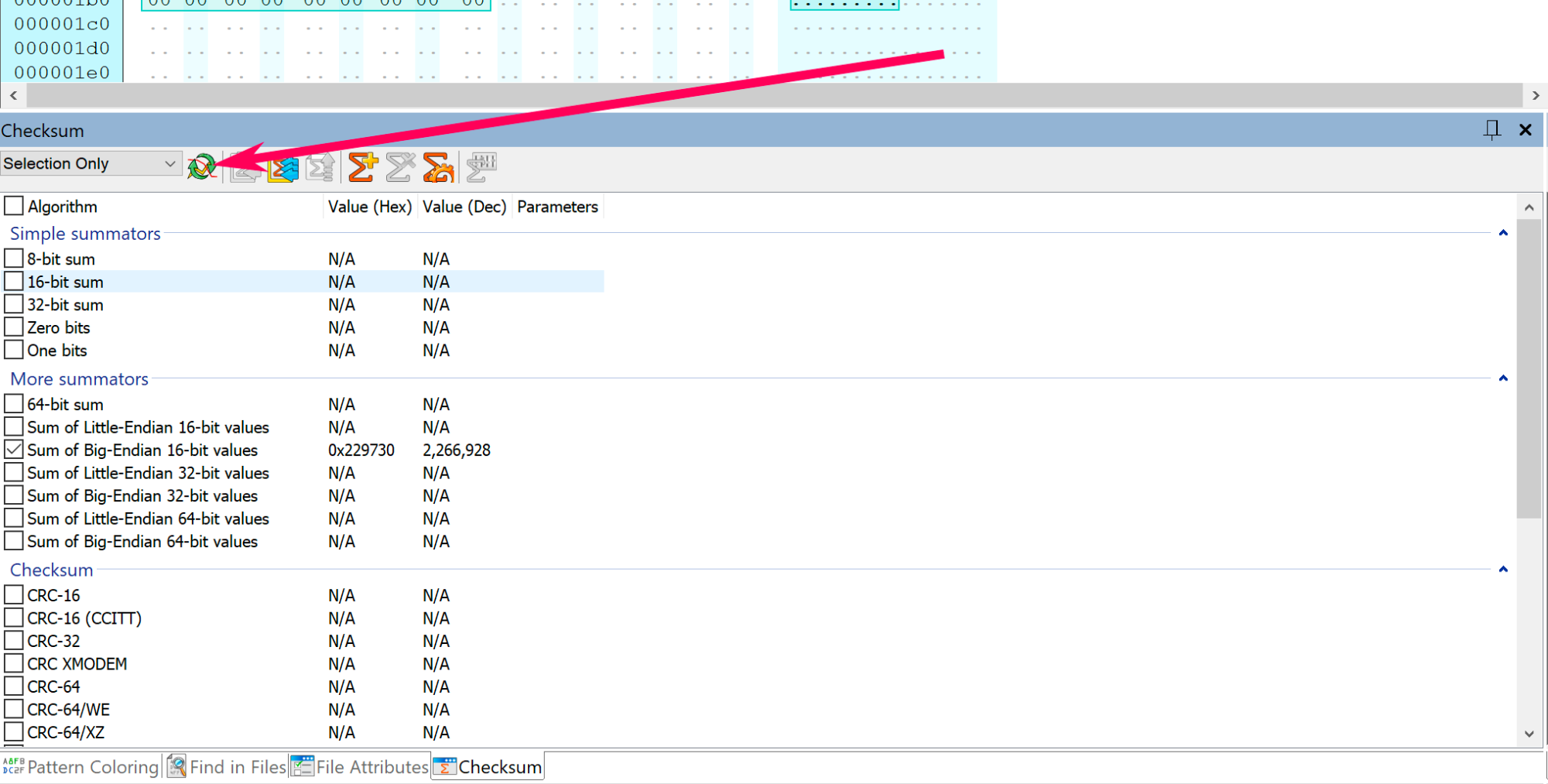
At the bottom of Neo click Checksum.
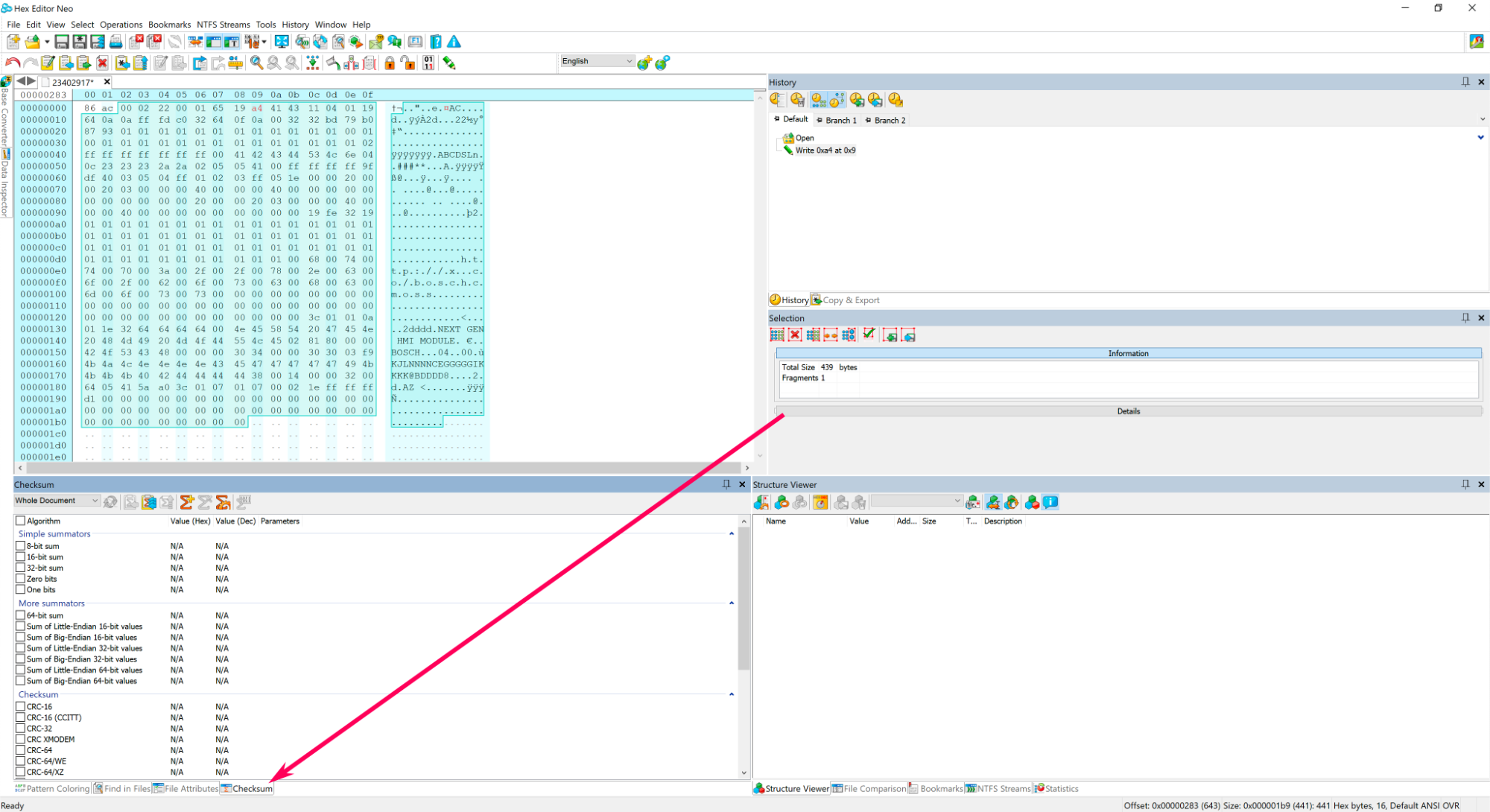
Screenshot 2021-08-01 at 3.33.41 pm copy.png


Step 4.

In Neo's checksum window, change the option: Whole document to Selection only.

Screenshot 2021-08-01 at 3.40.24 pm copy.png


Step 5.

Select Sum of Big-Endian 16-bit value 

Screenshot 2021-08-01 at 6.56.16 pm copy.png


Step 6.

Click the  Refresh button.

Screenshot 2021-08-01 at 7.01.14 pm copy.png


Step 7.

Copy the last 4 digits, which is: 9730 
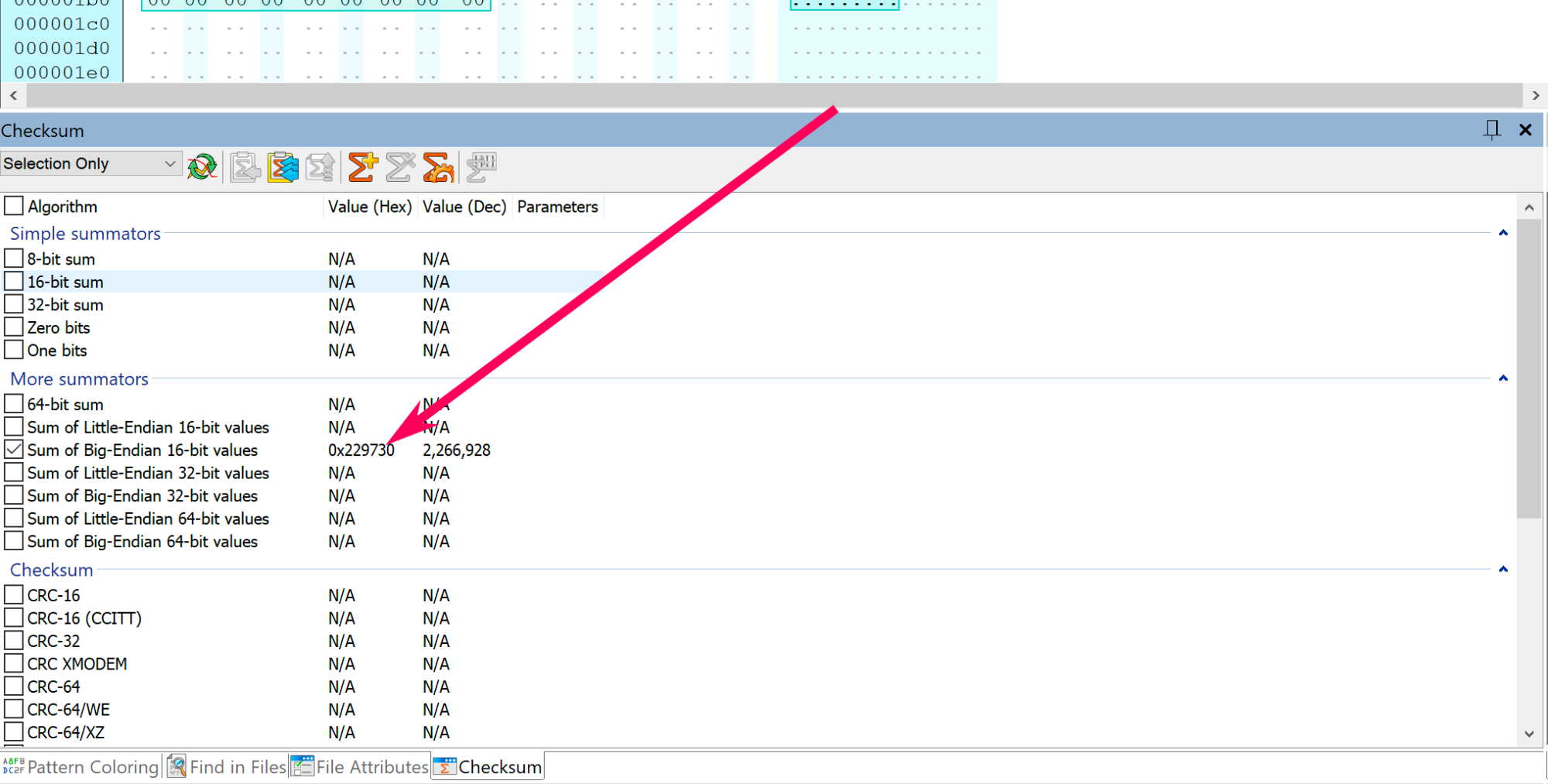
Screenshot 2021-08-01 at 7.01.14 pm copy.png


Step 8.

Convert 9730 into Binary code, then copy paste the binary code in a text editor.
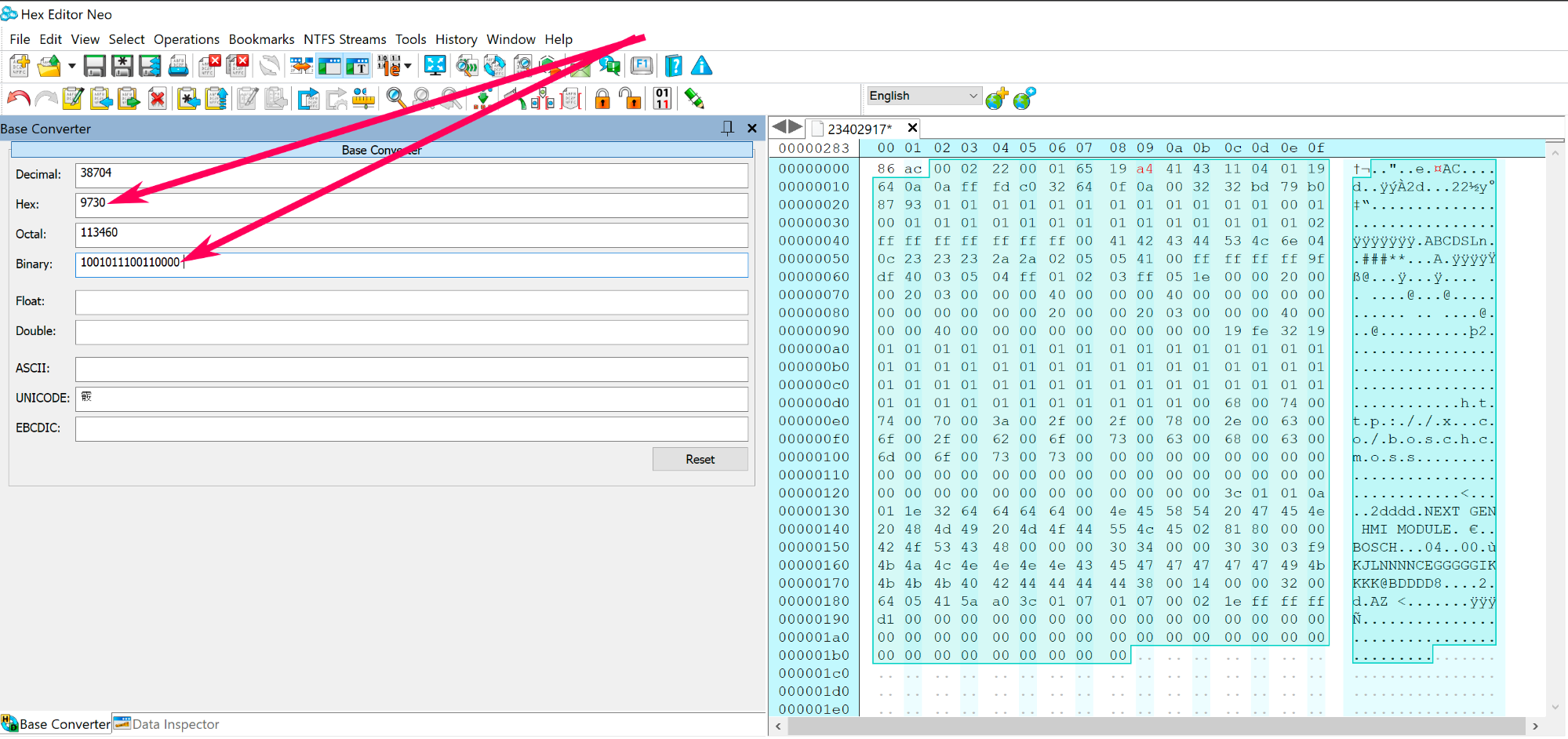
Screenshot 2021-08-01 at 7.14.03 pm copy.png


Step 9.

Now you need to create a reverse copy of the binary code: 1001011100110000, see the example below.
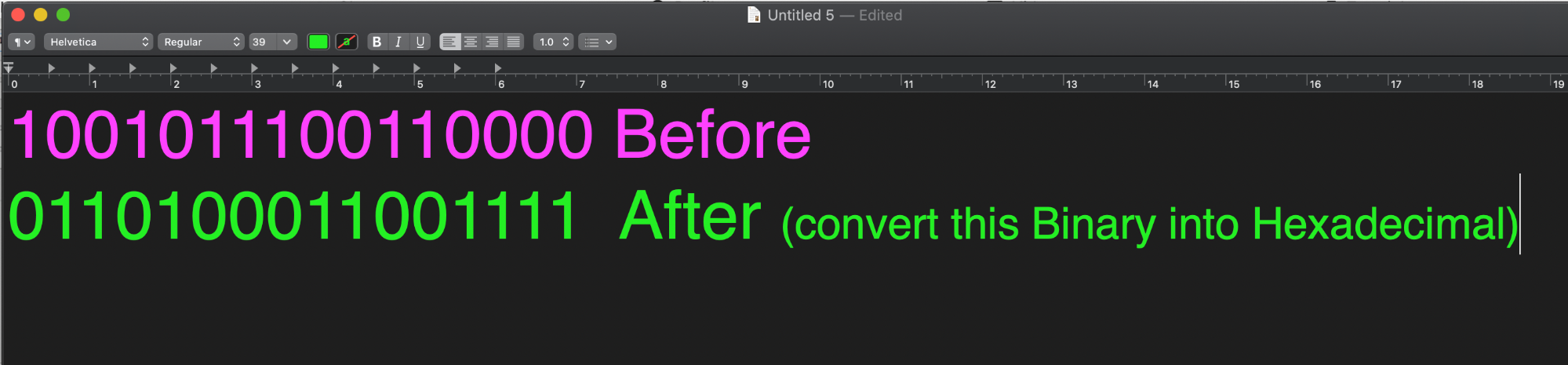
Screenshot 2021-08-01 at 7.23.31 pm.png


Step 10.

Convert the reverse binary code 0110100011001111 into hexadecimal code, which equals to 68cf 
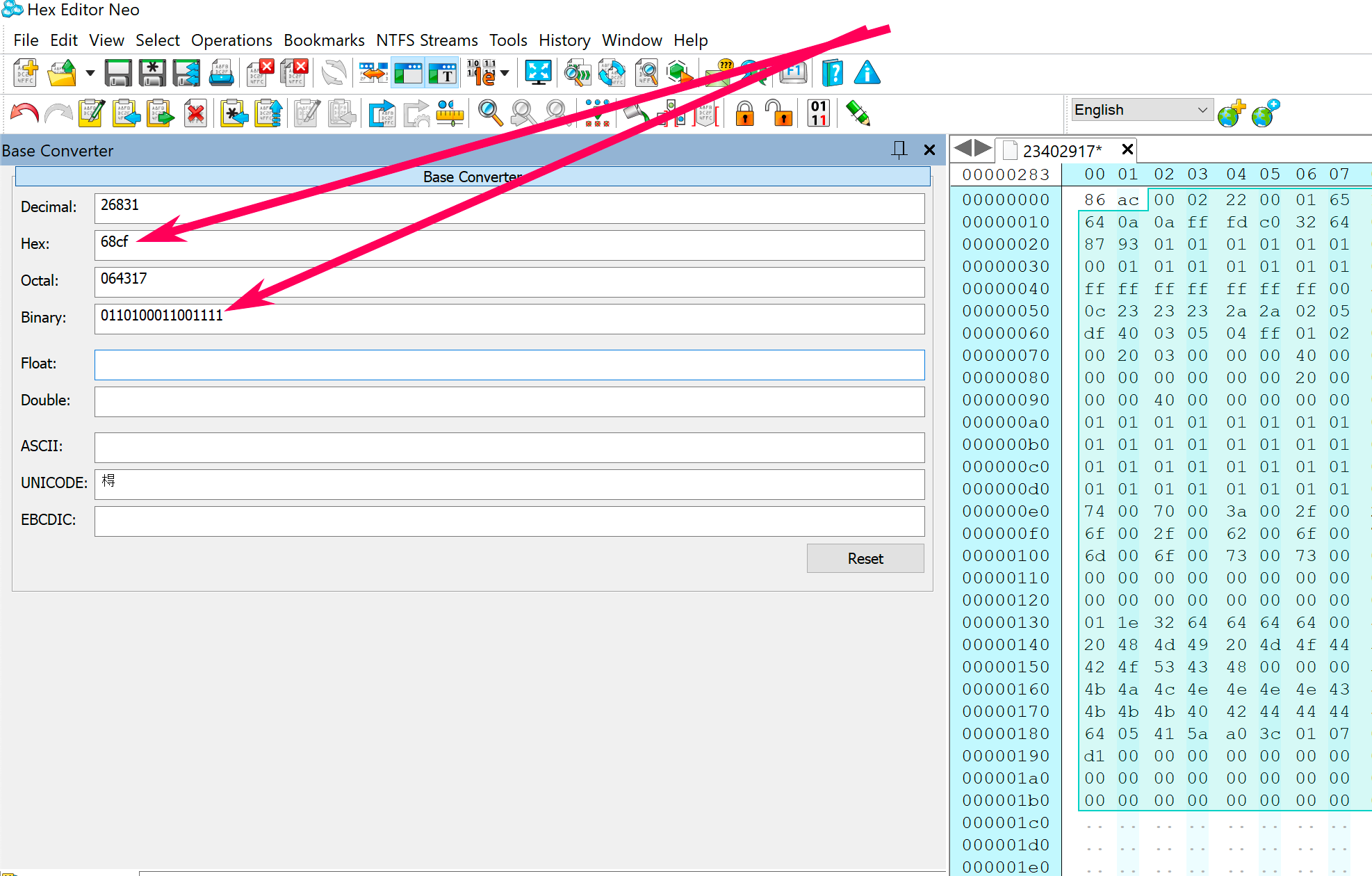
Screenshot 2021-08-02 at 12.03.51 am copy.png


Step 11.

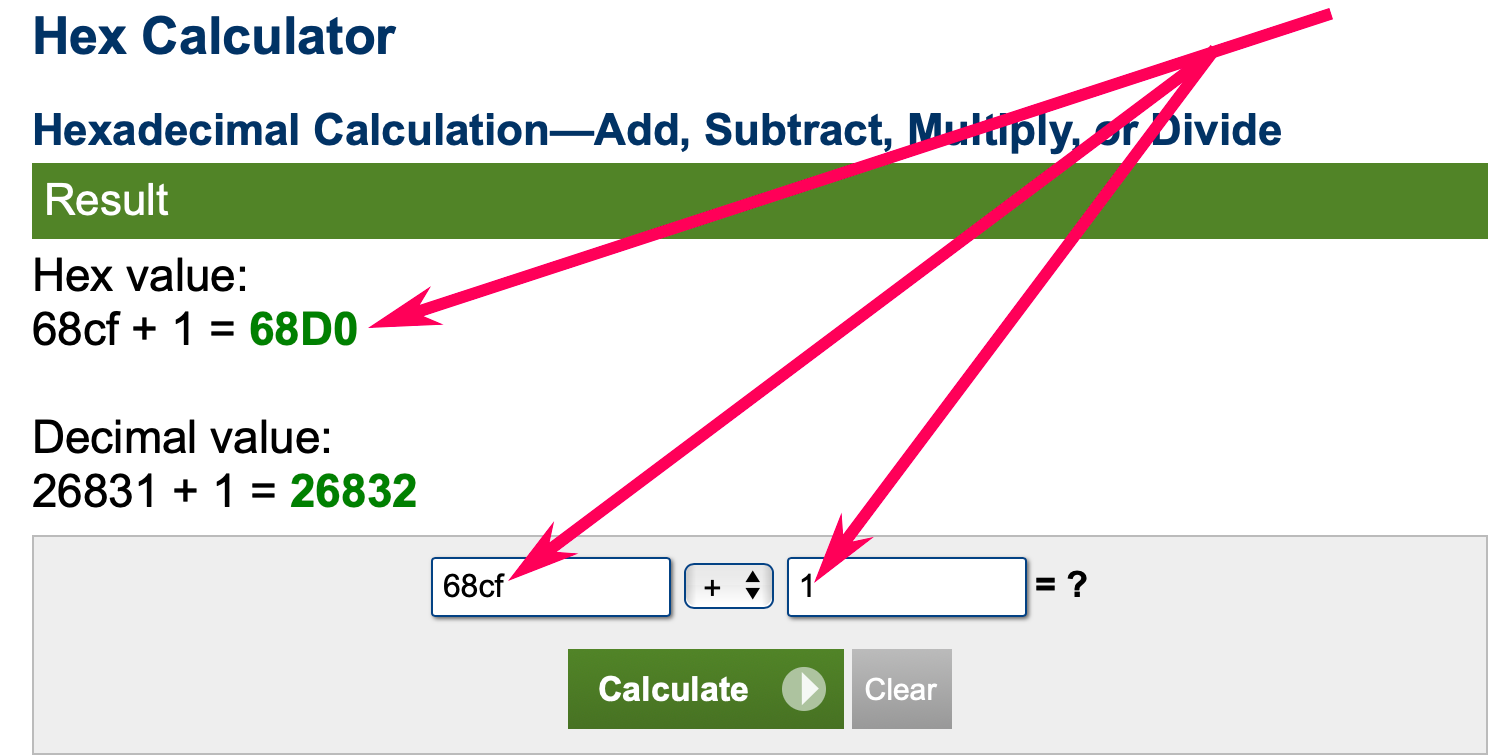
Now you need to add 1 to the hexadecimal code, which looks like this 68cf+1=

Use this online calculator to do the calculation.

68cf+1=68d0
Screenshot 2021-08-02 at 12.25.20 am copy.png


Step 12.

Now you have 68d0

Replace the first four unselected bytes/code in the calibration file with 68d0.
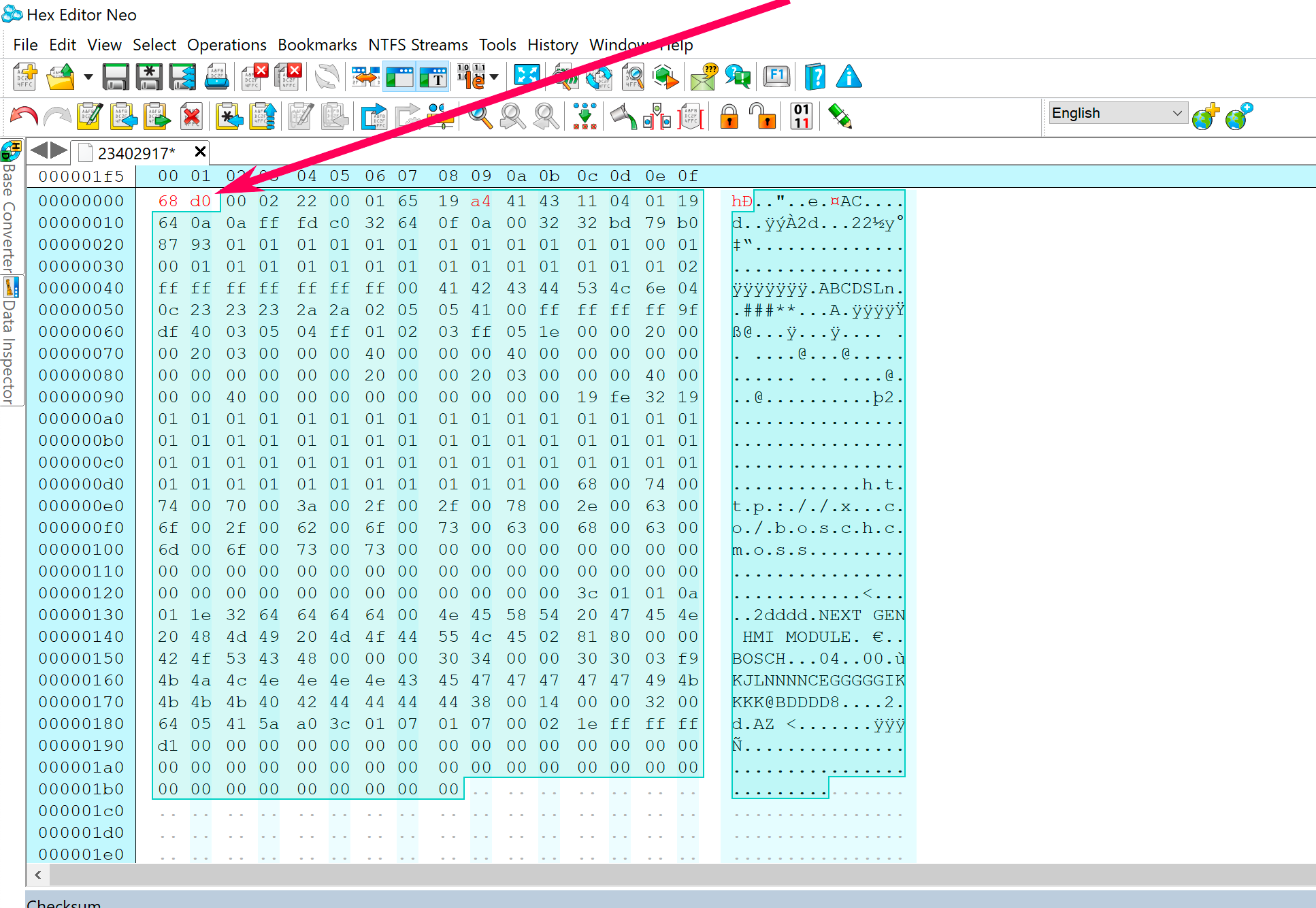
Screenshot 2021-08-02 at 12.34.20 am copy.png


Step 13.

The checksum has been corrected.

Save the calibration file and program your calibration package to the module using GM DPS.


User Feedback

Recommended Comments

Opel_driver Apprentice

+Opel_driver

+Contributor
  • Contributor

Great tutorial Troy.

Thank you.

danial Rising Star

danial

Member

Step 9 

Can you explain how I reversed it? 

Troy Grand Master

Troy

Administrator

GM Car Hacking Expert

2 hours ago, danial said:

Step 9 

Can you explain how I reversed it? 

Check and decipher the attached before and after photo.

Shavkat Rising Star

Shavkat

Member

Hi I can't figure out how to do this in Step 9

Troy Grand Master

Troy

Administrator

GM Car Hacking Expert

1 hour ago, Shavkat said:

Hi I can't figure out how to do this in Step 9


Yep, correcting the checksum can be a bit confusing.


In step 9 reverse the binary code.

Example: 

The binary code that needs to be reversed is: 1001011100110000


To reverse it.

Paste the code in a text editor like this, then type the opposite number underneath the original code 

1001011100110000


Change the 0 into 1 and the 1 into 0, in the same order as the original binary code.

Example the original binary code begins with 1001 the reverse code will begin with 0110

1001011100110000 Original code

011010011001111 reversed code


Spot the difference in the example photo below. 

In the reverse code, all the digits 1 was converted into the digit 0, and all the digits 0, was converted into the digit 1

Screenshot 2021-08-01 at 7.23.31 pm.png


If you still don't get it, let me know.


danial Rising Star

danial

Member

?

Shavkat Rising Star

Shavkat

Member
16 minutes ago, Troy said:


Yep, correcting the checksum can be a bit confusing.


In step 9 reverse the binary code.

Example: 

The binary code that needs to be reversed is: 1001011100110000


To reverse it.

Paste the code in a text editor like this, then type the opposite number underneath the original code 

1001011100110000


Then change the 0 into 1 and the 1 into 0, in the same order as the original binary code.

Example the original binary code begins with 1001 the reverse code will begin with 0110

1001011100110000 Original code

011010011001111 reversed code


Spot the difference in the example photo below. 

In the reverse code, all the digits, 1 was converted into the digit 0, and all the digits 0 was converted into the digit 1

Screenshot 2021-08-01 at 7.23.31 pm.png


If you still don't get it, let me know.


Thanks now I understand

WWEILER Explorer

+WWEILER

+Contributor
  • Contributor

I know this is a little off this topic. But in DPS get controller info. It asks for a ECU Aderess/ID$ ?  I found that 11 is the ECM But I was trying to find others like Bcm, FPCM, ABS

Troy Grand Master

Troy

Administrator

GM Car Hacking Expert

15 hours ago, WWEILER said:

I know this is a little off this topic. But in DPS get controller info. It asks for a ECU Aderess/ID$ ?  I found that 11 is the ECM But I was trying to find others like Bcm, FPCM, ABS

You can use gds2 to find out the ecu ID for any given module. In gds2, select the module and select ‘module identification’, the ecu ID will display on that page. 
 

ECU address ID Diagnostic pin

HMI: 8F, PIN: 6 and 14

IPC: 60, PIN 1

BCM: 40, PIN: 6 and 14

Radio: 80, PIN: 1

ECU: 11, PIN: 6 and 14


From insignia. 

High Speed HS-CAN Bus 

>> Base Mapping Matrix:

>> ECU 0x11 on HS-CAN (ReqCANId: 0x000007E0, RspCANId: 0x000007E8) ECM

>> ECU 0x8F on HS-CAN (ReqCANId: 0x00000252, RspCANId: 0x00000652) HMI

>> ECU 0x18 on HS-CAN (ReqCANId: 0x000007E2, RspCANId: 0x000007EA)

>> ECU 0x2B on HS-CAN (ReqCANId: 0x00000254, RspCANId: 0x00000654)

>> ECU 0x28 on HS-CAN (ReqCANId: 0x00000243, RspCANId: 0x00000643) Electronic Brake Control Module 

>> ECU 0x72 on HS-CAN (ReqCANId: 0x00000249, RspCANId: 0x00000649) K26 Headlamp Control Module

>> ECU 0x31 on HS-CAN (ReqCANId: 0x00000242, RspCANId: 0x00000642) K43 Power Steering Control Module 

>> ECU 0x40 on HS-CAN (ReqCANId: 0x00000241, RspCANId: 0x00000641) BCM


Low Speed LS-CAN Bus 

>> Base Mapping Matrix:

>> ECU 0x60 on LS-CAN (ReqCANId: 0x0000024C, RspCANId: 0x0000064C) IPC

>> ECU 0x66 on LS-CAN (ReqCANId: 0x00000246, RspCANId: 0x00000646)  A22 Radio Controls 

>> ECU 0xAF on LS-CAN (ReqCANId: 0x00000242, RspCANId: 0x00000642)

>> ECU 0x80 on LS-CAN (ReqCANId: 0x00000244, RspCANId: 0x00000644) RADIO

>> ECU 0x58 on LS-CAN (ReqCANId: 0x00000247, RspCANId: 0x00000647)

>> ECU 0x68 on LS-CAN (ReqCANId: 0x00000248, RspCANId: 0x00000648) A26 HVAC CONTROLS 

>> ECU 0xA4 on LS-CAN (ReqCANId: 0x0000024F, RspCANId: 0x0000064F) K39 Liftgate control module

>> ECU 0x99 on LS-CAN (ReqCANId: 0x00000251, RspCANId: 0x00000651) maybe hvac

>> ECU 0x8D on LS-CAN (ReqCANId: 0x00000252, RspCANId: 0x00000652)

>> ECU 0x75 on LS-CAN (ReqCANId: 0x00000253, RspCANId: 0x00000653) K101 Trailer Interface Control Module 

>> ECU 0xBB on LS-CAN (ReqCANId: 0x00000259, RspCANId: 0x00000659) K182 Parking Assist Control Module

>> ECU 0xC2 on LS-CAN (ReqCANId: 0x0000025C, RspCANId: 0x0000065C) K60 Steering Column Lock Control Module

>> ECU 0xA8 on LS-CAN (ReqCANId: 0x0000025D, RspCANId: 0x0000065D) Front seat Heating/venting/cooling/memory/ control module

>> ECU 0x73 on LS-CAN (ReqCANId: 0x0000025F, RspCANId: 0x0000065F) K82 Automatic Headlamp High Beam control Module 

>> ECU 0x40 on LS-CAN (ReqCANId: 0x00000241, RspCANId: 0x00000641)  BCM

B219 Steering Wheel angle sensor address 34

B9 obstacle 


Anders Johansson Rising Star

Anders Johansson

Member

Hello Troy. 

I crosschecked your calculations towards some of my saved cache files. I could be mistaken but all steps except 11 are necessary. When adding the one the checksum becomes wrong. Am I mistaken or is there a risk that the checksum calculation is differing between our versions?

Troy Grand Master

Troy

Administrator

GM Car Hacking Expert

8 minutes ago, Anders Johansson said:

Hello Troy. 

I crosschecked your calculations towards some of my saved cache files. I could be mistaken but all steps except 11 are necessary. When adding the one the checksum becomes wrong. Am I mistaken or is there a risk that the checksum calculation is differing between our versions?

Not sure. I’ll have to cross check it later. 

joecosta Rising Star

joecosta

Member

Hello, THANK YOU for your tuto Troy. ;o)

HMI_Guy Rising Star

HMI_Guy

Member

Here is an easier way to do steps 8 through 11.  The checksum in the GM calibration files is the 2s complement of the 16-bit sum.  You can use a 2s complement calculator like this: 

1s-2s-complement-calculator.png
NCALCULATORS.COM

1's & 2's complement calculator is an online digital computation tool to find the one's & two's...


Set input type to hex.   Using the example from step 7, enter 9730.   Click the big blue Convert button on the right.


2s Complement Binary will be 110100011010000.   Convert that binary back to hex using your favorite tool. 


110100011010000 = 68D0


WWEILER Explorer

+WWEILER

+Contributor
  • Contributor

Thanks Troy I will have to hoopup my GDS2 and check that out?

Troy Grand Master

Troy

Administrator

GM Car Hacking Expert

On 8/18/2021 at 1:33 AM, HMI_Guy said:

Here is an easier way to do steps 8 through 11.  The checksum in the GM calibration files is the 2s complement of the 16-bit sum.  You can use a 2s complement calculator like this: 

1s-2s-complement-calculator.png
NCALCULATORS.COM

1's & 2's complement calculator is an online digital computation tool to find the one's & two's...


Set input type to hex.   Using the example from step 7, enter 9730.   Click the big blue Convert button on the right.


2s Complement Binary will be 110100011010000.   Convert that binary back to hex using your favorite tool. 


110100011010000 = 68D0


Great info, thanks 

PLSA Top Member

+PLSA

+Contributor
  • Contributor

First, many many thanks, but this did not work on any of the files i tried on
2008 IPC system file

2019 BCM Automatic lighting file

also 2013 BCM System calibration file

when i check the original value of the file to test the calculation, some files it is close to your calculation, some are not near the calculated value


btw non of the above files have been solved yet

d533902 Rising Star

d533902

Member

Hi Troy, you have some unnecessary steps there. Why are you switching from Hex to Binary?

On 8/6/2021 at 2:57 PM, Troy said:

Change the 0 into 1 and the 1 into 0, in the same order as the original binary code.

Example the original binary code begins with 1001 the reverse code will begin with 0110

1001011100110000 Original code

011010011001111 reversed code


68cf  XOR FFFF = 9730 


XOR function is probably built into your calc and its also built into windows calculator when in programmer mode


Not the best contribution but sharing what I have


Alexpham Apprentice

+Alexpham

+Purchaser

Does anyone know Correct Checksum for calibration files of ECM, EPS, TCM... boxes that can guide everyone?

Arbe_gtc Rookie

+Arbe_gtc

+Contributor

GM Car Hacking Expert

  • Contributor

I have a question. when is necessary do this correction?
before create a SPAT file to load it whit DPS? for example, to load a calibration file into a BCM from another VIN download?

I means, only correct the Checksum in the files would i change. correct? if the BCM has 20 files, and i want to change 2. correct the cheksum in this 2 files. In the other 18, no change the checksum.

Hero Tran Enthusiast

+Hero Tran

+Contributor
  • Contributor

I think. After Calculate Checksum. We need calculate CVN of that calibration file(edited) and then need to edit calibration Utility or BCM OS, but I don't know how do.

Anders Johansson Rising Star

Anders Johansson

Member

Perhaps it's worth to mention that this checksum calculation method doesn't work for all type of calibration files such as the EBCM or TCM.


Eric Ellison Rising Star

Eric Ellison

Member
On 8/12/2021 at 11:51 AM, Troy said:

You can use gds2 to find out the ecu ID for any given module. In gds2, select the module and select ‘module identification’, the ecu ID will display on that page. 
 

ECU address ID Diagnostic pin

HMI: 8F, PIN: 6 and 14

IPC: 60, PIN 1

BCM: 40, PIN: 6 and 14

Radio: 80, PIN: 1

ECU: 11, PIN: 6 and 14


From insignia. 

High Speed HS-CAN Bus 

>> Base Mapping Matrix:

>> ECU 0x11 on HS-CAN (ReqCANId: 0x000007E0, RspCANId: 0x000007E8) ECM

>> ECU 0x8F on HS-CAN (ReqCANId: 0x00000252, RspCANId: 0x00000652) HMI

>> ECU 0x18 on HS-CAN (ReqCANId: 0x000007E2, RspCANId: 0x000007EA)

>> ECU 0x2B on HS-CAN (ReqCANId: 0x00000254, RspCANId: 0x00000654)

>> ECU 0x28 on HS-CAN (ReqCANId: 0x00000243, RspCANId: 0x00000643) Electronic Brake Control Module 

>> ECU 0x72 on HS-CAN (ReqCANId: 0x00000249, RspCANId: 0x00000649) K26 Headlamp Control Module

>> ECU 0x31 on HS-CAN (ReqCANId: 0x00000242, RspCANId: 0x00000642) K43 Power Steering Control Module 

>> ECU 0x40 on HS-CAN (ReqCANId: 0x00000241, RspCANId: 0x00000641) BCM


Low Speed LS-CAN Bus 

>> Base Mapping Matrix:

>> ECU 0x60 on LS-CAN (ReqCANId: 0x0000024C, RspCANId: 0x0000064C) IPC

>> ECU 0x66 on LS-CAN (ReqCANId: 0x00000246, RspCANId: 0x00000646)  A22 Radio Controls 

>> ECU 0xAF on LS-CAN (ReqCANId: 0x00000242, RspCANId: 0x00000642)

>> ECU 0x80 on LS-CAN (ReqCANId: 0x00000244, RspCANId: 0x00000644) RADIO

>> ECU 0x58 on LS-CAN (ReqCANId: 0x00000247, RspCANId: 0x00000647)

>> ECU 0x68 on LS-CAN (ReqCANId: 0x00000248, RspCANId: 0x00000648) A26 HVAC CONTROLS 

>> ECU 0xA4 on LS-CAN (ReqCANId: 0x0000024F, RspCANId: 0x0000064F) K39 Liftgate control module

>> ECU 0x99 on LS-CAN (ReqCANId: 0x00000251, RspCANId: 0x00000651) maybe hvac

>> ECU 0x8D on LS-CAN (ReqCANId: 0x00000252, RspCANId: 0x00000652)

>> ECU 0x75 on LS-CAN (ReqCANId: 0x00000253, RspCANId: 0x00000653) K101 Trailer Interface Control Module 

>> ECU 0xBB on LS-CAN (ReqCANId: 0x00000259, RspCANId: 0x00000659) K182 Parking Assist Control Module

>> ECU 0xC2 on LS-CAN (ReqCANId: 0x0000025C, RspCANId: 0x0000065C) K60 Steering Column Lock Control Module

>> ECU 0xA8 on LS-CAN (ReqCANId: 0x0000025D, RspCANId: 0x0000065D) Front seat Heating/venting/cooling/memory/ control module

>> ECU 0x73 on LS-CAN (ReqCANId: 0x0000025F, RspCANId: 0x0000065F) K82 Automatic Headlamp High Beam control Module 

>> ECU 0x40 on LS-CAN (ReqCANId: 0x00000241, RspCANId: 0x00000641)  BCM

B219 Steering Wheel angle sensor address 34

B9 obstacle 


The module ID is also contained in the utility file that is in SPS Cache folder

Eric Ellison Rising Star

Eric Ellison

Member
On 1/10/2022 at 7:28 AM, Hero Tran said:

I think. After Calculate Checksum. We need calculate CVN of that calibration file(edited) and then need to edit calibration Utility or BCM OS, but I don't know how do.

You only need to calculate the CVN for the ECM and maybe the TCM

Eric Ellison Rising Star

Eric Ellison

Member

Nice info Mr Troy, but if I may offer some advice the windows Calculator has a Programmer mode that easily takes the last four of Big-Endian HEX checksum(highlight all bytes except the first two of .bin file) and if you go to Bitwise menu, you use NOT function and add 1 and there’s your new checksum

image.jpg

Troy Grand Master

Troy

Administrator

GM Car Hacking Expert

25 minutes ago, Eric Ellison said:

Nice info Mr Troy, but if I may offer some advice the windows Calculator has a Programmer mode that easily takes the last four of Big-Endian HEX checksum(highlight all bytes except the first two of .bin file) and if you go to Bitwise menu, you use NOT function and add 1 and there’s your new checksum

image.jpg


Cool stuff. Thanks 

Join the conversation

You can post now and register later. If you have an account, sign in now to post with your account.

Guest
Add a comment...

All Articles

Popular Members

  1. hassan77h
    +hassan77h
    27
  2. Troy
    Troy
    22
  3. uglyoldbastard
    +uglyoldbastard
    13
  4. regloops
    +regloops
    8
  5. GM-Enthusiast
    +GM-Enthusiast
    7

New Members

  1. David Fontenot
    David Fontenot
      Member
    Joined
  2. SSAUTOZ
    SSAUTOZ
      Member
    Joined
  3. valdemarford
    valdemarford
      Member
    Joined
  4. Course faycal khalil
    Troll-Course faycal khalil
      Troll-Troll
    Joined
  5. Troll stevie nick
    Troll-Troll stevie nick
      Troll-Troll
    Joined
  6. Troll Parkerchevy
    Troll-Troll Parkerchevy
      Troll-Troll
    Joined
  7. Hayk Vardanyan
    Hayk Vardanyan
      Member
    Joined
  8. tunedbycasco
    tunedbycasco
      Member
    Joined
  9. freehugs
    freehugs
      Member
    Joined
  10. ceberon
    ceberon
      Member
    Joined

CameraLoops™
Powered by Art
All Trademarks appearing on this website are the property of their respective owners.

Account

Navigation

Configure browser push notifications

Chrome (Android)
  1. Tap the lock icon next to the address bar.
  2. Tap Permissions → Notifications.
  3. Adjust your preference.
Chrome (Desktop)
  1. Click the padlock icon in the address bar.
  2. Select Site settings.
  3. Find Notifications and adjust your preference.