












.thumb.png.6cba57c5e88519e419516e3ed1152e01.png)
By Troy
Upload Photos To Instagram FREE! From Your Mac Or Windows PC Using Web Browser
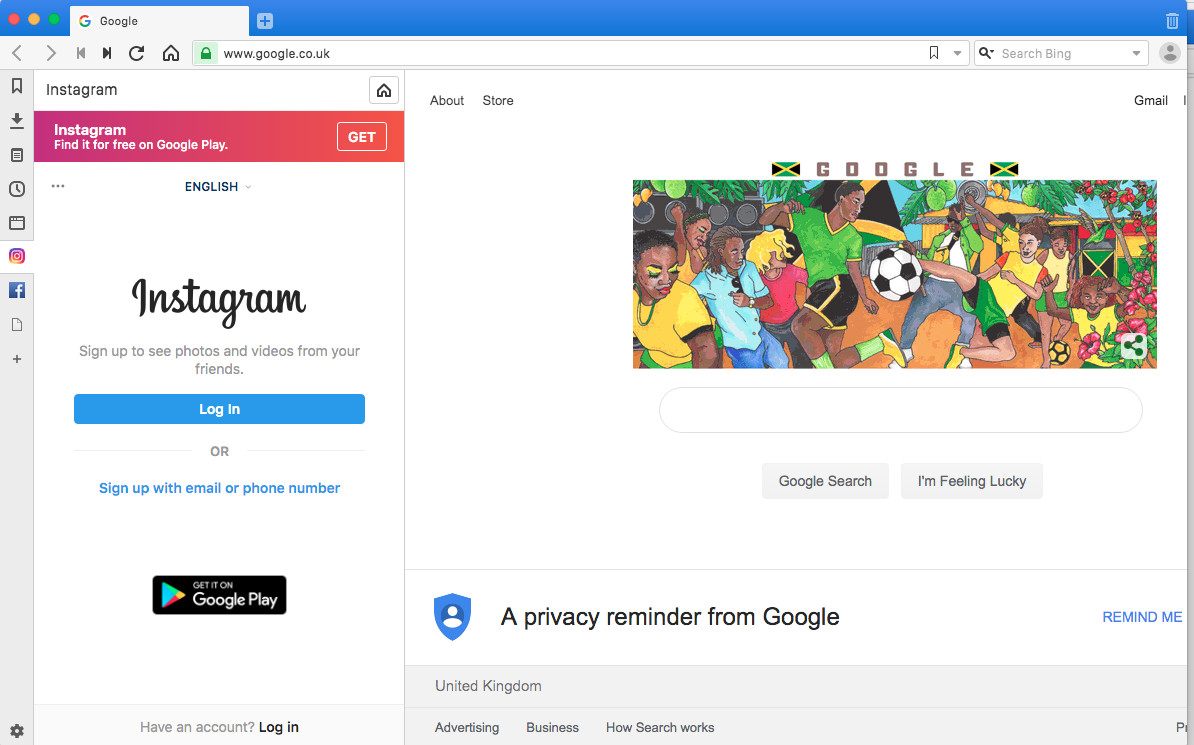
Do you want to upload photos from your Mac or Windows PC for free with no hassle?
The simplest method is to use the Vivaldi web browser.
Download Vivaldi
The super-customizable web browser Vivaldi offers the quickest and easiest way to upload photos to Instagram from your PC or Mac. It runs the mobile version of Instagram's website in a web panel.
Download and install Vivaldi, then either run through the wizard to import bookmarks and set your preferences or click 'Skip all' to continue with the browser's default settings.
Create a web panel
Navigate to www.instagram.com, then click the plus icon (Add Web Panel) on the left-hand side of the browser interface. The URL will be filled in automatically, so all you have to do is click the plus again.
The mobile version of Instagram will now appear in a sidebar on the left-hand side of the browser and will stay there as you browse other sites. Log into your account, then resize the sidebar until the mobile site fits in comfortably.
Upload to Instagram
Click the plus icon at the bottom of the website to choose a photo from your PC or Mac, add a caption and tags, and upload it to your Insta account.





















































.jpg.434408b0b61b4552ae25cde5c0b5a388.jpg)






.jpeg.503ad3cbf167f180662b9e06a35f1911.jpg.4256ffb79777f00833ddbf666186ef55.jpg)




-min.jpeg.e57f393a5b1034dc5ead0fdf0e5be0a7.jpg.8b0eac9dbd8dd2120749a61afa119519.jpg)




.jpeg.7788c0ed0981e43684ee21be2e0cfd0c.jpg.5fe699189bcf0d18517707ce4222e81a.jpg)

.thumb.jpg.0f819d95317e386a92453772edb75c6b.jpeg.61f2c44081948bc780313ab6fcfdc53b.jpeg)









.jpeg.c58f6a017dba02d1386e26ad62d32fe5.jpeg)
.jpg.9dd8d45a3fad0a651bb2bc39ddead936.jpg.7a19f233d3331becb9d93ee7cfc63379.jpg)



.jpg.3dfde5099751bef5f6e2d27f3d463275.jpg.edf3062b4fb37e14c71ab2caa86c1053.jpg)


















Recommended Comments
Join the conversation
You can post now and register later. If you have an account, sign in now to post with your account.