

Skip to content
Install the CameraLoops App

Browse CameraLoops via the app. Learn more.

www.CameraLoops.ru

Use the CameraLoops full-screen app on your home screen with push notifications, badges and more.

To install the CameraLoops app on iOS and iPadOS
  1. Tap the Share icon in Safari
  2. Scroll the menu and tap Add to Home Screen.
  3. Tap Add in the top-right corner.
To install the CameraLoops app on Android
  1. Tap the 3-dot menu (⋮) in the top-right corner of the browser.
  2. Tap Add to Home screen or Install app.
  3. Confirm by tapping Install.
NEVER STOP LEARNING

Welcome To CameraLoops

Take a moment to join and become a member

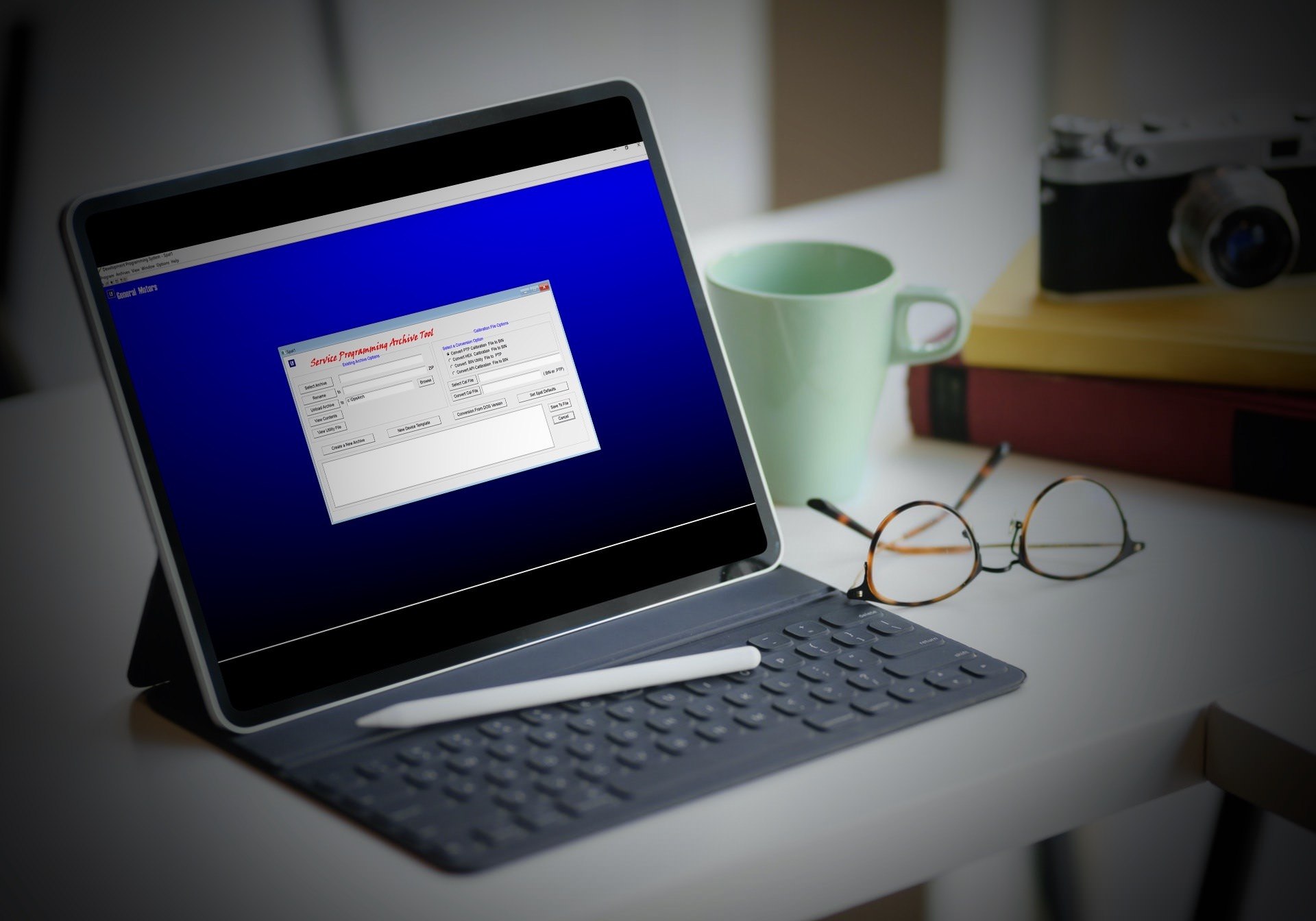
GM VCAP Interpreter Tool

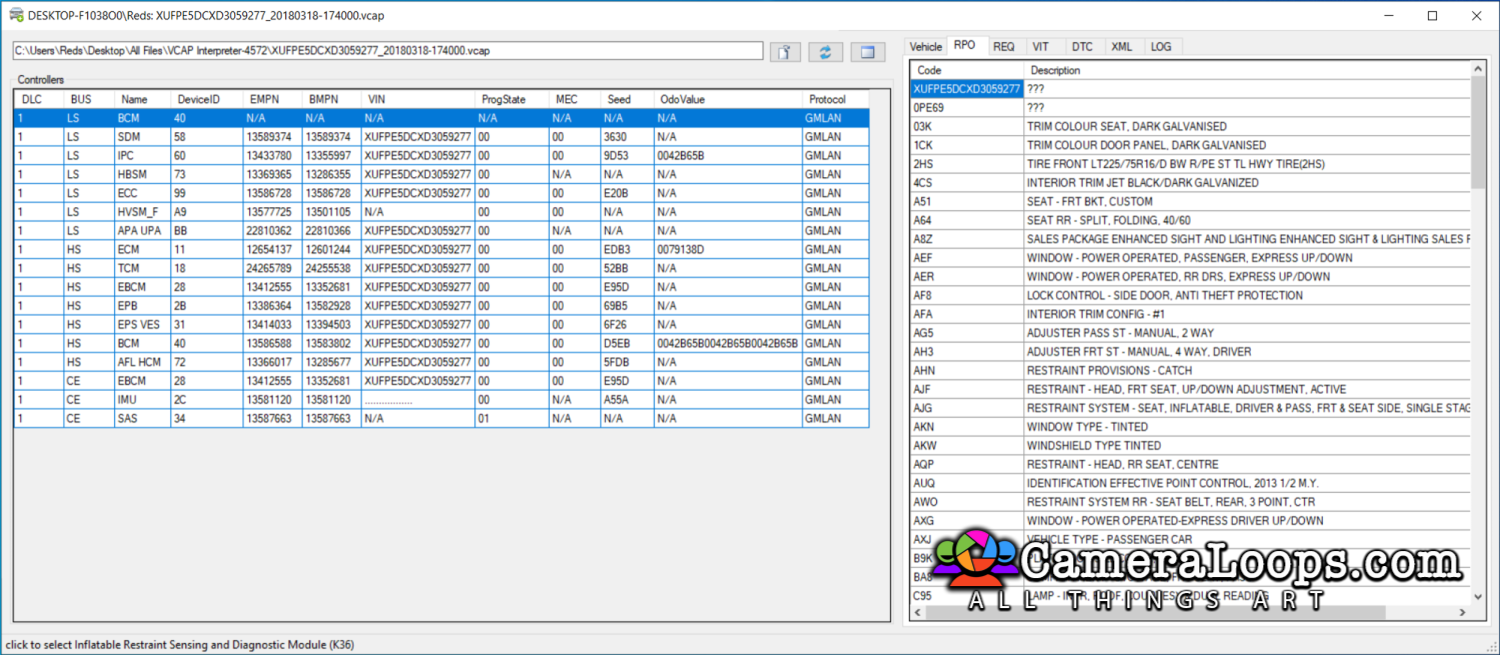
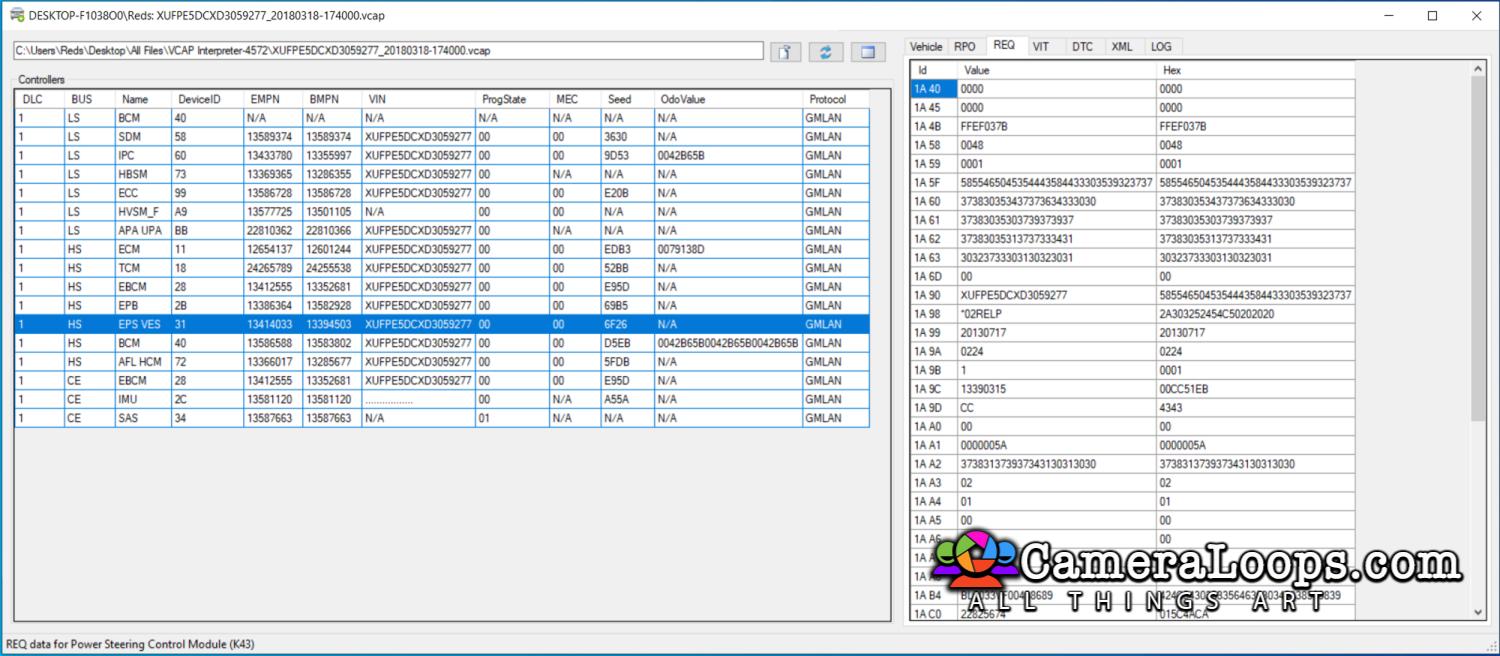
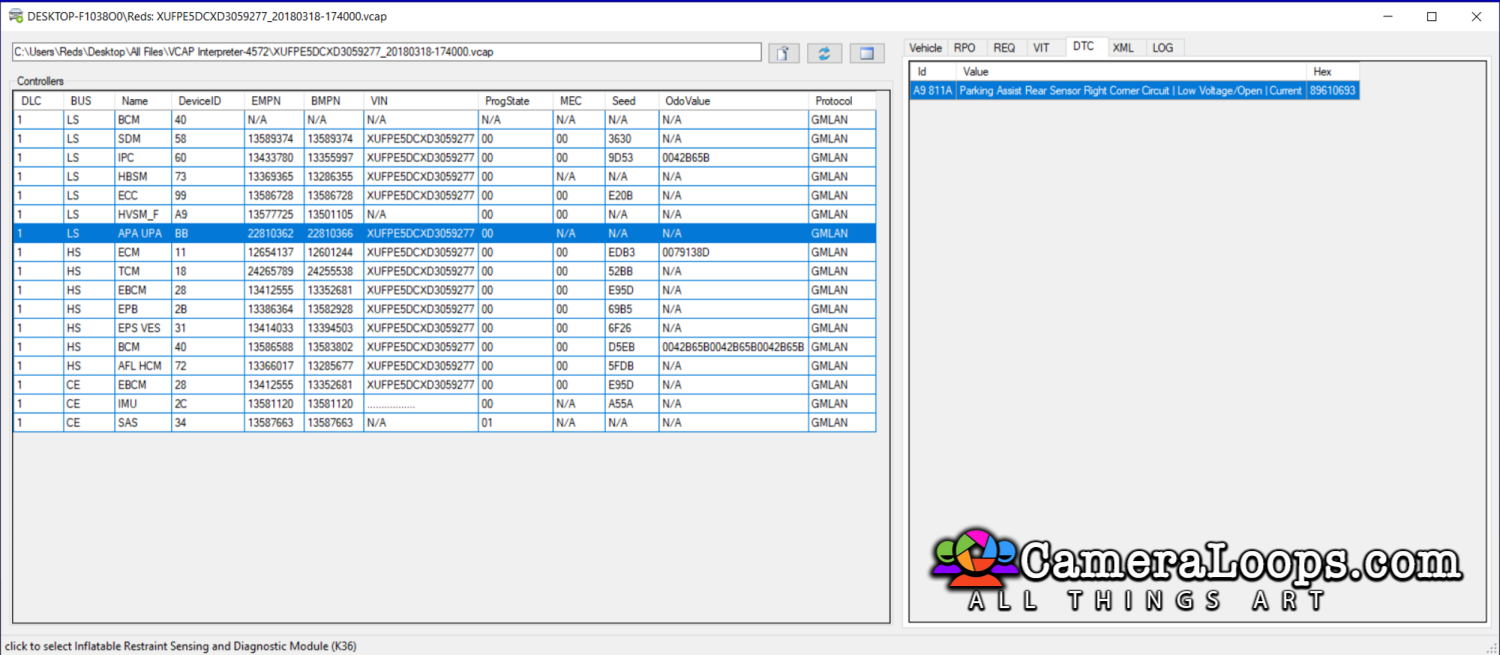
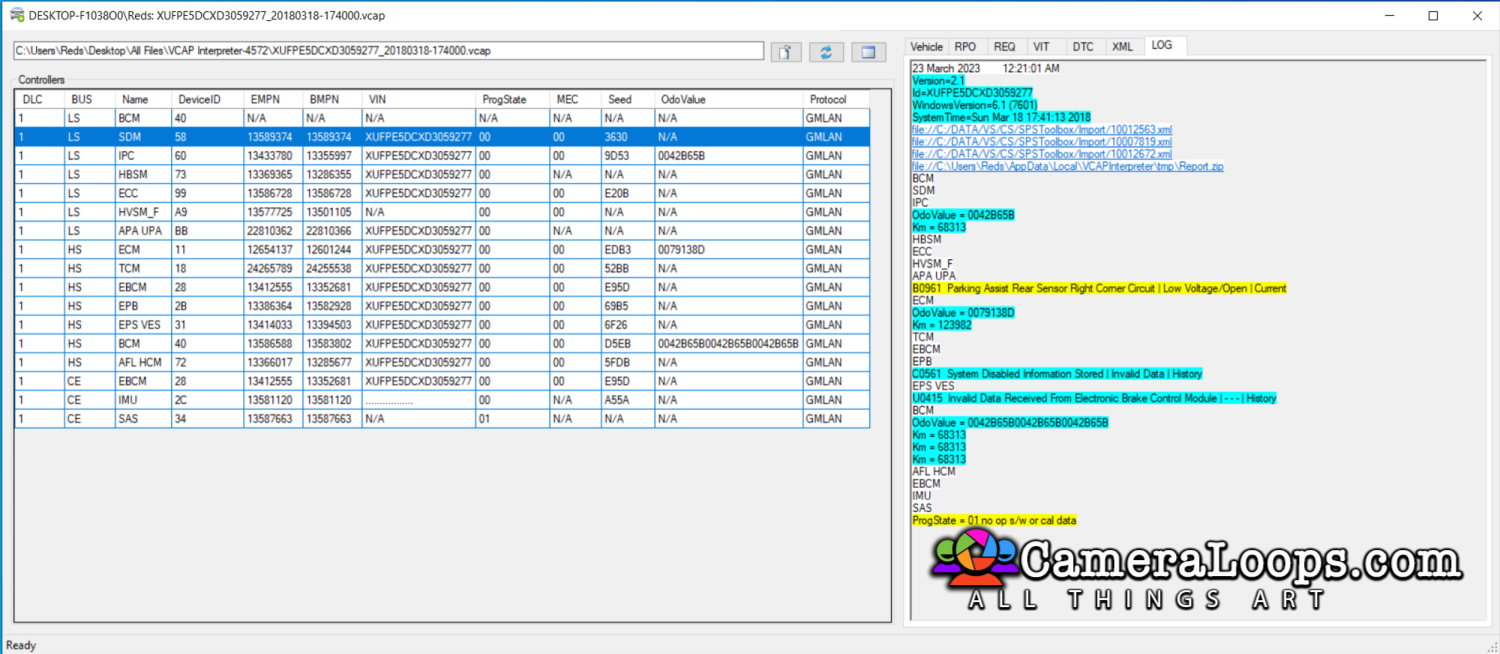
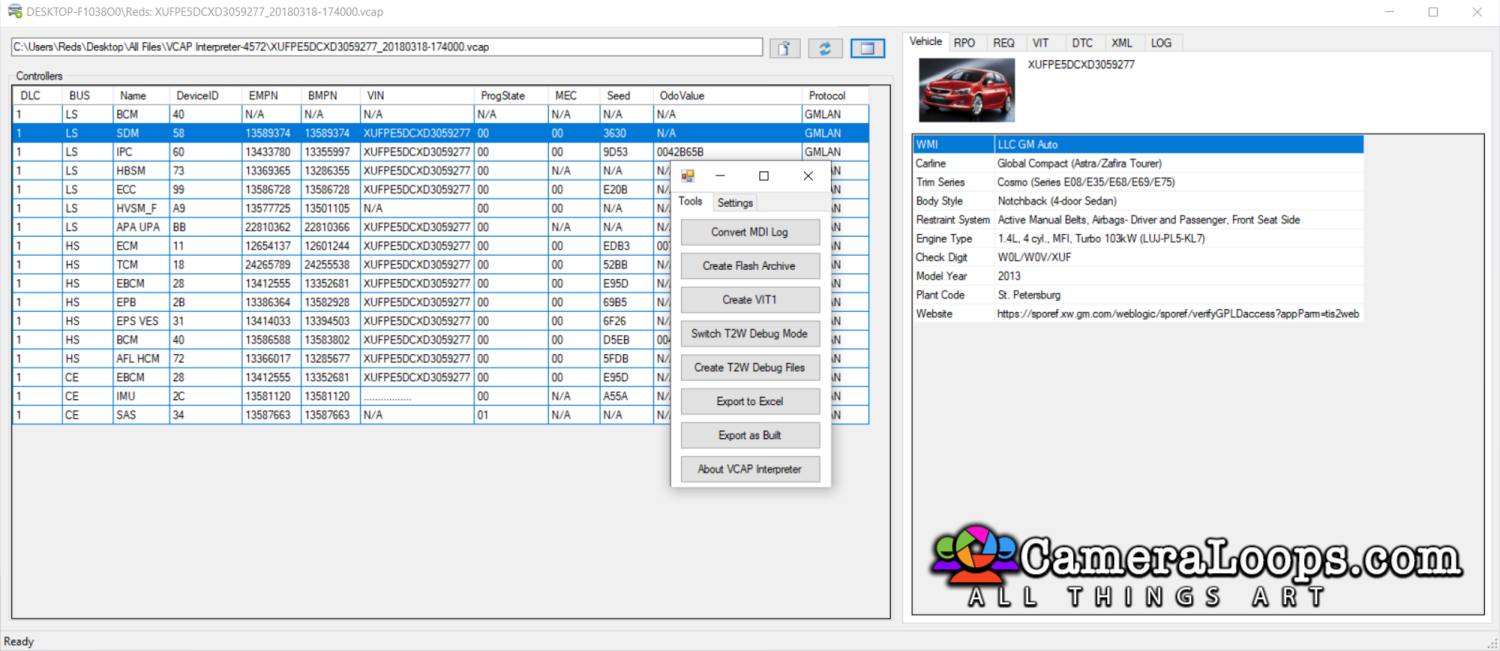
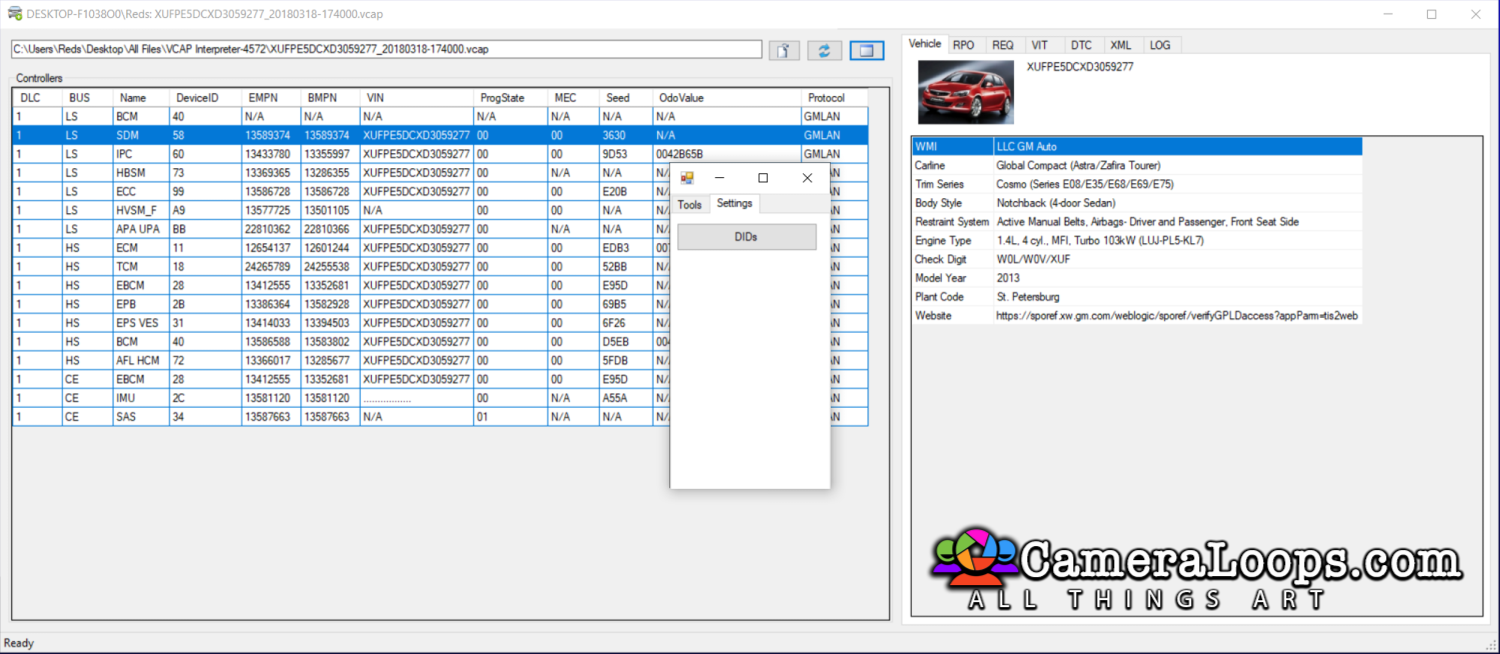
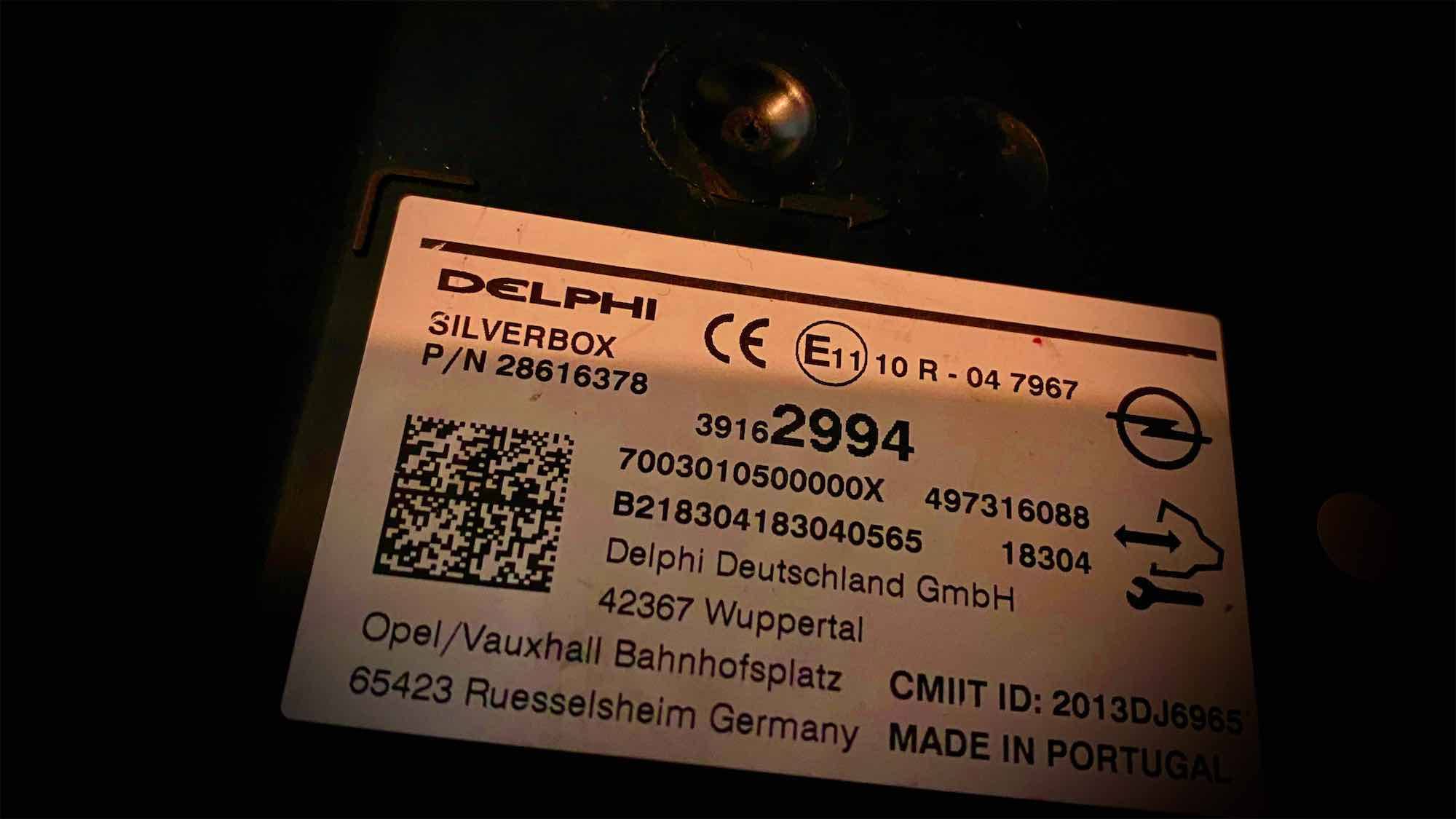
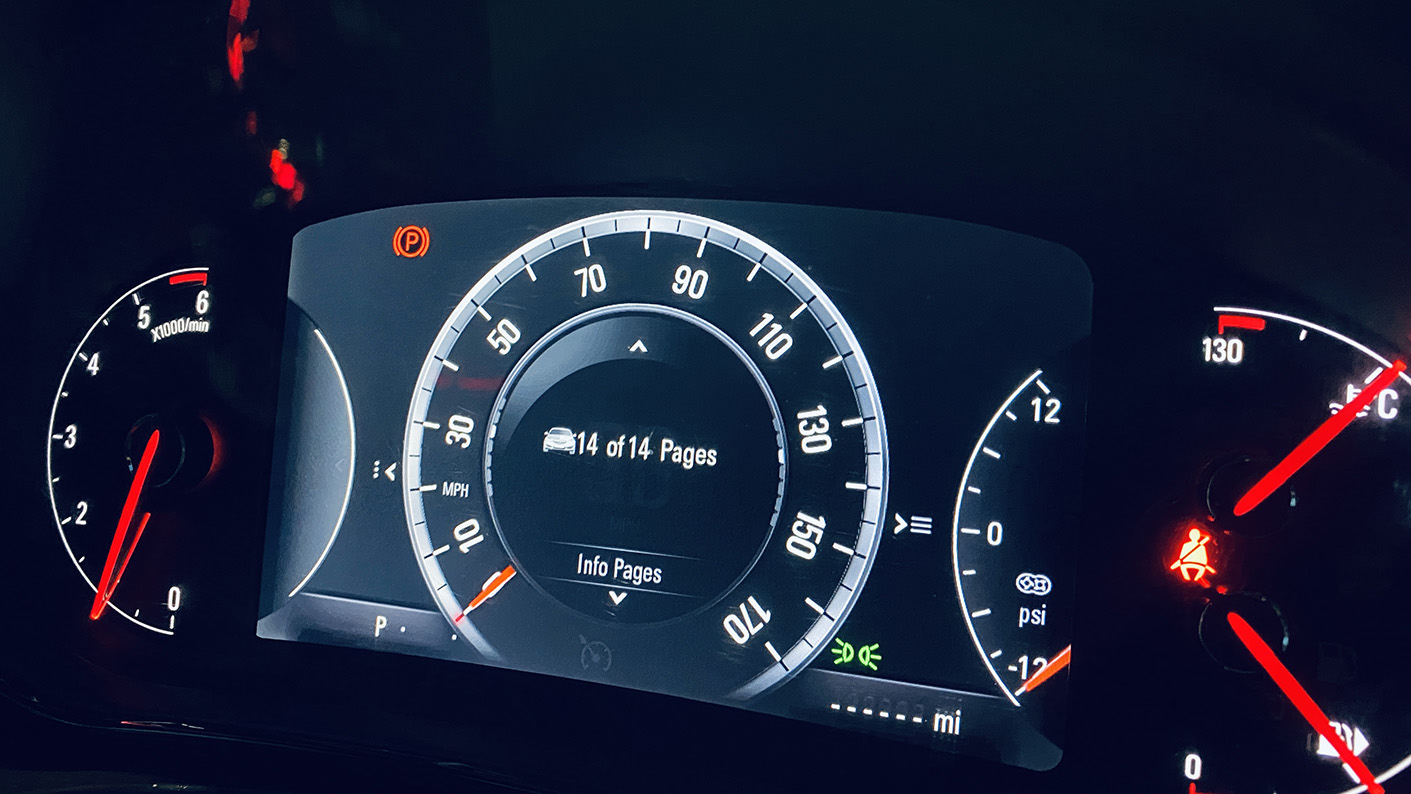
VCAP, vehicle wide capture of module identification data. The VCAP interpreter tool can view information for all the modules installed in a GM vehicle. For example, check the module's canbus data line, ECU name, ECU ID, part numbers, VIN, Mec state, security seed, and the mileage stored in the IPC, ECM and BCM. The vehicle's mileage records are stored in IPC, ECM and BCM. You can also view other information like vehicle specs, the vehicle's RPO codes etc.
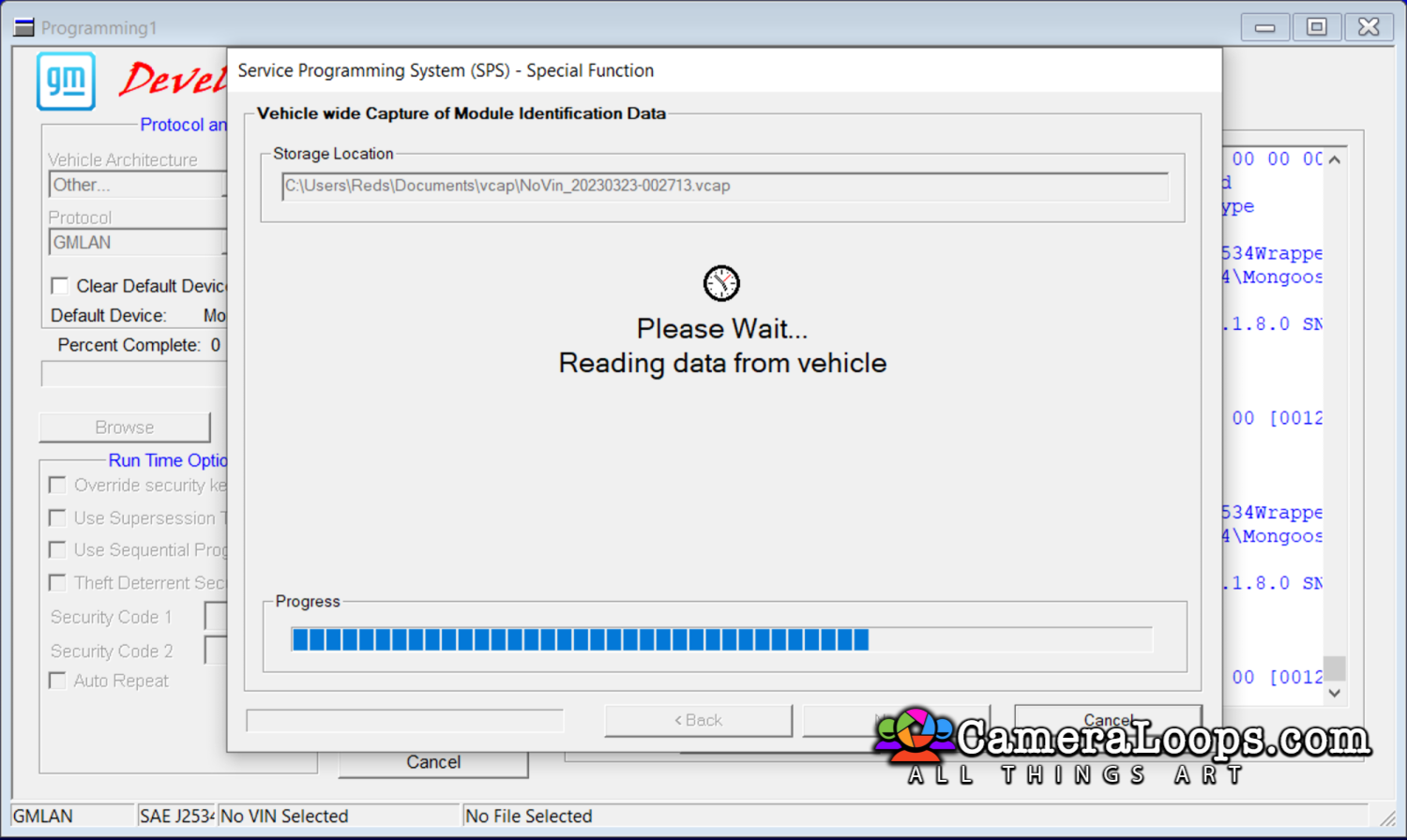
Included is the VCAP DPS Typ4 app, which can be use with DPS to read the VCAP from the vehicle.


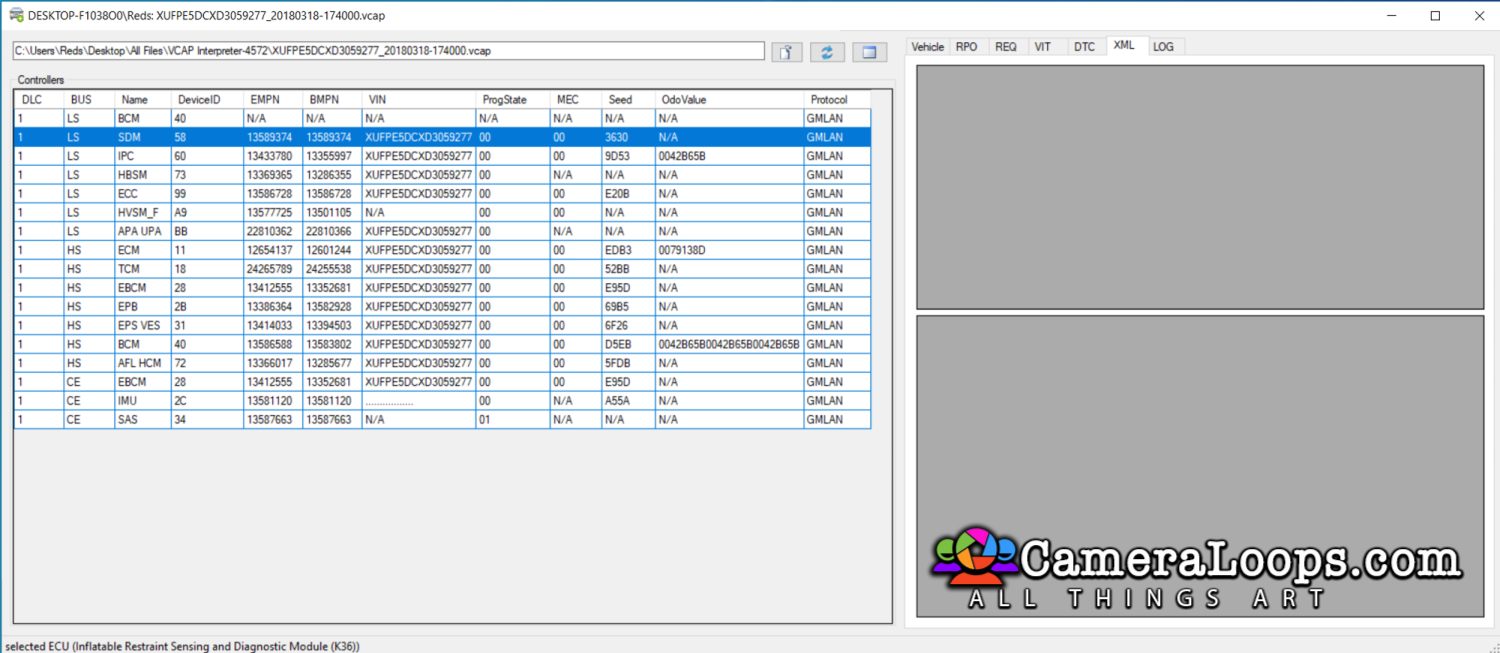
The VCAP interpreter tool and the VCAP Typ4 app.
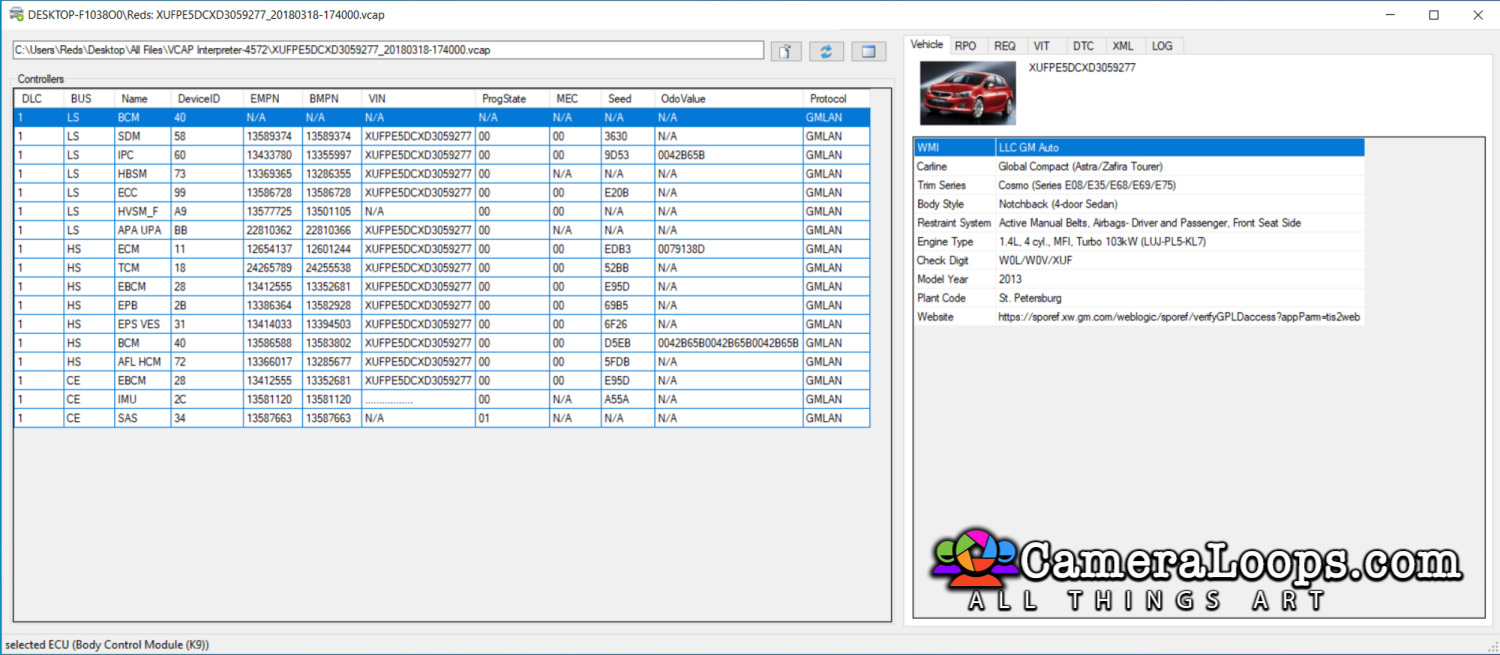
 

image.png

image.png

image.png

image.png

image.png

image.png

image.png

image.png


DPS Type4 App file.

type4_2.png

type4_1.png


User Feedback

Recommended Comments

PLSA Top Member

+PLSA

+Contributor
  • Contributor

nvm

Erickbiker Rising Star

+Erickbiker

+Purchaser

Can this program edit values? For example values on the IPC or ECM?

Troy Grand Master

Troy

Administrator

GM Car Hacking Expert

17 hours ago, Erickbiker said:

Can this program edit values? For example values on the IPC or ECM?


No. This program only displays the module's data. It cannot perform any form of editing.

Join the conversation

You can post now and register later. If you have an account, sign in now to post with your account.

Guest
Add a comment...

All Articles

Popular Members

  1. Troy
    Troy
    45
  2. uglyoldbastard
    +uglyoldbastard
    24
  3. GM-Enthusiast
    +GM-Enthusiast
    17
  4. Arbe_gtc
    +Arbe_gtc
    14
  5. hassan77h
    +hassan77h
    12

New Topics

New Posts

  1. Incorrect Immobilizer Identifier Being Written to All Nodes In-Network With the Gateway
    Arbe_gtc
  2. Automotive Electrical Diagnostician Getting Into EEPROM/MCU Programming
    Troy
  3. Astra K - LE2 engine - D14XFL (125KM) to D14XFT (150KM) conversion - two calibrations difference
    pupu14
  4. Learn about GM DPS (GM DPS Introduction)
    jose g leal
    • 3 posts
    jose g leal
  5. Calibrations request example
    Robi_X
    • 903 posts
    +Robi_X
  6. HMI 2.5 Astra K running functions on the table
    Opelfan
    • 15 posts
    +Opelfan
  7. MEC Explained
    pupu14
    • 8 posts
    +pupu14
  8. Converting Frankenstein to a genuine car
    geku
    • 46 posts
    +geku
  9. gm global b 'silvrado ev " gm serra ev " add arabic an hebrow languge dps file
    GM-Enthusiast
  10. fixing the checksum on myeprom for a new vin number
    Michael_zz
    • 1 post
    Michael_zz

New Members

  1. Amir Latif
    Amir Latif
      Member
    Joined
  2. Course ernest
    Banned-Course ernest
      Banned-Banned
    Joined
  3. SAXA SENKO
    SAXA SENKO
      Member
    Joined
  4. Unhappy_Node
    +Unhappy_Node
      +Contributor
    Joined
  5. Joseph Ramseyer
    Joseph Ramseyer
      Member
    Joined
  6. LuQ_TopG
    LuQ_TopG
      Member
    Joined
  7. Artur Wieczorek
    Artur Wieczorek
      Member
    Joined
  8. yazan kh
    yazan kh
      Member
    Joined
  9. xmartkeytools
    xmartkeytools
      Member
    Joined
  10. Brian Romero
    Brian Romero
      Member
    Joined

CameraLoops™
Powered by Art
All Trademarks appearing on this website are the property of their respective owners.

Account

Navigation

Configure browser push notifications

Chrome (Android)
  1. Tap the lock icon next to the address bar.
  2. Tap Permissions → Notifications.
  3. Adjust your preference.
Chrome (Desktop)
  1. Click the padlock icon in the address bar.
  2. Select Site settings.
  3. Find Notifications and adjust your preference.