Skip to content
Install the CameraLoops App

Browse CameraLoops via the app. Learn more.

www.CameraLoops.ru

Use the CameraLoops full-screen app on your home screen with push notifications, badges and more.

To install the CameraLoops app on iOS and iPadOS
  1. Tap the Share icon in Safari
  2. Scroll the menu and tap Add to Home Screen.
  3. Tap Add in the top-right corner.
To install the CameraLoops app on Android
  1. Tap the 3-dot menu (⋮) in the top-right corner of the browser.
  2. Tap Add to Home screen or Install app.
  3. Confirm by tapping Install.
NEVER STOP LEARNING

Welcome To CameraLoops

Take a moment to join and become a member

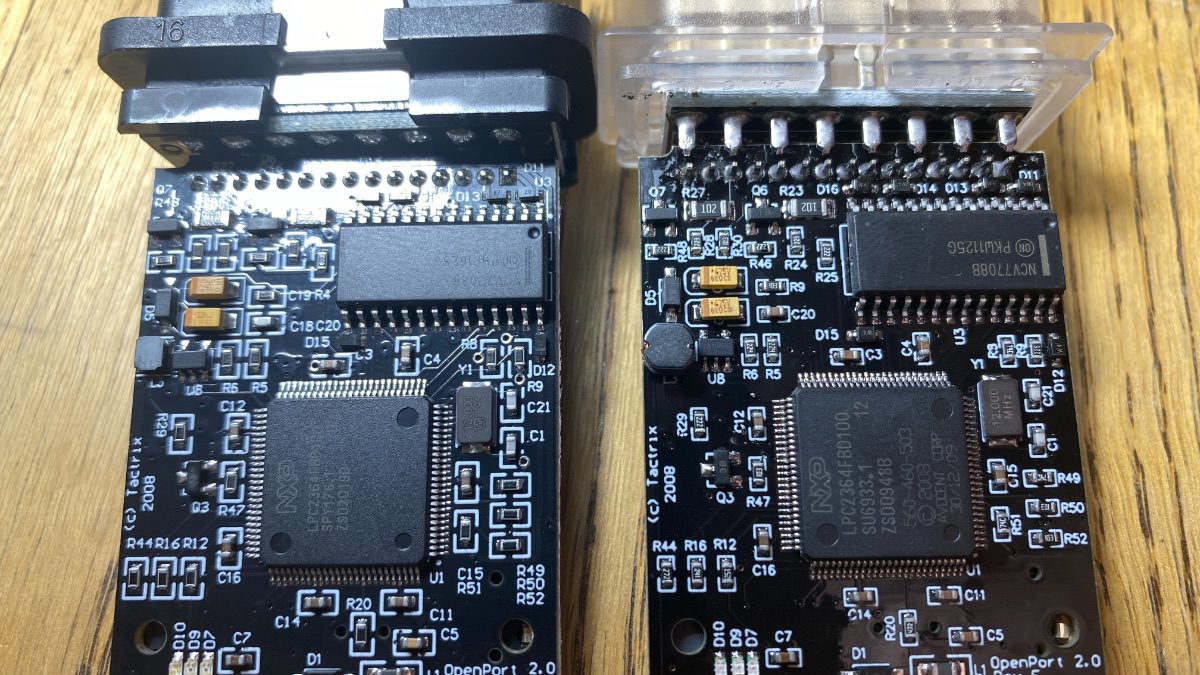
Tactrix Openport 2.0 genuine vs clone

The original is the one with the black OBD connector.

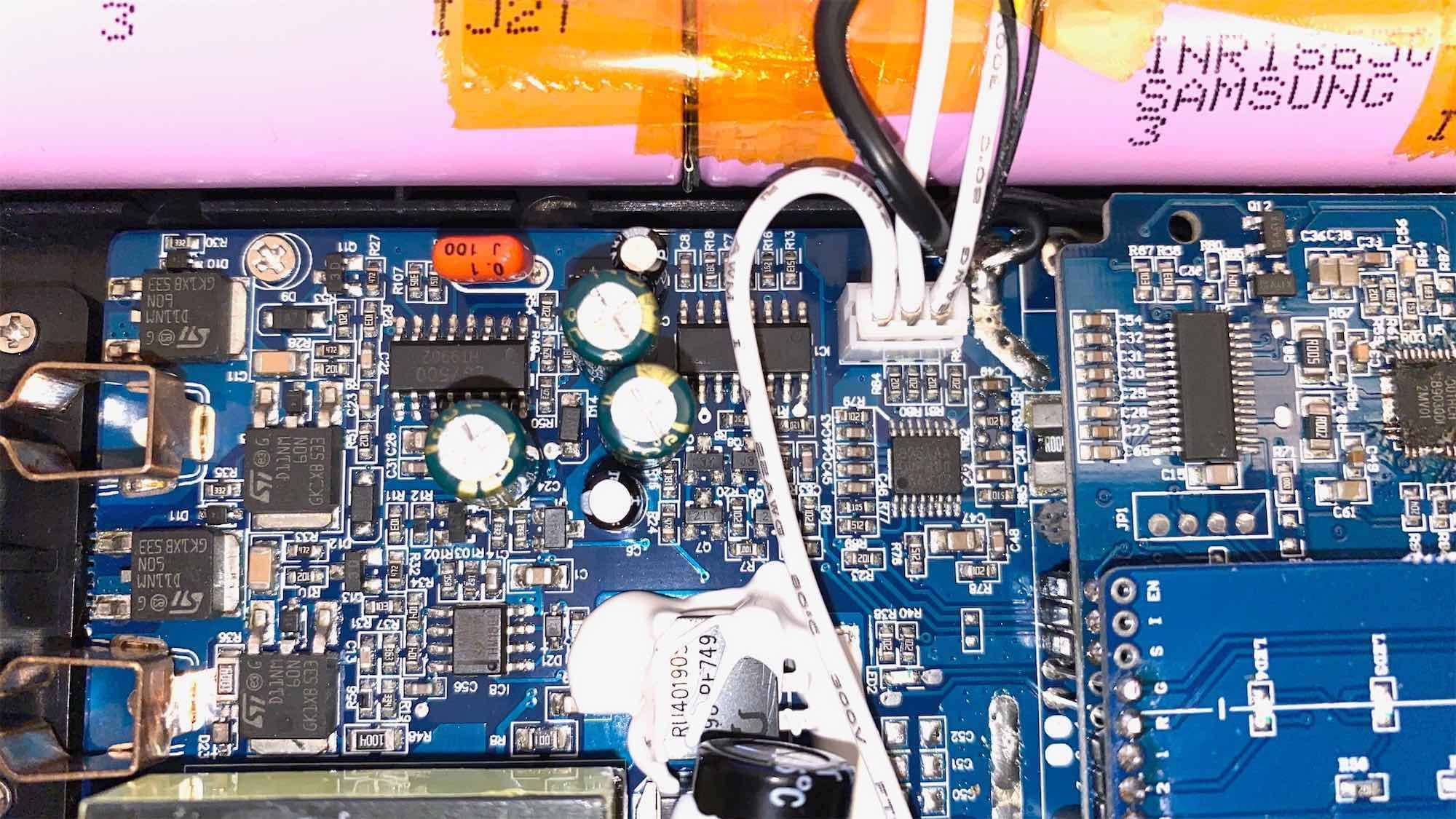
Both seems to have the same electronic parts.

Both works the same but I would trust the original more.

Photos of the inside below.


IMG_4435.jpgIMG_4436.jpgIMG_4434.jpgIMG_4437.jpgIMG_4438.jpgIMG_4439.jpgIMG_4440.jpgIMG_4441.jpgIMG_4442.jpg


User Feedback

Recommended Comments

Me Andme Rising Star

Me Andme

Member

I have that exact clone and it was only affordability (needed one extra for the Kid) that pushed the edge. What my experiment was with a Honda and Subaru. The Honda complained compared to the J2534-2 device. The Subaru was a little older and needed SSMIII but the application SSMIV logged in their OBDII version. With OBDII software that uses the J2534-2 as a scan tool. It works quite well. Need more and newer Subaru models to finish the tests.

highlander Explorer

+highlander

+Contributor
  • Contributor

I have not been able to make it work with gm software anymore. Any tricks for this?

Troy Grand Master

Troy

Administrator

GM Car Hacking Expert

18 hours ago, highlander said:

I have not been able to make it work with gm software anymore. Any tricks for this?

I've never tried it with GM stuff, I only used it with Alex ecu flasher to dump GM ECU files.

VXdiag nano works great with GM stuff.

Join the conversation

You can post now and register later. If you have an account, sign in now to post with your account.

Guest
Add a comment...

All Articles

Popular Members

  1. Troy
    Troy
    29
  2. uglyoldbastard
    +uglyoldbastard
    14
  3. Arbe_gtc
    +Arbe_gtc
    13
  4. Adelin
    +Adelin
    10
  5. GM-Enthusiast
    +GM-Enthusiast
    9

New Members

  1. jcmetal
    jcmetal
      Member
    Joined
  2. Kugkhg Ihbjgv
    Kugkhg Ihbjgv
      Member
    Joined
  3. darbaz ibrahim
    darbaz ibrahim
      Member
    Joined
  4. IBRA
    +IBRA
      +Purchaser
    Joined
  5. Mccrearya
    Mccrearya
      Member
    Joined
  6. Amanda
    Amanda
      Member
    Joined
  7. kalamoulacisse
    kalamoulacisse
      Member
    Joined
  8. Jackie
    Jackie
      Member
    Joined
  9. Micheal Nadeau
    Micheal Nadeau
      Member
    Joined
  10. Calvin O
    Calvin O
      Member
    Joined

CameraLoops™
Powered by Art
All Trademarks appearing on this website are the property of their respective owners.

Account

Navigation

Configure browser push notifications

Chrome (Android)
  1. Tap the lock icon next to the address bar.
  2. Tap Permissions → Notifications.
  3. Adjust your preference.
Chrome (Desktop)
  1. Click the padlock icon in the address bar.
  2. Select Site settings.
  3. Find Notifications and adjust your preference.