











.jpeg.503ad3cbf167f180662b9e06a35f1911.jpg.4256ffb79777f00833ddbf666186ef55.jpg)
.thumb.png.6cba57c5e88519e419516e3ed1152e01.png)
By Troy
How to get cheap GM GDS2 for eternity.
GM has fixed the vulnerability. This file no longer works with the new GM GDS2.
More info here.
Global Diagnostic System 2 aka GDS2.
GDS2 is GM's motor vehicle diagnostic software used by auto mechanics to perform diagnostics, including reading fault codes, resetting the vehicle's electronic module and various other configurations.
In order to have access to GDS2, you have to pay a subscription fee to GM.
In this tutorial, I demonstrate how to pay once and have GDS2 access for eternity.
GDS2 uses two security measures.
1. A hardware ID file name "swkV3"
2. A system licence file.
This tutorial circumvents the system licence file. That's why one needs to purchase a GM subscription in order to obtain the hardware ID file.
Step 1
Purchase a GDS2 subscription for the shortest/cheapest length.

For USA cars, use ACDelco
For European use ServiceBox
Step 2
Install and run GDS2 on all the PCs on which you intend to use the GDS diagnostic software.
Step 3
Windows OS automatically hides the "programData" folder. To unhide hidden folders, use the Windows Explorer settings.
Navigate to C:\ProgramData\GM\TIS2WebProxy\.dls\.lreg
From that folder, delete the licence file that's there and replace it with the attached infiniteLease.dat file.
The infiniteLease.dat file also works with the new Techline GDS2.
Step 4
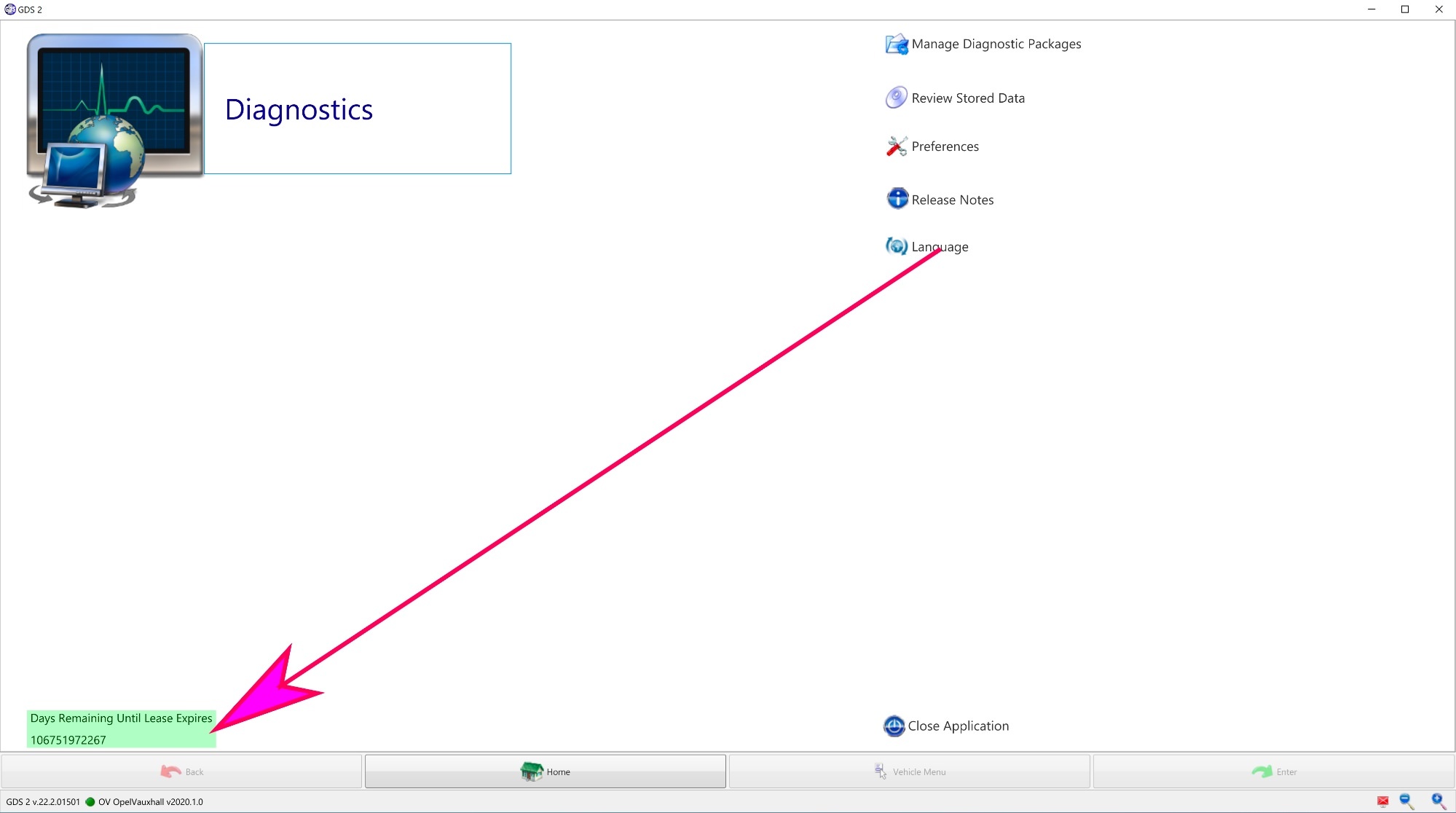
Restart the GDS2 application. The Days remaining until the lease expires should change to infinite.
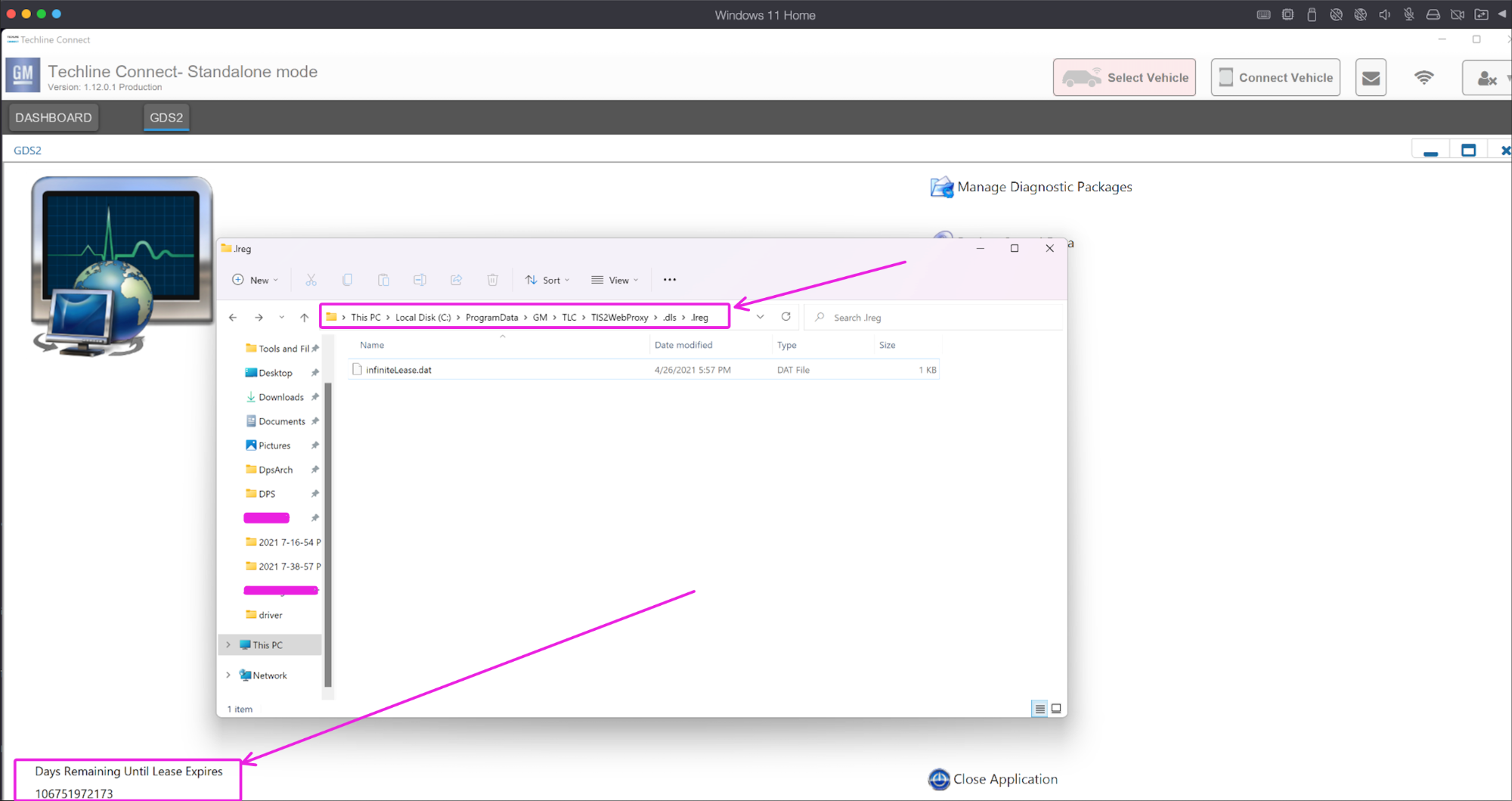
For Techline, connect GDS2 standalone mode.
Windows OS automatically hides the "programData" folder. To unhide hidden folders, use the Windows Explorer settings.
Go to C:\ProgramData\GM\TLC\TIS2WebProxy\.dls\.lreg
Delete the file that's already in the ".lreg" folder.
Place the infiniteLease.dat file you downloaded into the ".lreg" folder.
Close and reopen the Techline Connect application. The days remaining until the lease expires should change to infinite.
GDS2 Infinite lease file
GM has fixed the vulnerability. This file no longer works with the new GM GDS2.
More info here.
-
 6
6












































.jpg.434408b0b61b4552ae25cde5c0b5a388.jpg)









-min.jpeg.e57f393a5b1034dc5ead0fdf0e5be0a7.jpg.8b0eac9dbd8dd2120749a61afa119519.jpg)



.jpeg.7788c0ed0981e43684ee21be2e0cfd0c.jpg.5fe699189bcf0d18517707ce4222e81a.jpg)


.thumb.jpg.0f819d95317e386a92453772edb75c6b.jpeg.61f2c44081948bc780313ab6fcfdc53b.jpeg)









.jpeg.c58f6a017dba02d1386e26ad62d32fe5.jpeg)

.jpg.9dd8d45a3fad0a651bb2bc39ddead936.jpg.7a19f233d3331becb9d93ee7cfc63379.jpg)



.jpg.3dfde5099751bef5f6e2d27f3d463275.jpg.edf3062b4fb37e14c71ab2caa86c1053.jpg)



















Recommended Comments
Join the conversation
You can post now and register later. If you have an account, sign in now to post with your account.