




Skip to content
View in the app

A better way to browse. Learn more.

www.CameraLoops.ru

A full-screen app on your home screen with push notifications, badges and more.

To install this app on iOS and iPadOS
  1. Tap the Share icon in Safari
  2. Scroll the menu and tap Add to Home Screen.
  3. Tap Add in the top-right corner.
To install this app on Android
  1. Tap the 3-dot menu (⋮) in the top-right corner of the browser.
  2. Tap Add to Home screen or Install app.
  3. Confirm by tapping Install.

How to correct checksum after editing GM's calibration files

Update 2/October/2025

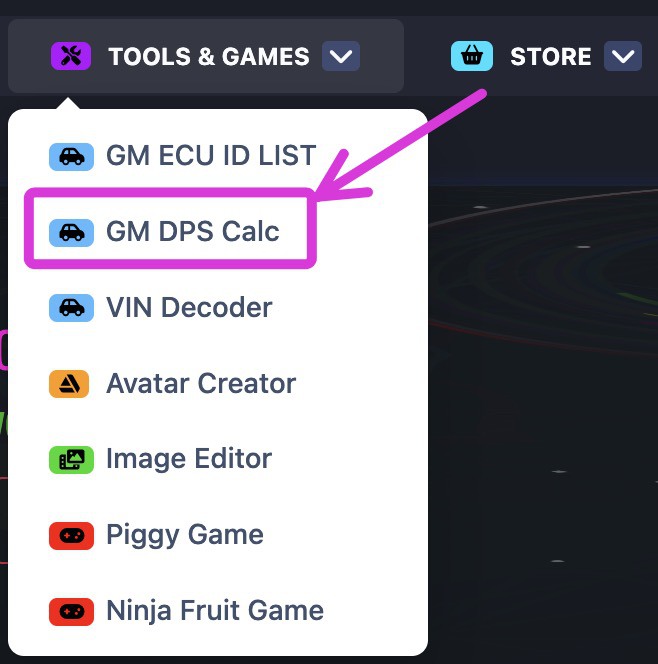
You no longer need to manually correct the checksum of the GM calibration files. You can automatically correct the checksum of modified GM calibration files online using this checksum tool, which was created by a CameraLoops member.

The online checksum tool can be accessed from the website's top menu, under the "Tools & Games" button, or via the following web link. GM Online Checksum Calculator

Massive thanks to ECU-Online.com
Screenshot 2025-10-02 at 7.33.39 am.jpg

In this tutorial, I will explain in steps how to correct the checksum after editing a GM module calibration file.

This process illustrates correcting the checksum for the first four bytes.


It's beneficial to read up on these other tutorials to familiarise yourself with GM's calibration files concept if you're new. 


Tools you will need.

 Hex Editor Neo


Step 1.

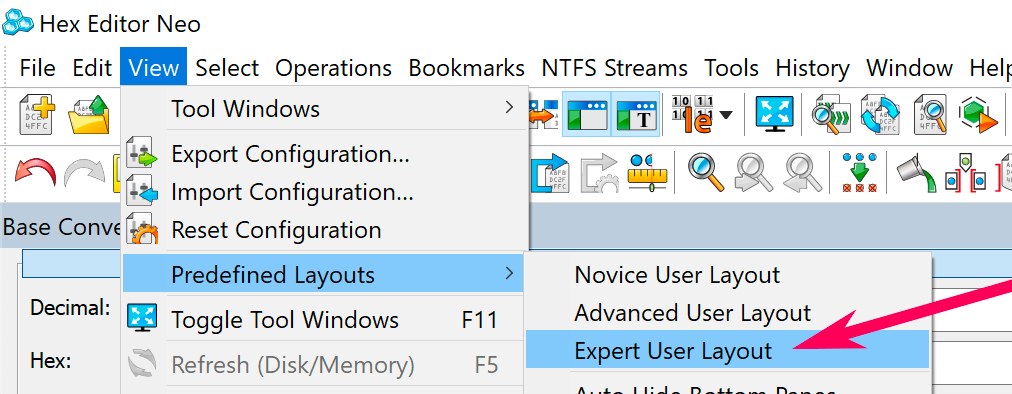
Open the calibration file in Neo and edit your file.

Set Predefined Layouts as Expert User Layout.
Screenshot 2021-08-01 at 11.43.56 am copy.png


Step 2.

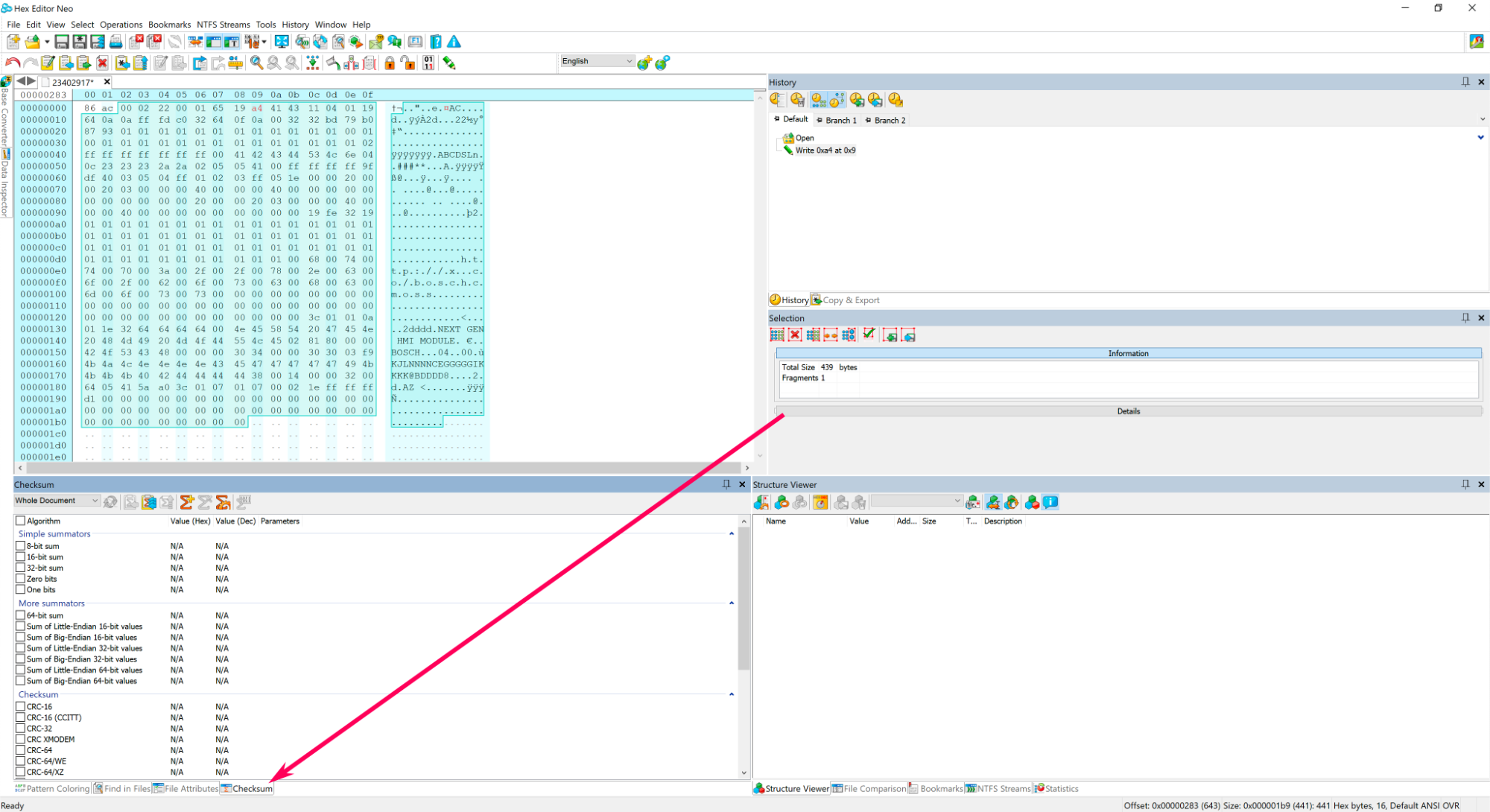
Select all the codes in the calibration file except the first four bytes/code.

How to correct checksum after editing GM's calibration files


Step 3.

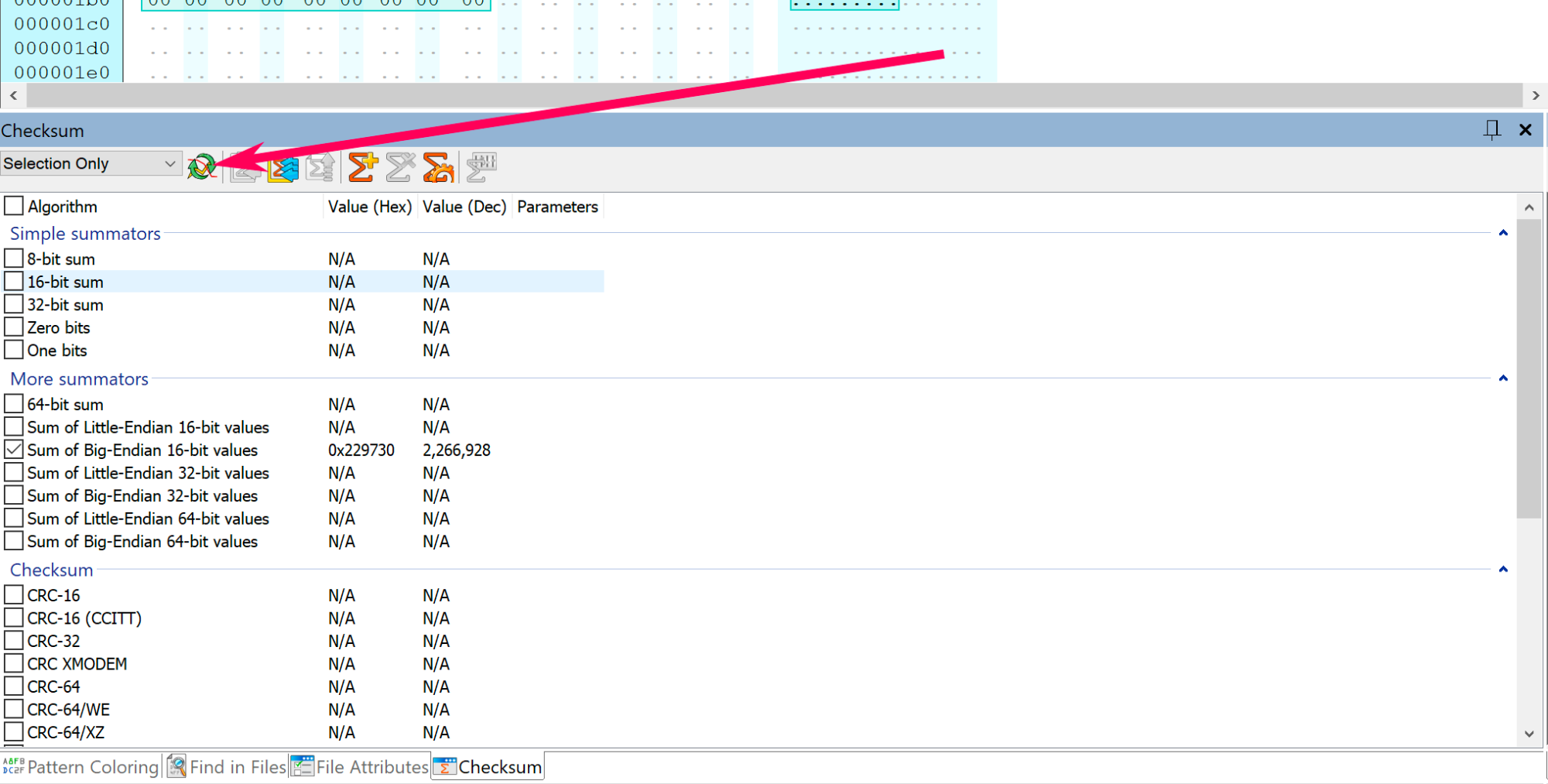
At the bottom of Neo click Checksum.
Screenshot 2021-08-01 at 3.33.41 pm copy.png


Step 4.

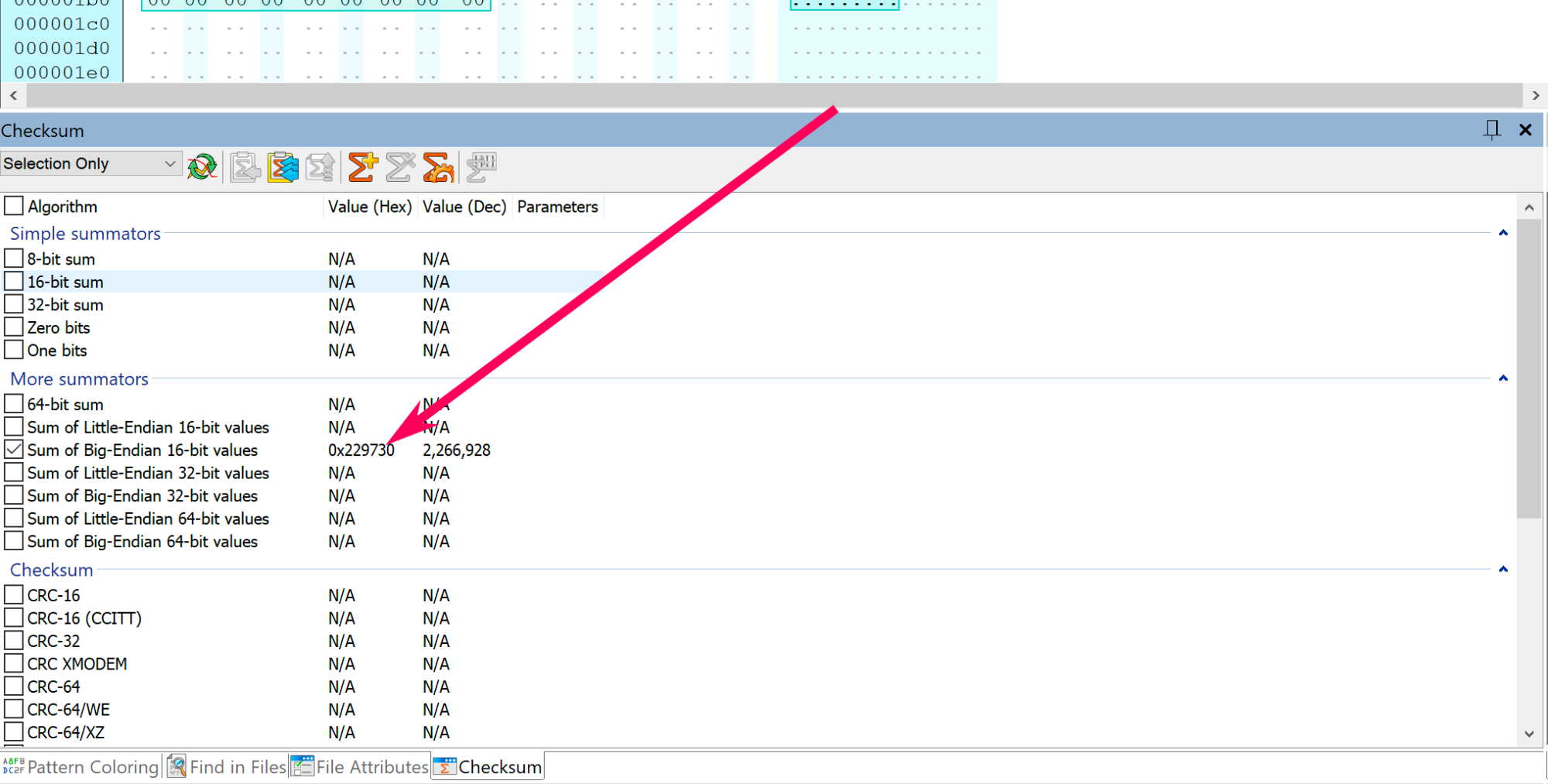
In Neo's checksum window, change the option: Whole document to Selection only.

Screenshot 2021-08-01 at 3.40.24 pm copy.png


Step 5.

Select Sum of Big-Endian 16-bit value 

Screenshot 2021-08-01 at 6.56.16 pm copy.png


Step 6.

Click the  Refresh button.

Screenshot 2021-08-01 at 7.01.14 pm copy.png


Step 7.

Copy the last 4 digits, which is: 9730 
Screenshot 2021-08-01 at 7.01.14 pm copy.png


Step 8.

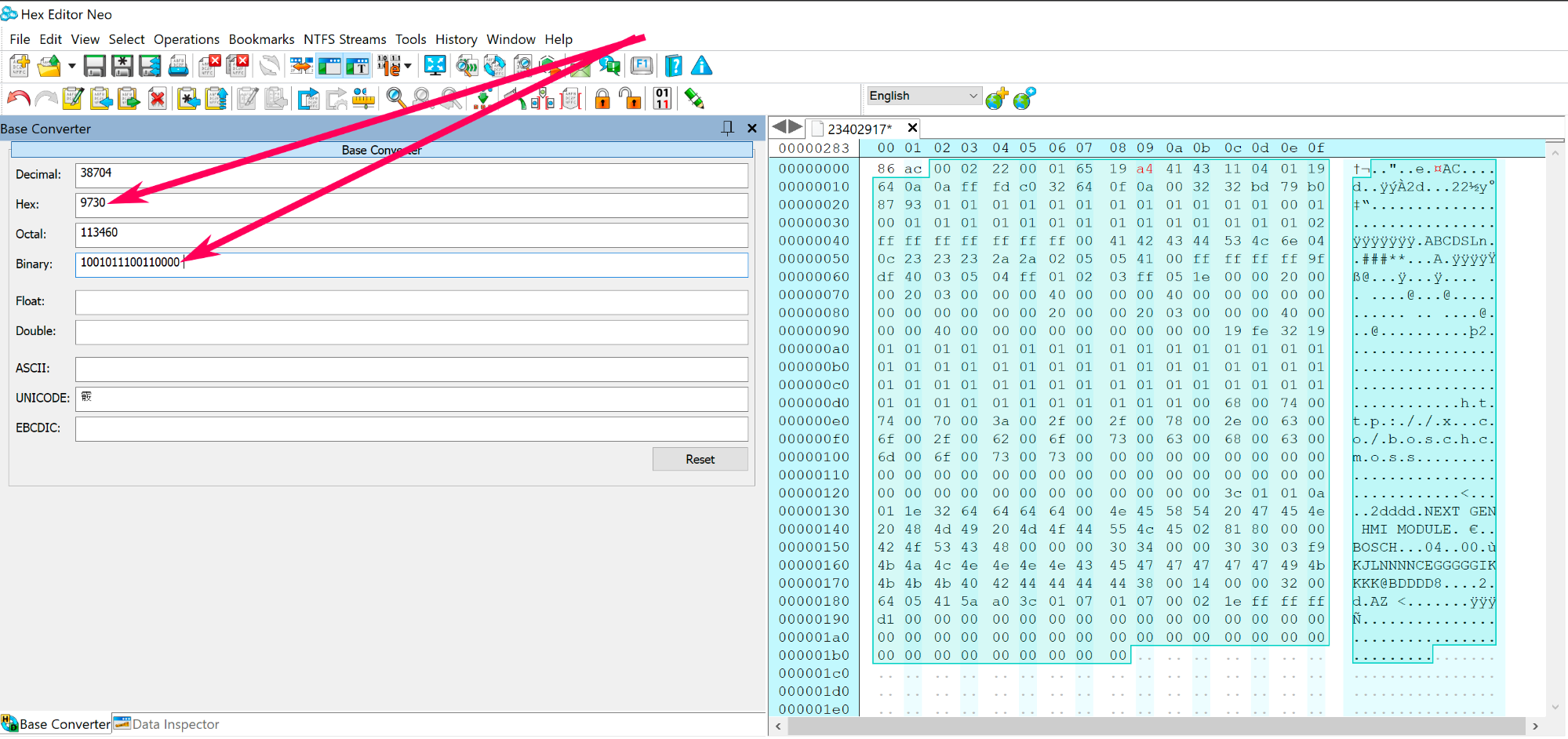
Convert 9730 into Binary code, then copy paste the binary code in a text editor.
Screenshot 2021-08-01 at 7.14.03 pm copy.png


Step 9.

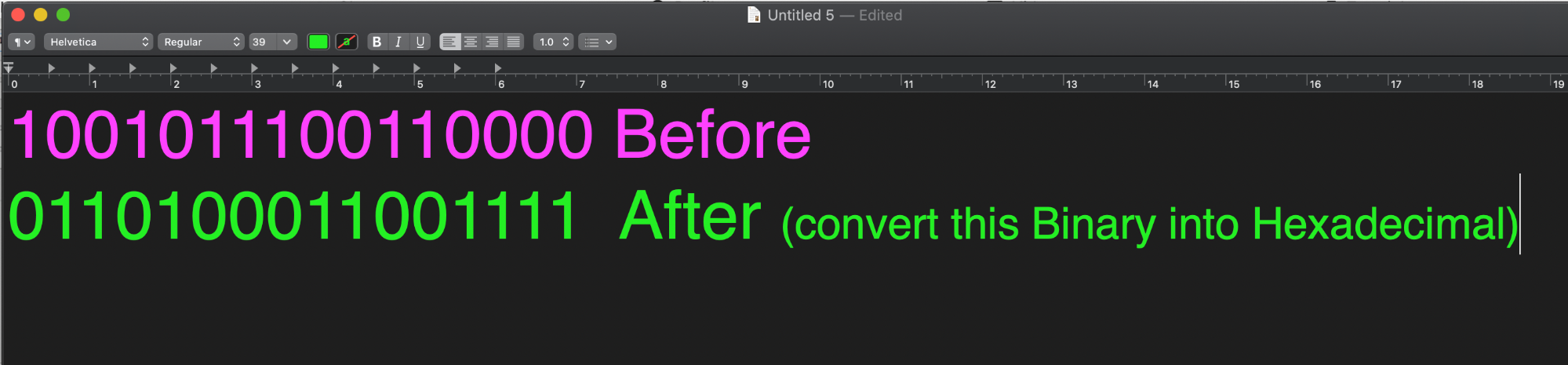
Now you need to create a reverse copy of the binary code: 1001011100110000, see the example below.
Screenshot 2021-08-01 at 7.23.31 pm.png


Step 10.

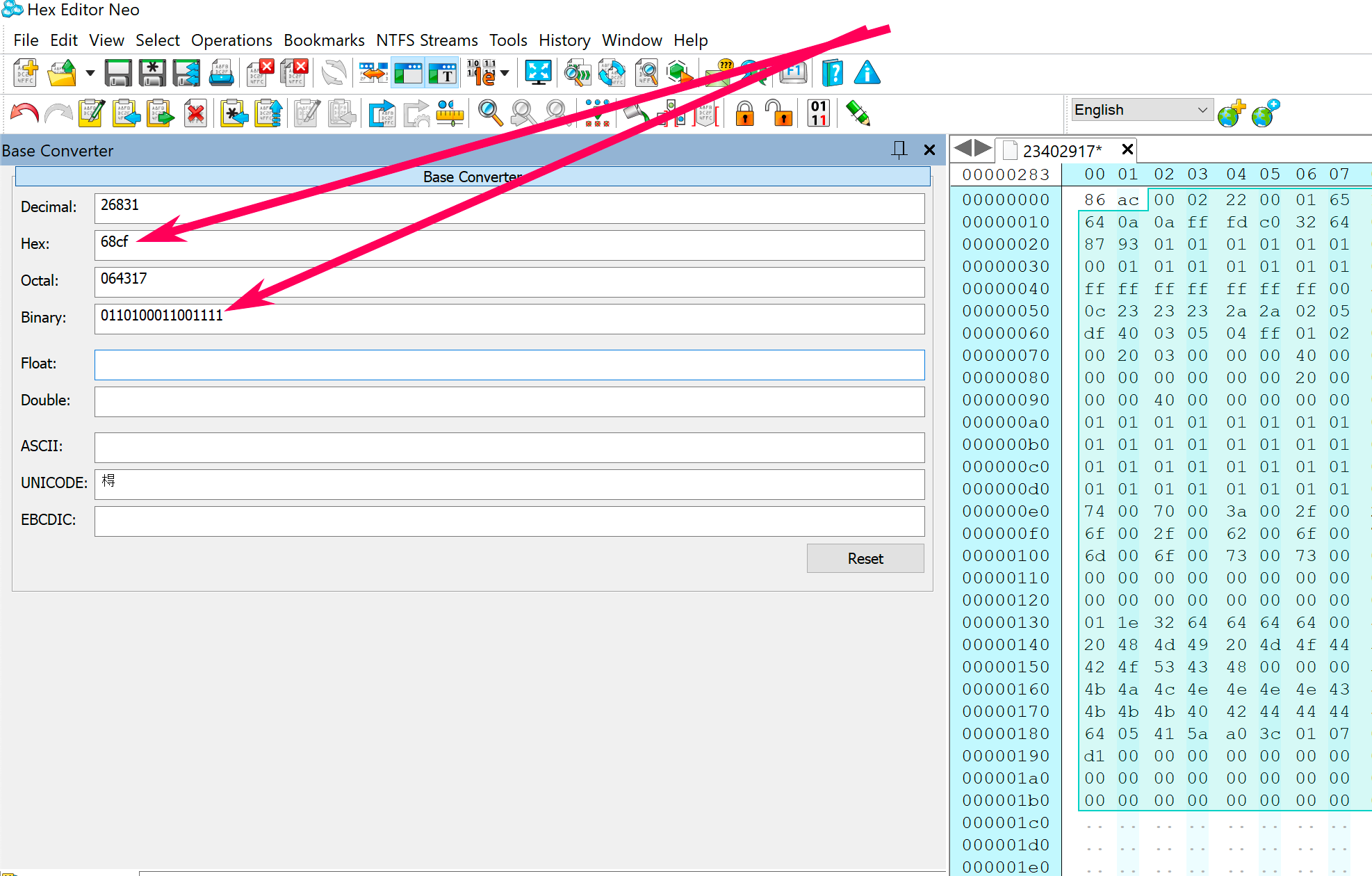
Convert the reverse binary code 0110100011001111 into hexadecimal code, which equals to 68cf 
Screenshot 2021-08-02 at 12.03.51 am copy.png


Step 11.

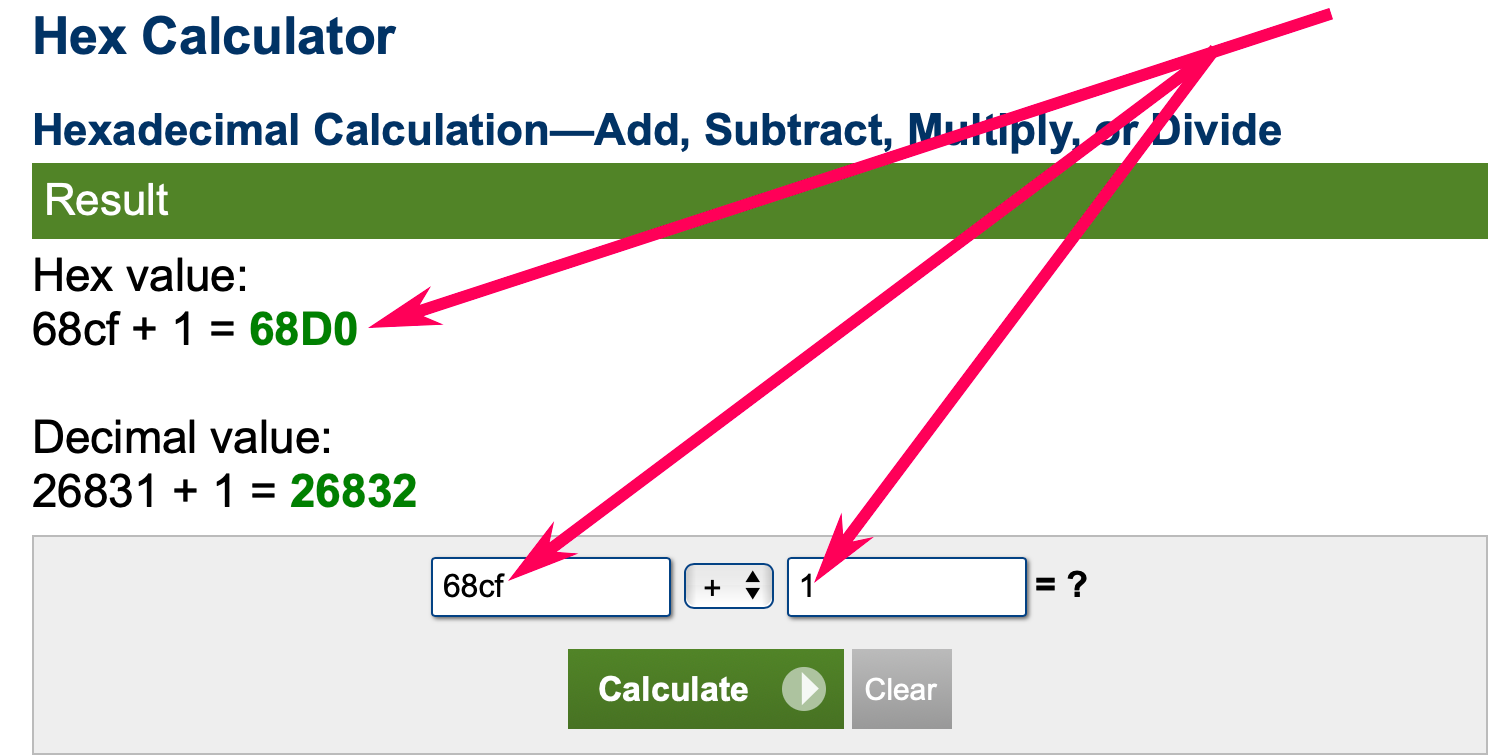
Now you need to add 1 to the hexadecimal code, which looks like this 68cf+1=

Use this online calculator to do the calculation.

68cf+1=68d0
Screenshot 2021-08-02 at 12.25.20 am copy.png


Step 12.

Now you have 68d0

Replace the first four unselected bytes/code in the calibration file with 68d0.
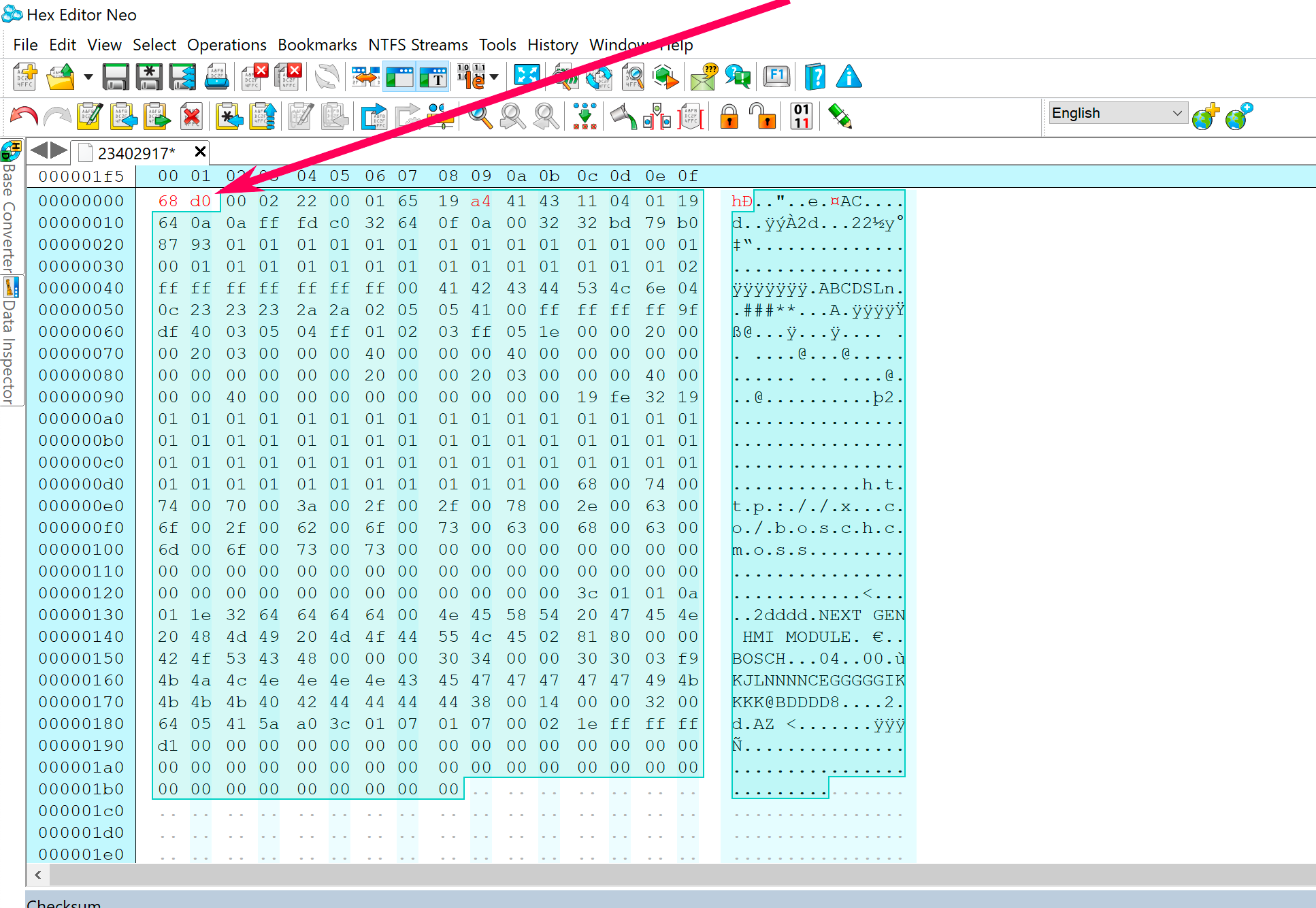
Screenshot 2021-08-02 at 12.34.20 am copy.png


Step 13.

The checksum has been corrected.

Save the calibration file and program your calibration package to the module using GM DPS.


User Feedback

Recommended Comments

Dan79 Top Member

+Dan79

+Contributor
  • Contributor

Ok thx but if the edit file has correct checksum but shows now as 0x91000  is it possible to fix that ?

Arbe_gtc Rookie

+Arbe_gtc

+Contributor

GM Car Hacking Expert

  • Contributor
17 minutes ago, Dan79 said:

Ok thx but if the edit file has correct checksum but shows now as 0x91000  is it possible to fix that ?

something is wrong. the checksum in HMI must end in 0000. share this file

Dan79 Top Member

+Dan79

+Contributor
  • Contributor

here it is  after edit it i got 15 0E as checksum 

23648990.bin

Robi_X Collaborator

+Robi_X

+Contributor

GM Car Hacking Expert

  • Contributor

I get 15FE?   (0xA0000)

Arbe_gtc Rookie

+Arbe_gtc

+Contributor

GM Car Hacking Expert

  • Contributor

2323112.bin edit_2.bin


   0x90000  


Try it


Arbe_gtc Rookie

+Arbe_gtc

+Contributor

GM Car Hacking Expert

  • Contributor
1 minute ago, Dan79 said:

Can't download it ,are not +contributor.

What did you change ?can you show me?

Was 0E15 correct?

image.png.54f5cd99d4fa8c856969d82bd7332b07.png

Dan79 Top Member

+Dan79

+Contributor
  • Contributor
1 minute ago, Arbe_gtc said:

image.png.54f5cd99d4fa8c856969d82bd7332b07.png

Thx I will test that and let you know the results 

Join the conversation

You can post now and register later. If you have an account, sign in now to post with your account.

Guest
Add a comment...

All Articles

Popular Members

  1. hassan77h
    +hassan77h
    27
  2. Troy
    Troy
    22
  3. uglyoldbastard
    +uglyoldbastard
    13
  4. regloops
    +regloops
    8
  5. GM-Enthusiast
    +GM-Enthusiast
    7

New Members

  1. David Fontenot
    David Fontenot
      Member
    Joined
  2. SSAUTOZ
    SSAUTOZ
      Member
    Joined
  3. valdemarford
    valdemarford
      Member
    Joined
  4. Course faycal khalil
    Troll-Course faycal khalil
      Troll-Troll
    Joined
  5. Troll stevie nick
    Troll-Troll stevie nick
      Troll-Troll
    Joined
  6. Troll Parkerchevy
    Troll-Troll Parkerchevy
      Troll-Troll
    Joined
  7. Hayk Vardanyan
    Hayk Vardanyan
      Member
    Joined
  8. tunedbycasco
    tunedbycasco
      Member
    Joined
  9. freehugs
    freehugs
      Member
    Joined
  10. ceberon
    ceberon
      Member
    Joined

CameraLoops™
Powered by Art
All Trademarks appearing on this website are the property of their respective owners.

Account

Navigation

Configure browser push notifications

Chrome (Android)
  1. Tap the lock icon next to the address bar.
  2. Tap Permissions → Notifications.
  3. Adjust your preference.
Chrome (Desktop)
  1. Click the padlock icon in the address bar.
  2. Select Site settings.
  3. Find Notifications and adjust your preference.