










.thumb.png.6cba57c5e88519e419516e3ed1152e01.png)
.jpg.442cdfae8dc99fc25919a92a2a8fcd4f.jpg)
Important Note:
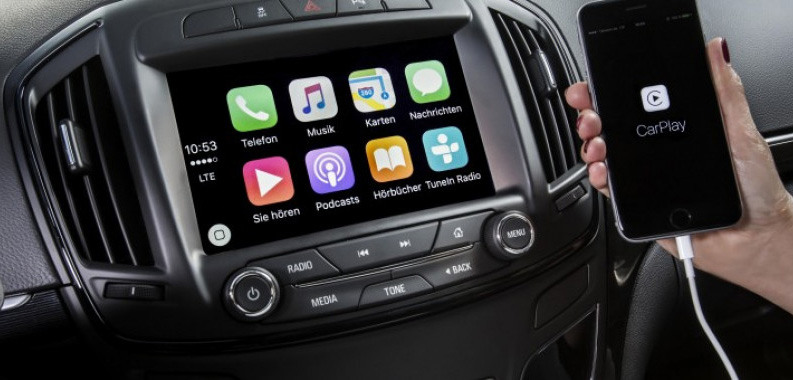
This HMI 2.5 module firmware is only compatible with GM vehicles in the North American market that have the IO5 None-Navigation None-Sat-Nav HMI 2.5 module. It is not compatible with the HMI 2.5 module in GM vehicles in the European market.
The Firmware file for the European market GM vehicles HMI 2.5 module can be found at this Web-Link.
Mega link for HMI 2.5 Firmware file 84131941.
You can use this firmware file to update the HMI 2.5 module via a USB stick, which will add the Apple CarPlay and Android Auto features.
This file does not remove the theft lock from the HMI module.
Click here for the HMI 2.0 and HMI 2.5 theft-lock removal DPS file for the Europe SilverBox radio.
After completing the HMI 2.5 firmware update, you will see "calibrate Device" showing on the screen. You can use one of the three options below to remove the "calibrate Device" notification and have the HMI module functioning again.
You will need to use the GM SPS service with a VIN number from a car that has the HMI 2.5 and all the necessary features activated to program your HMI module.
Use these files to program the HMI after a firmware update to Activate video in motion, RVS guide-lines and RVS always on for GM vehicles.
How to install the Firmware:
1. Extract the contents of the file onto a reputable USB stick.
2. Insert the USB stick into the vehicle's USB port.
3. Follow the onscreen instructions.
Check out this article, which demonstrates how to gain wireless Apple CarPlay and wireless Android Auto for GM vehicles that use the HMI 2.5 module.
-
 22
22
-
 1
1
-
 5
5
-
 1
1






















Recommended Comments
Join the conversation
You can post now and register later. If you have an account, sign in now to post with your account.