












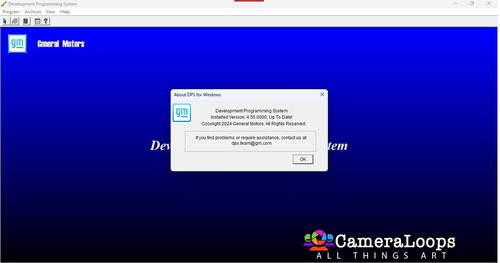
DPS 4.54.1000 Complete - New version with date fixed in desktop shortcut so no extra steps to run.
Install "dps_installer_v4_54_1000_Complete-new.msi" to C: drive
If you install to any drive other than C: then you will need to reconfigure runasdate in the DPS folder.
Only run DPS from the desktop shortcut as that changes the internal date for the certificate to not run out.
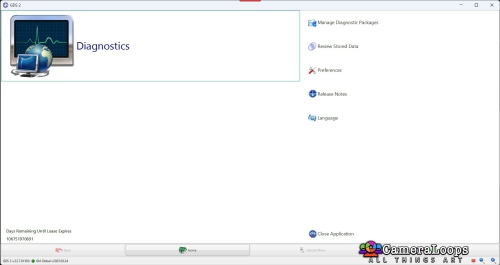
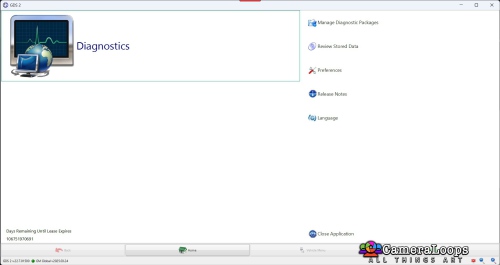
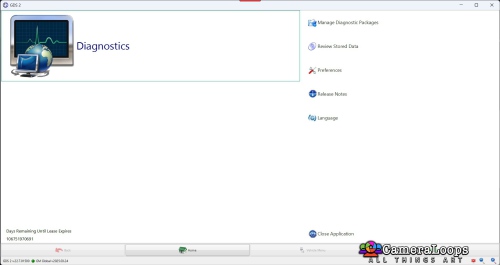
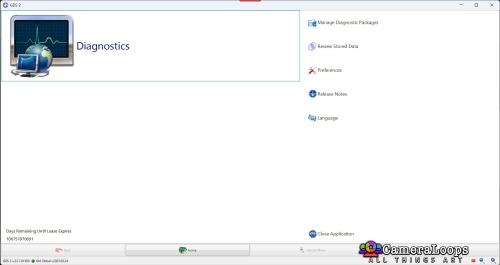
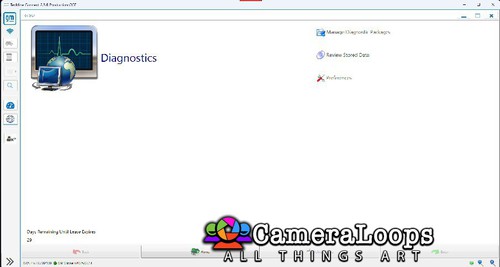
Once you have DPS started
Go to "Program Controller" and import certificate from C:\dps\Certificate+PW-Asdfghj75
Click next until you get to the enter password screen and enter password "Asdfghj75" and do not change any settings and click next until complete.
If by any chance you run DPS with the current date and delete the expired certificate, run DPS with the changed date and reinstall the certificate as described above.
Password is Asdfghj75
The password is also in the c:\dps\Certificate+PW-Asdfghj75 folder as password.txt and it is also part of the folder name so you will never lose it.
That is it you are ready to use DPS
Note:
If you have SPS installed then the type4 button will not be greyed out but it will not work until you make a backup of the 2 files below
dllsecurity.dll
tisvcsv4.dll
from the folder
C:\Users\username\sps\nativelibs
Then you need to copy the same two files from the folder
C:\DPS\Type4 App Crash Optional Files
to the
C:\Users\username\sps\nativelibs
folder replacing the files you just backed up.
You need the backup of the two files as they will be needed if you do online SPS GDS2 as you will need to put them back
Swapping the two files around will be necessary to use the programs.
-
 165
165
-
 5
5
-
 1
1
-
 25
25
-
 7
7
-
 2
2
-
 3
3
-
 7
7
-
 1
1
-
 2
2



















Recommended Comments
Join the conversation
You can post now and register later. If you have an account, sign in now to post with your account.