


Skip to content
Install the CameraLoops App

Browse CameraLoops via the app. Learn more.

www.CameraLoops.ru

Use the CameraLoops full-screen app on your home screen with push notifications, badges and more.

To install the CameraLoops app on iOS and iPadOS
  1. Tap the Share icon in Safari
  2. Scroll the menu and tap Add to Home Screen.
  3. Tap Add in the top-right corner.
To install the CameraLoops app on Android
  1. Tap the 3-dot menu (⋮) in the top-right corner of the browser.
  2. Tap Add to Home screen or Install app.
  3. Confirm by tapping Install.

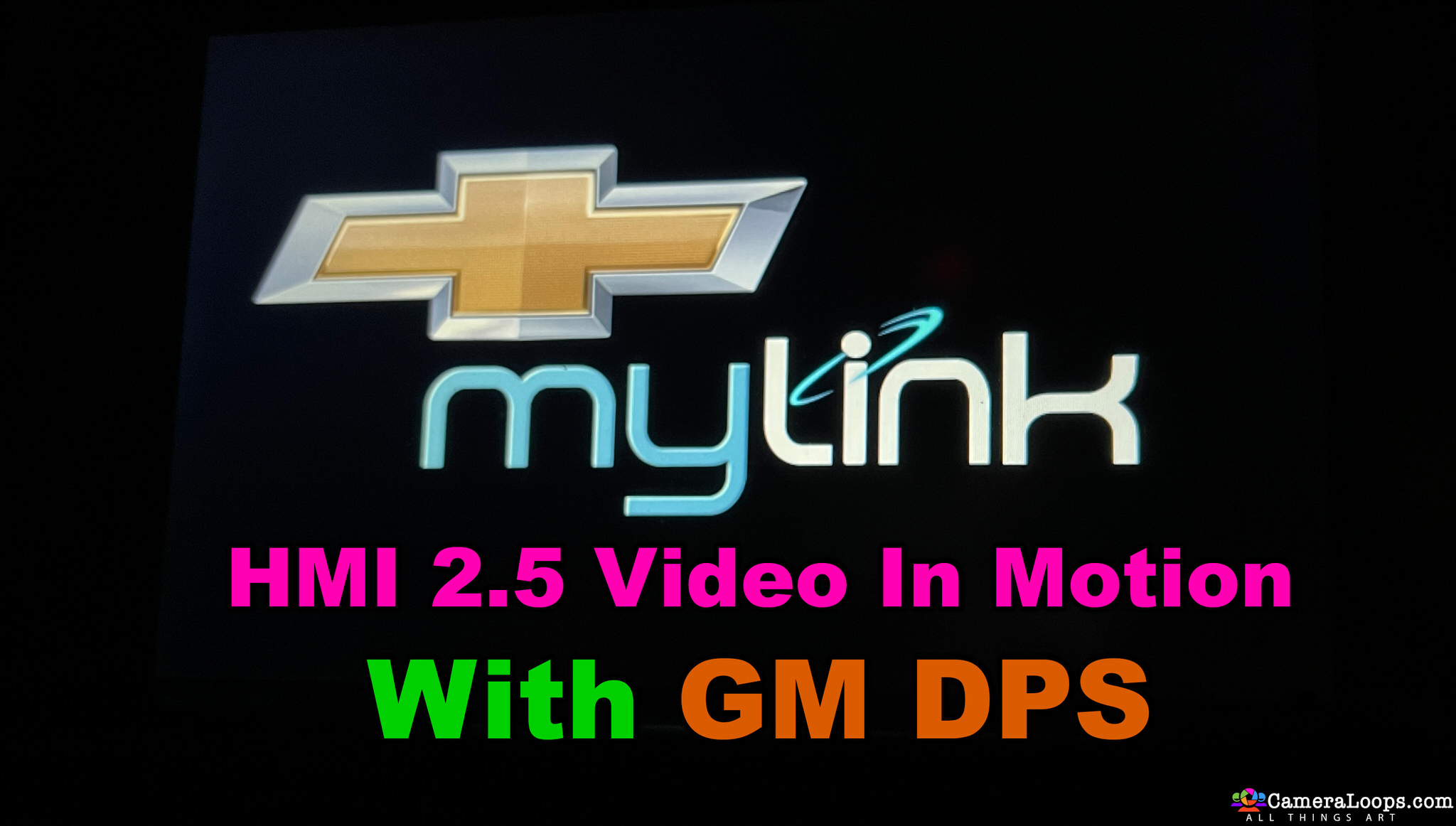
Video In Motion HMI 2.5 Chevrolet Tahoe Arabic MyLink

$200

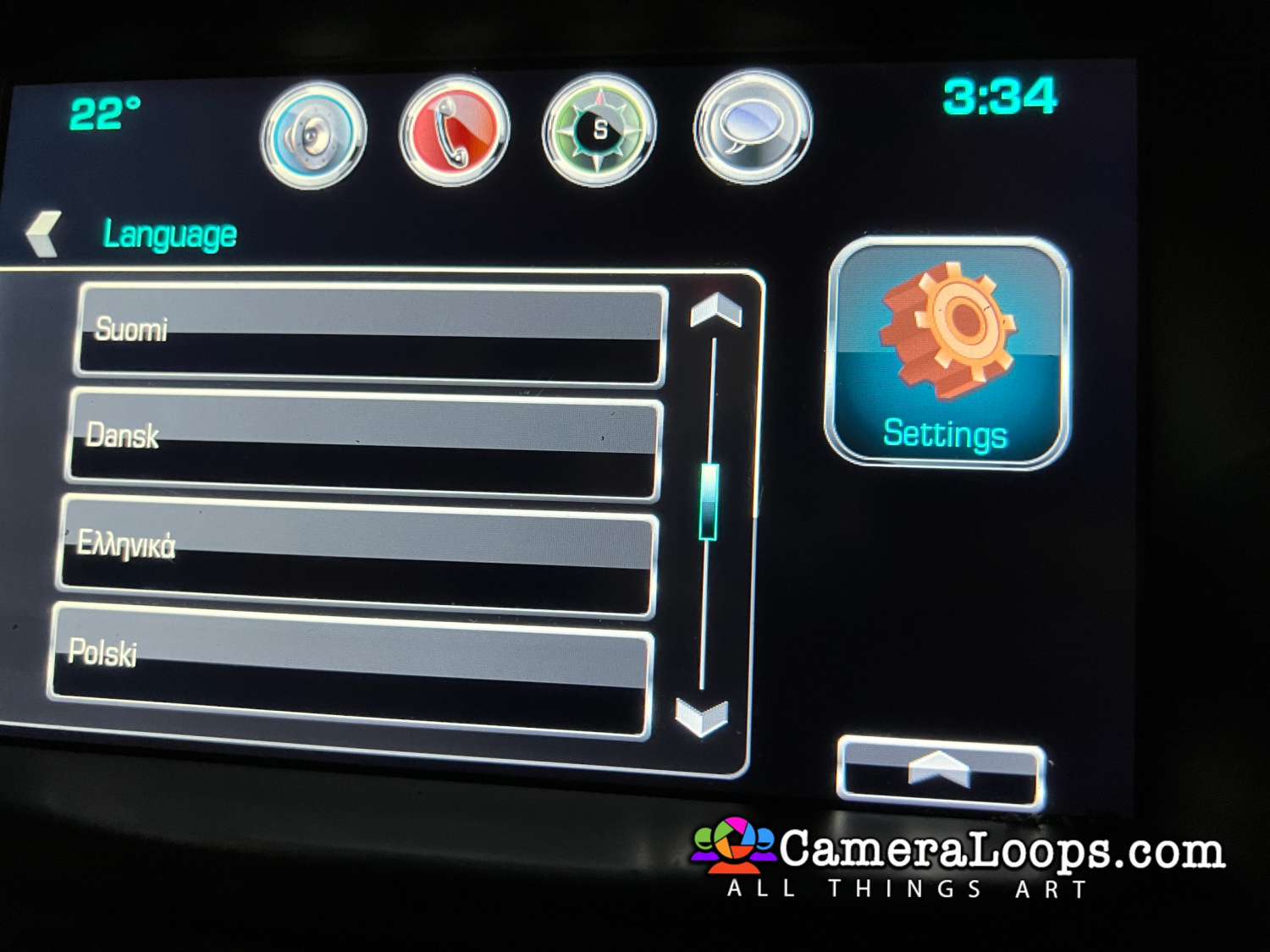
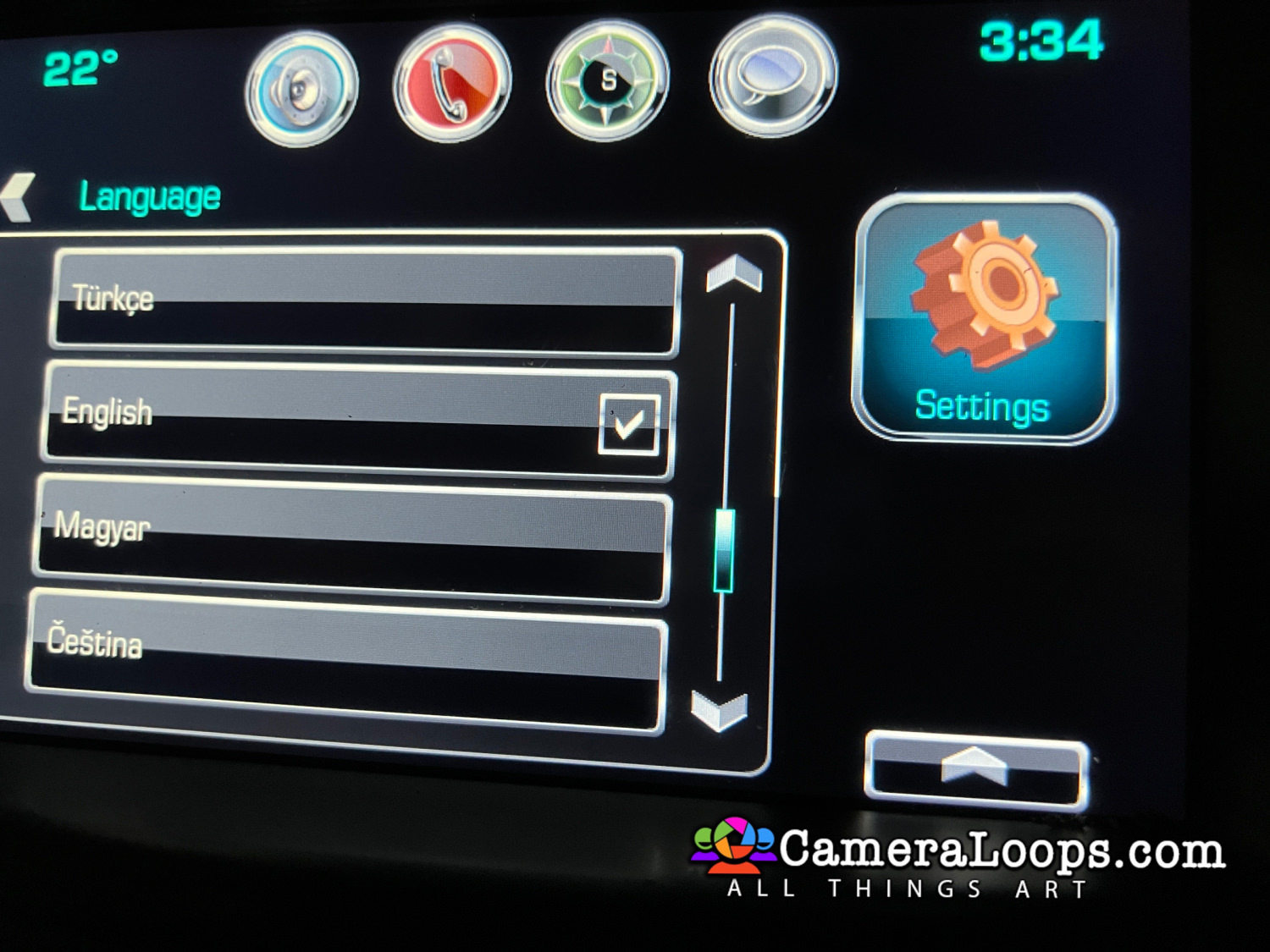
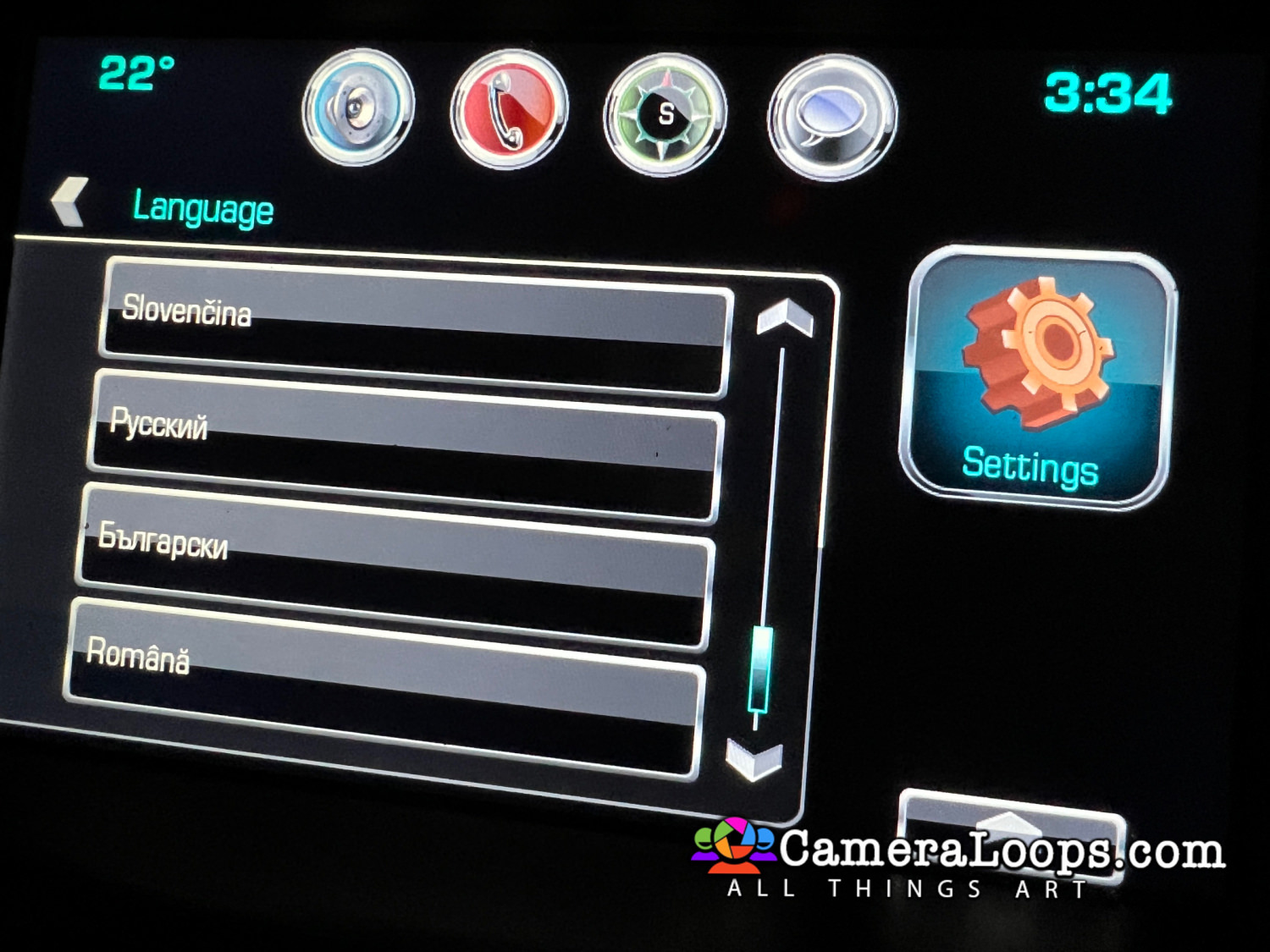
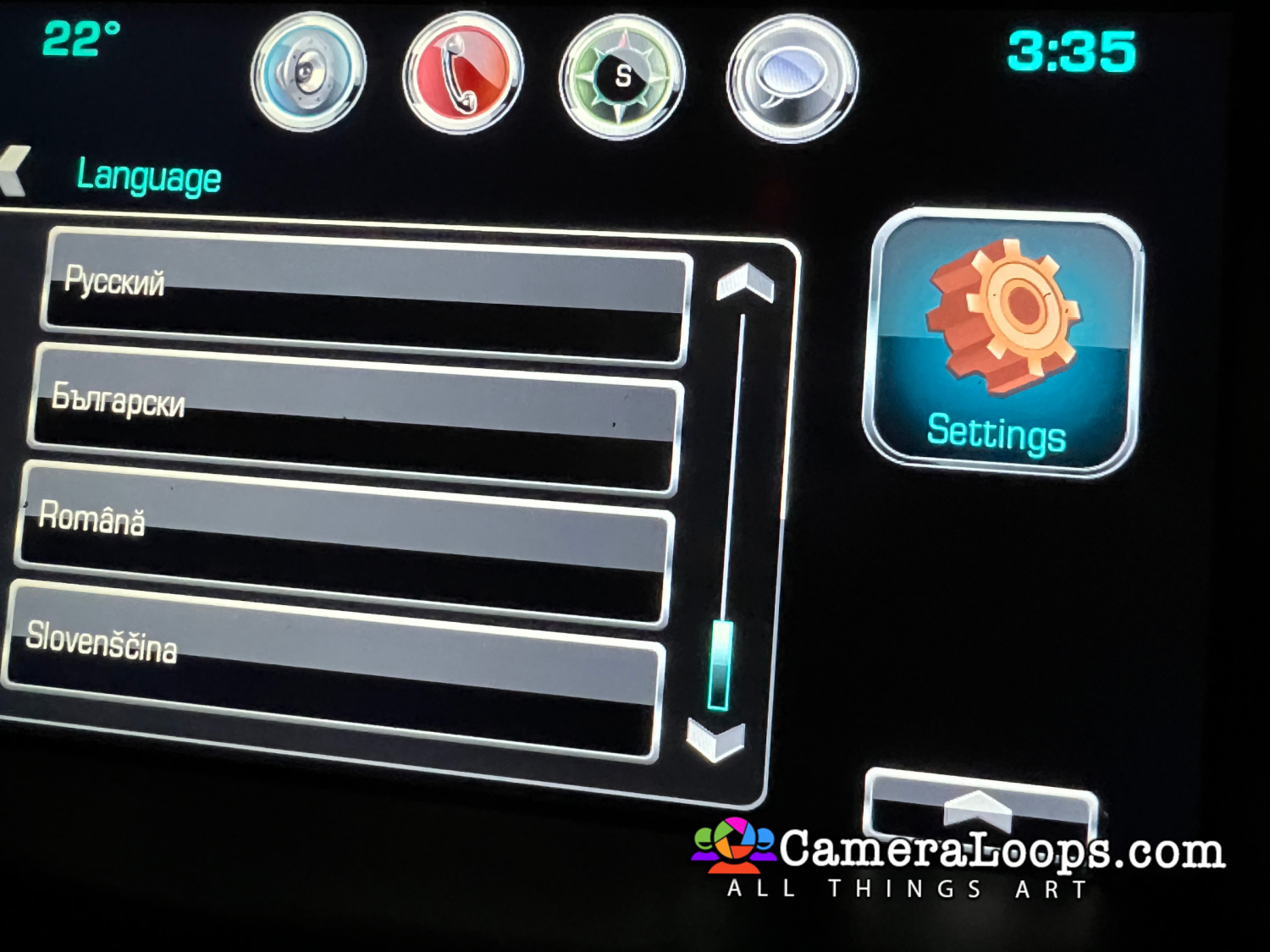
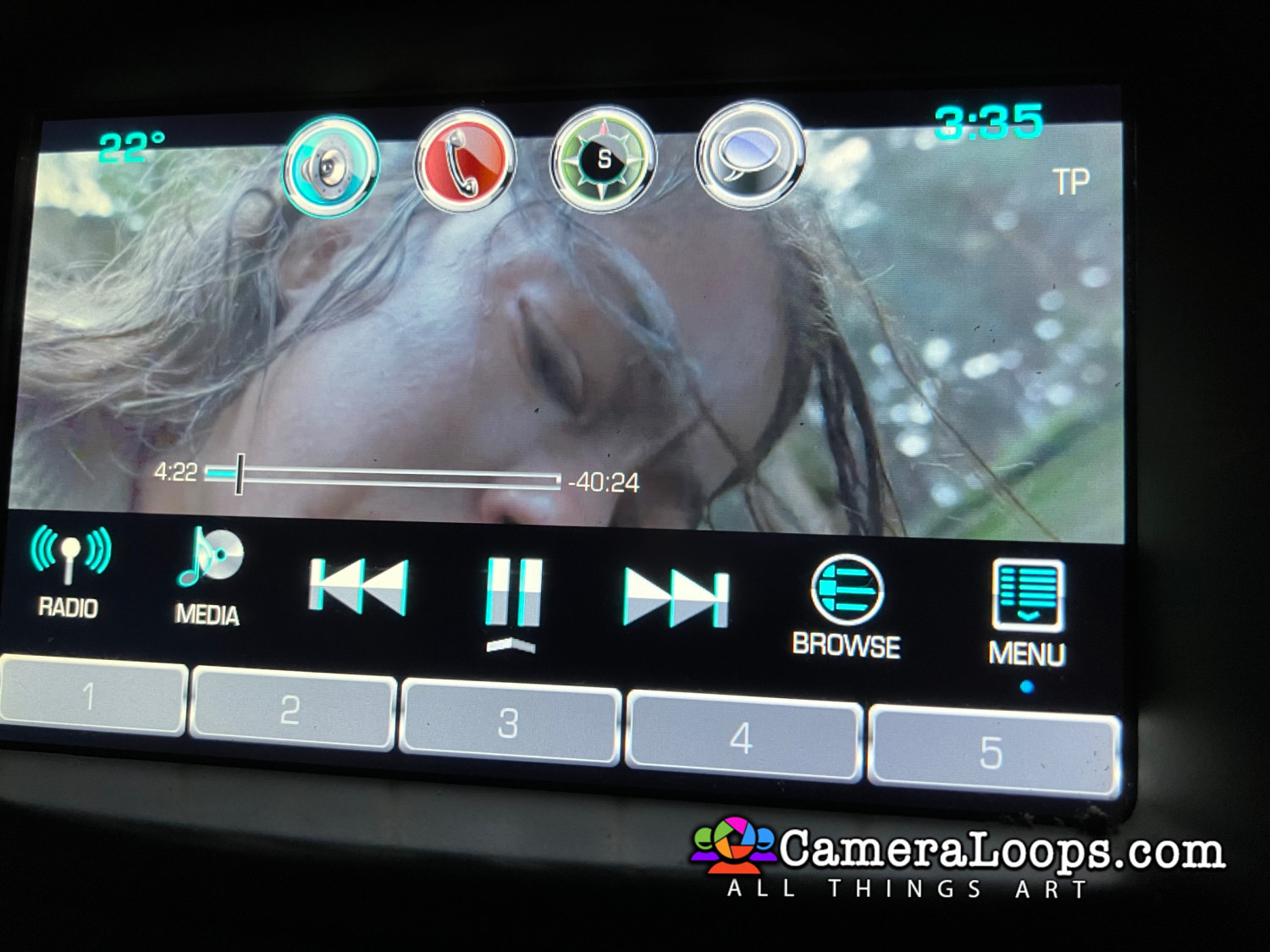
1 Screenshot

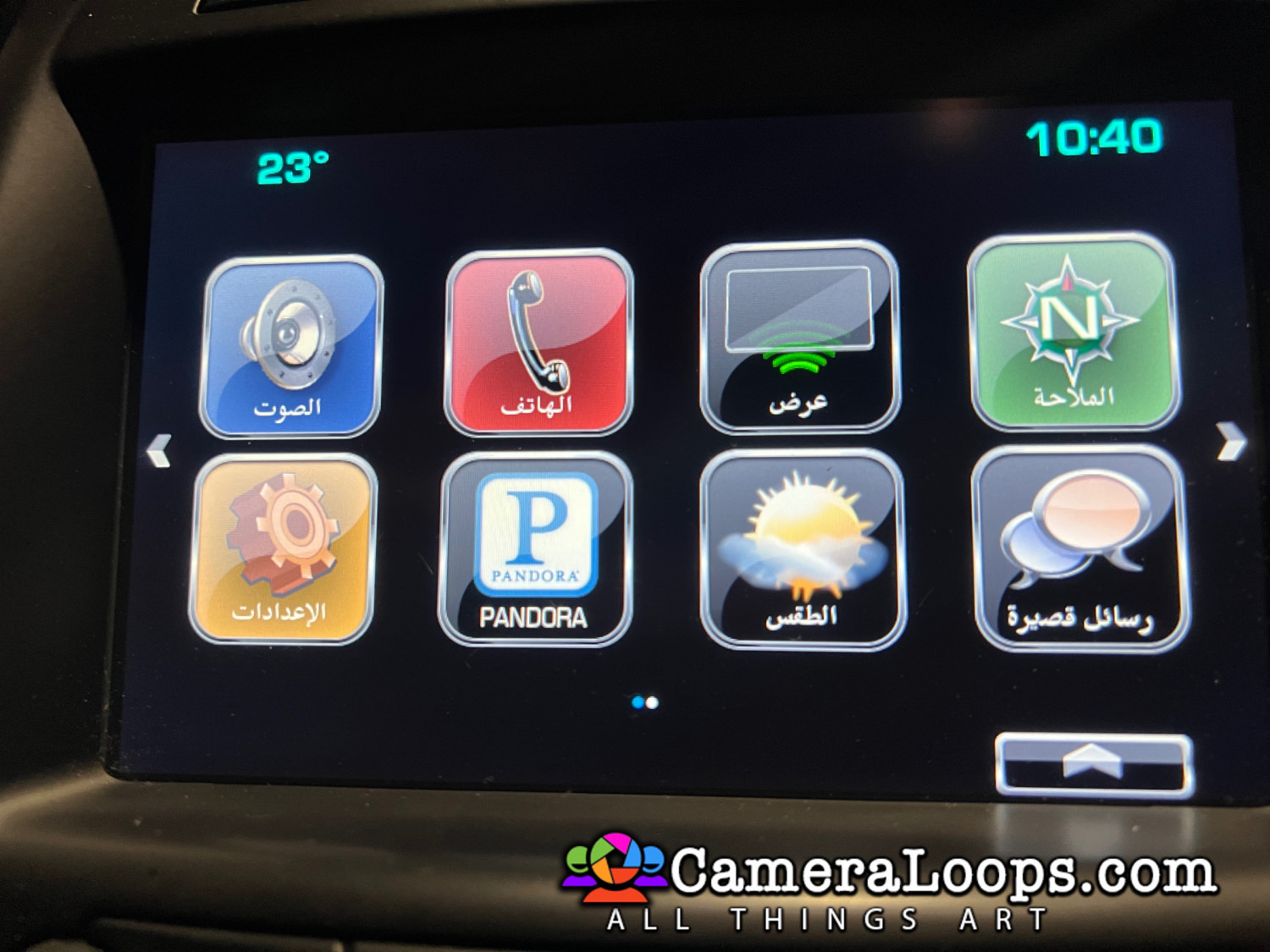
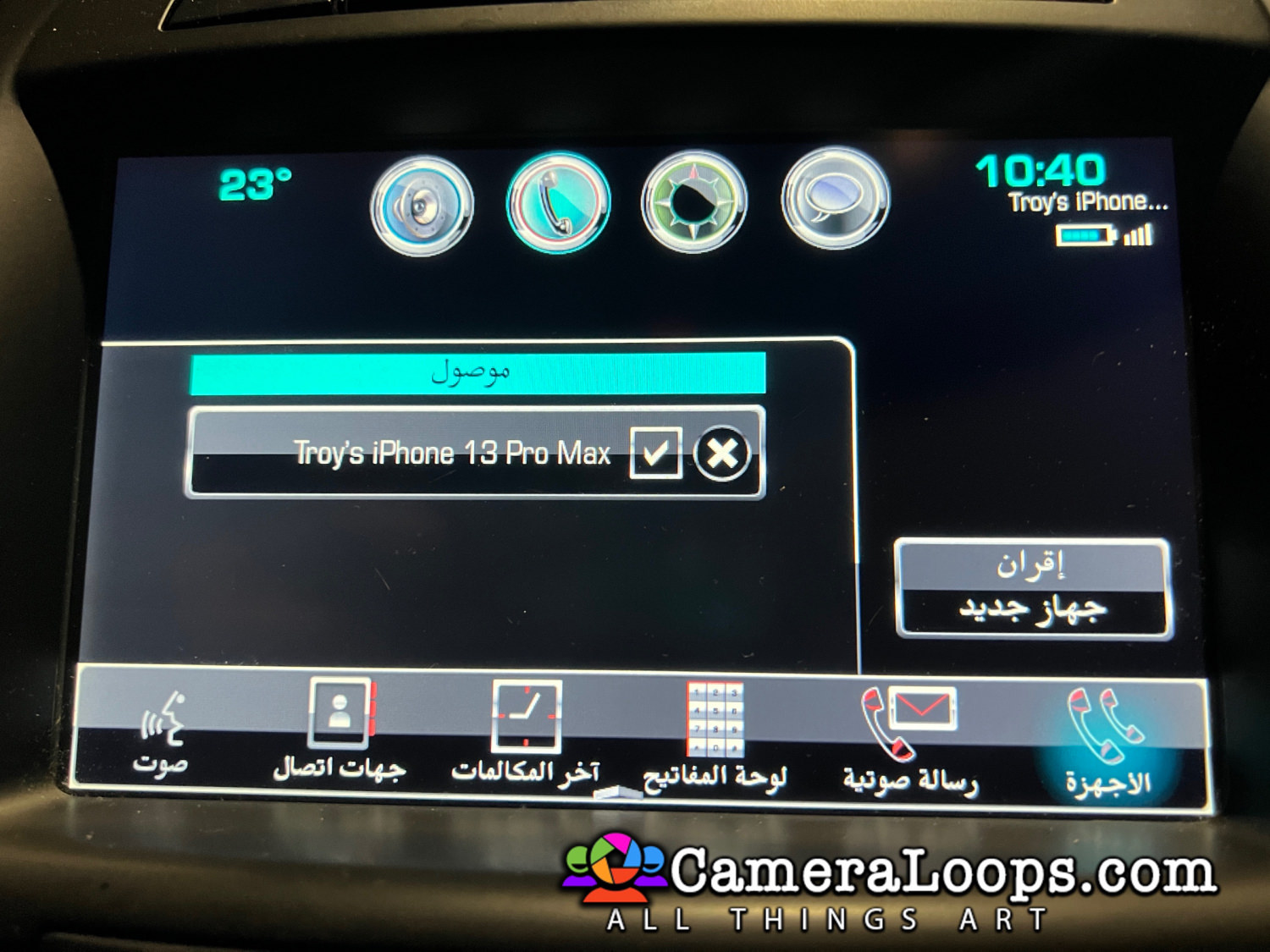
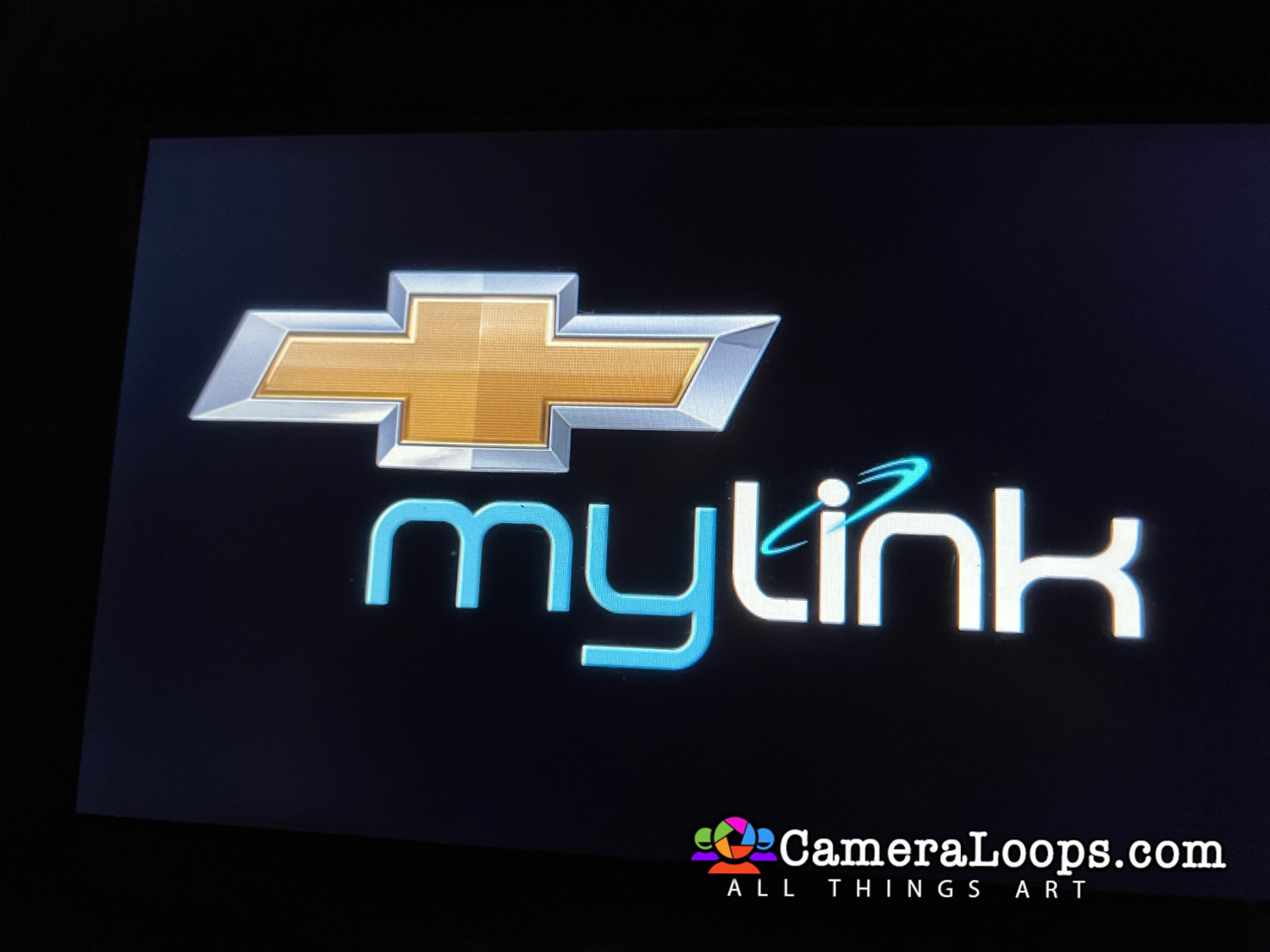
Video In Motion HMI 2.5 Chevrolet Tahoe MyLink Arabic language. 

The video still plays when the vehicle is driving in drive mode.


This file can be used with the GM DPS tool to: 

Activate Video in Motion.

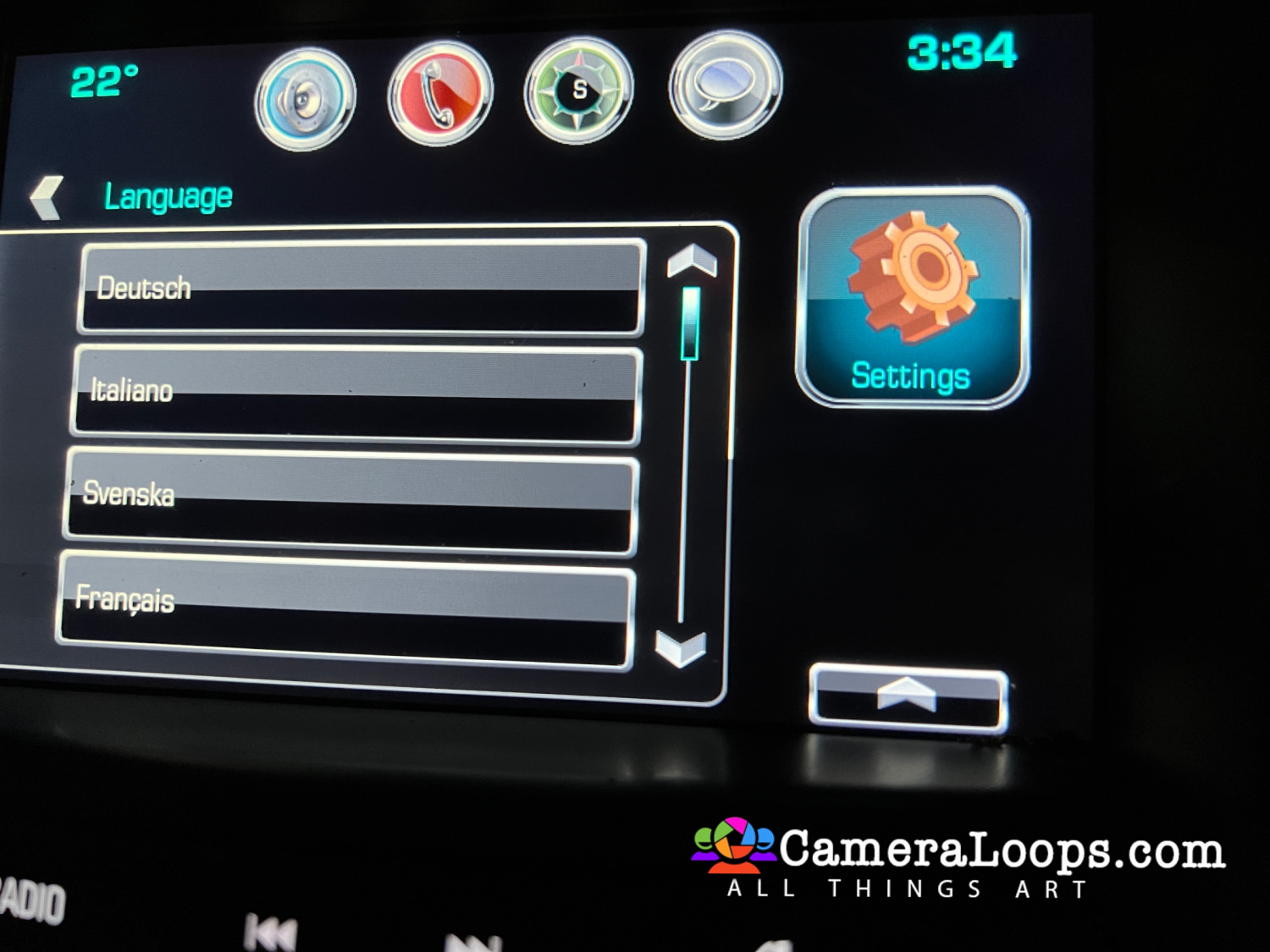
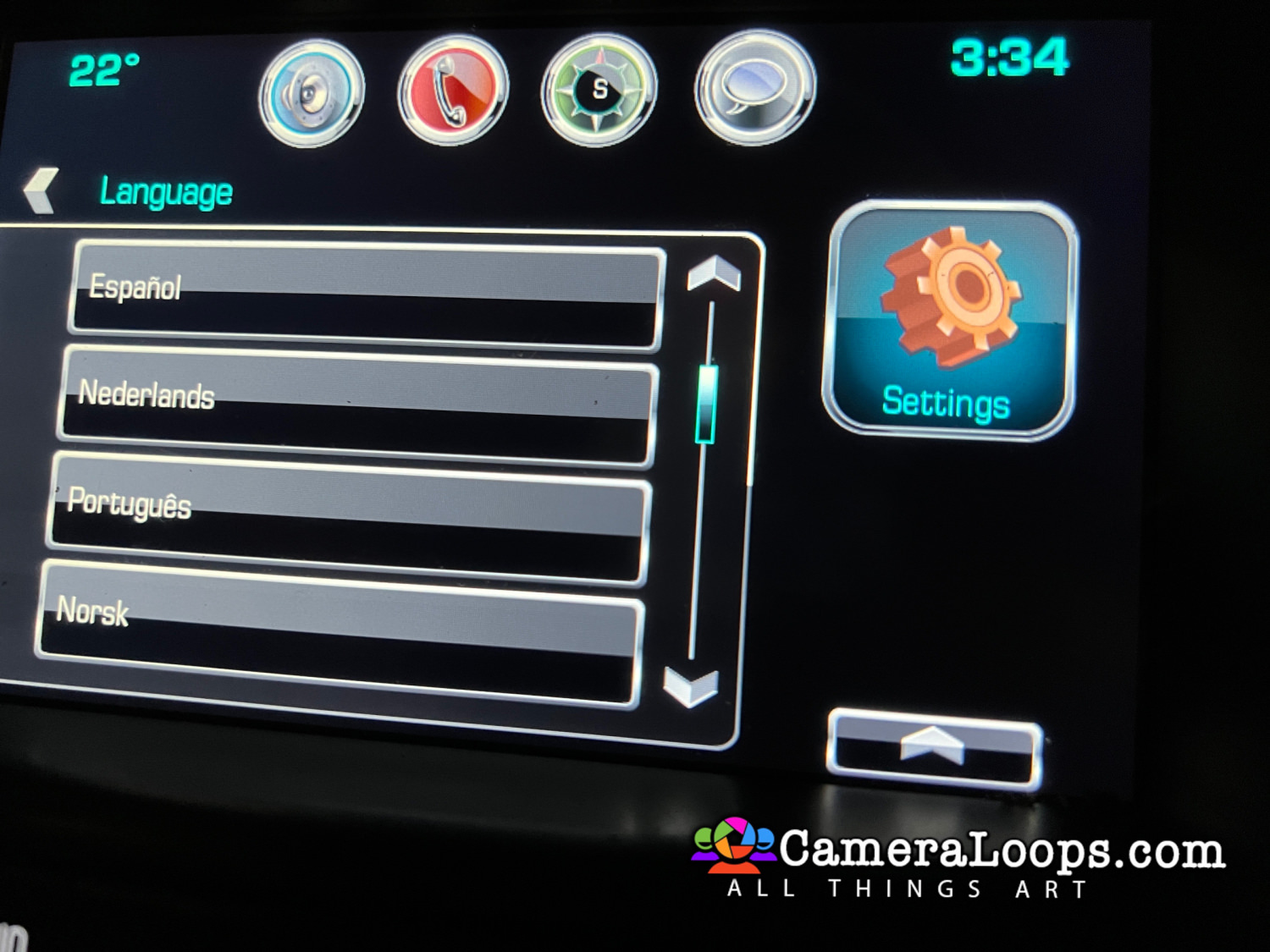
Activate Both North American and European languages on the infotainment and IPC screens. (The language selected in infotainment settings is set in the IPC).

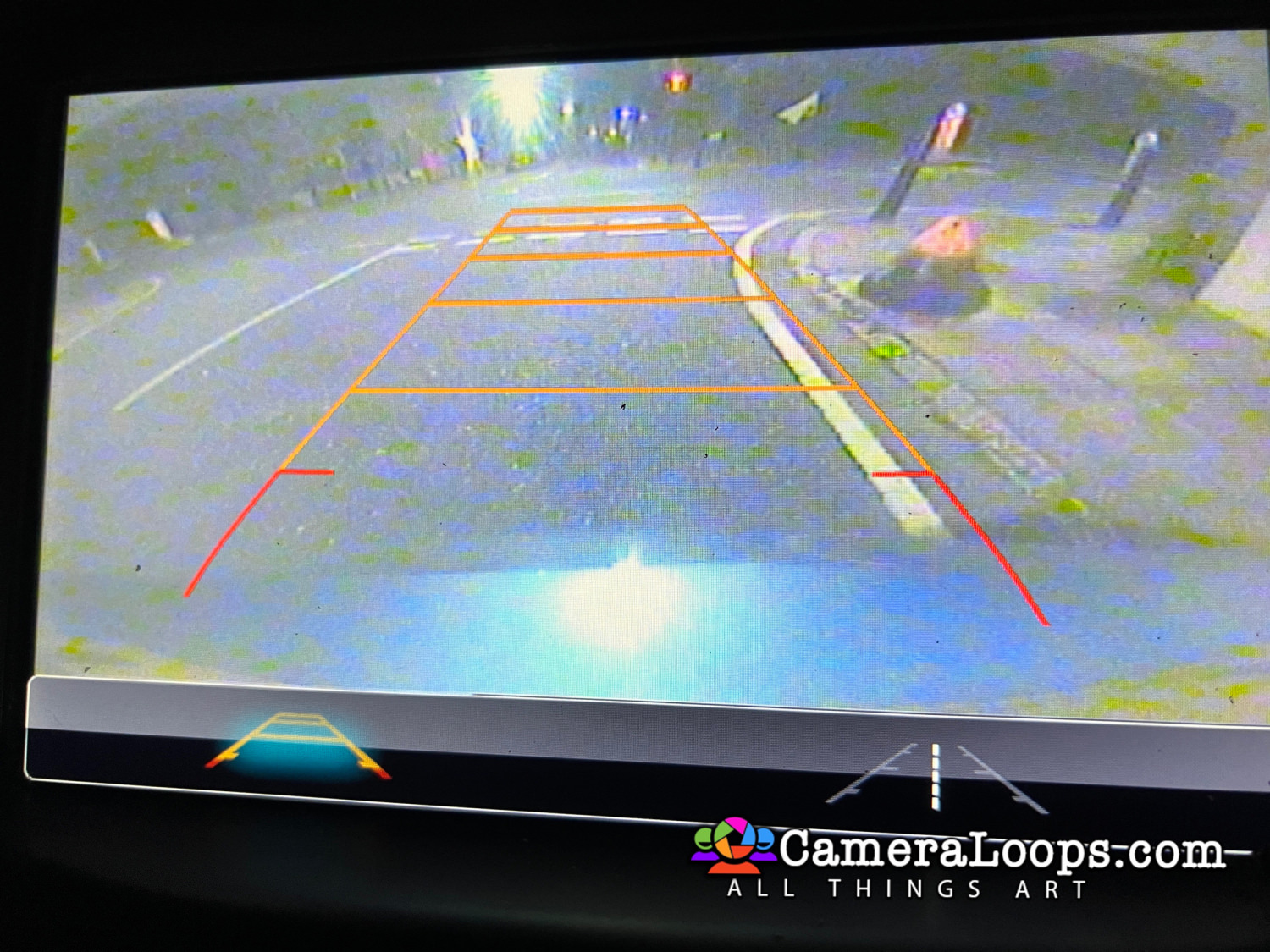
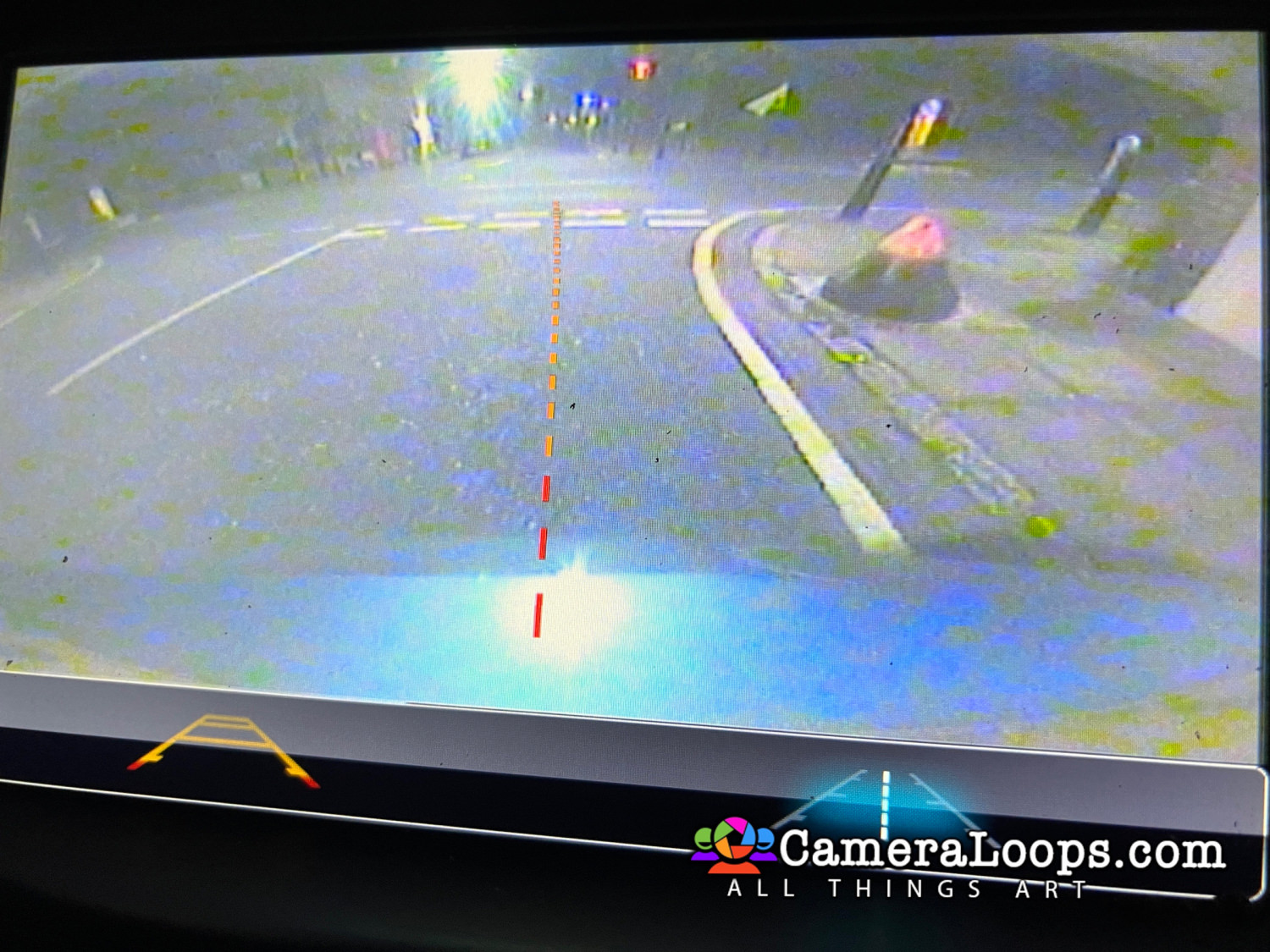
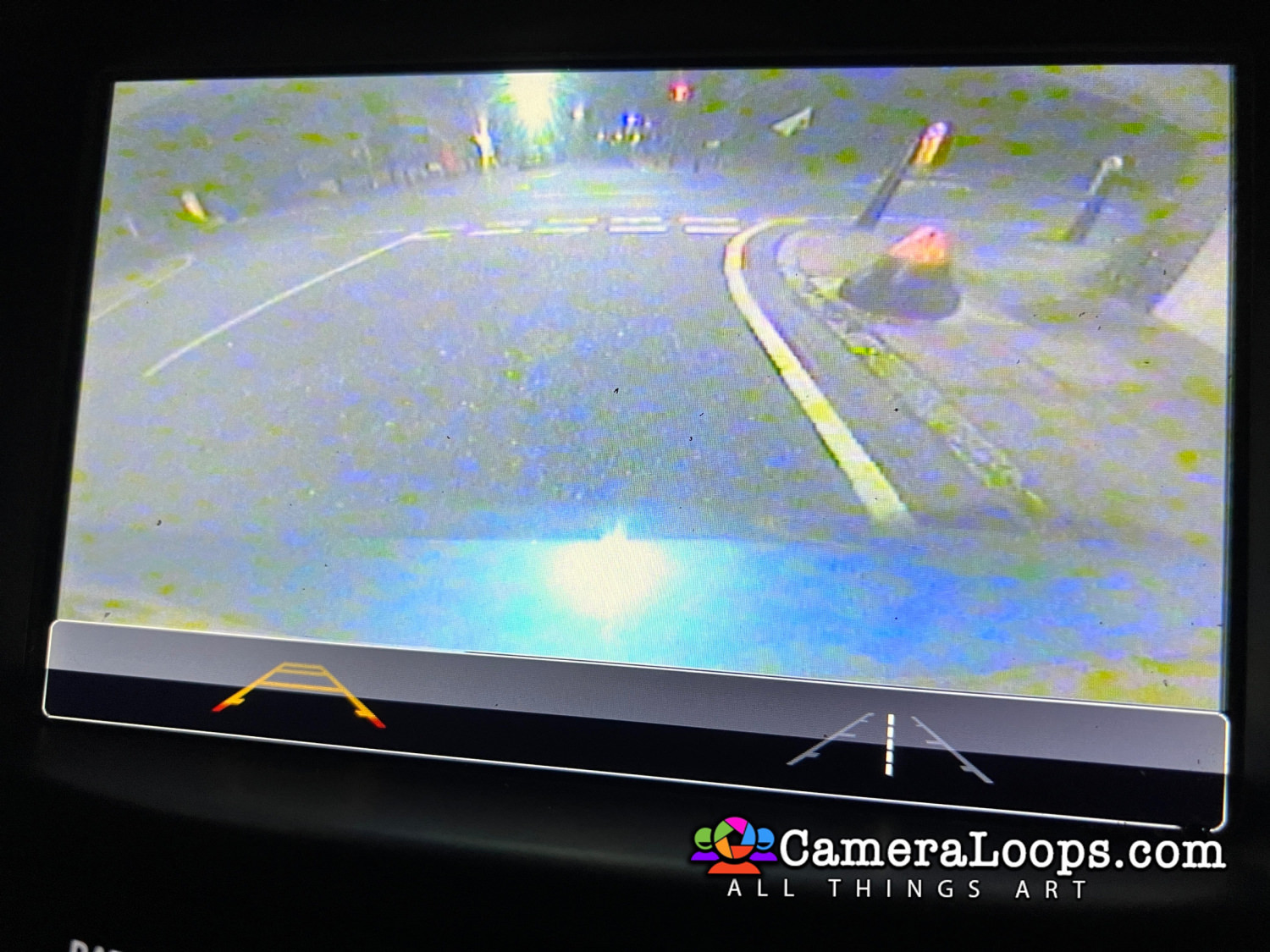
Activate reverse camera guide-lines.

Activate the reverse camera always on. (Note, an extra attachment or mod is needed to activate the reverse camera always-on feature).


Watch the below video to see the process.


IMG_7407.JPG


IMG_7485.JPG


IMG_7488.JPG


(The language selected in infotainment settings is also set in the IPC).
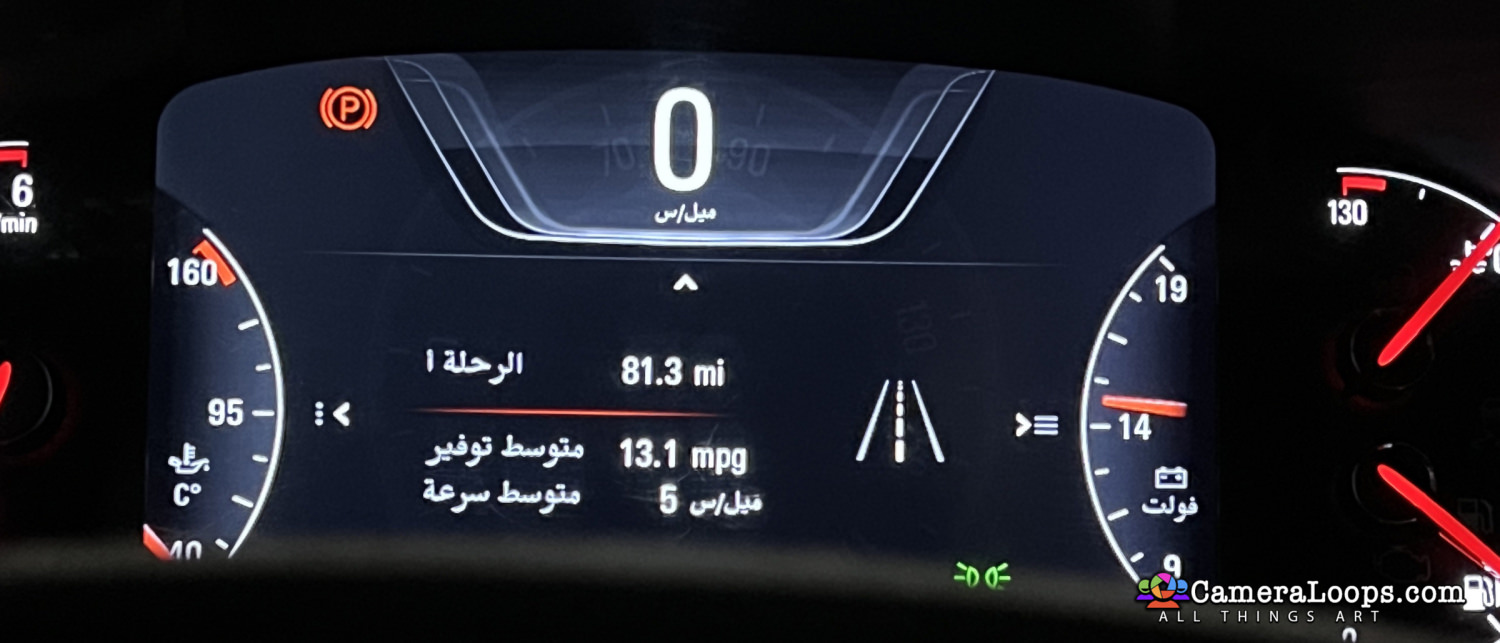
image.jpeg


IMG_7411.JPG


IMG_7412.JPG


IMG_7413.JPG


IMG_7415.JPG


IMG_7416.JPG


IMG_7417.JPG


IMG_7418.JPG


IMG_7419.JPG


IMG_7420.JPG


IMG_7421.JPG


User Feedback

Recommended Comments

There are no comments to display.

Join the conversation

You can post now and register later. If you have an account, sign in now to post with your account.

Guest
Add a comment...

Other files from Troy


CameraLoops™
Powered by Art
All Trademarks appearing on this website are the property of their respective owners.

Account

Navigation

Configure browser push notifications

Chrome (Android)
  1. Tap the lock icon next to the address bar.
  2. Tap Permissions → Notifications.
  3. Adjust your preference.
Chrome (Desktop)
  1. Click the padlock icon in the address bar.
  2. Select Site settings.
  3. Find Notifications and adjust your preference.
CameraLoops members who viewed this content
Savip_ Abbas- bekooly Alpha Umerastic SHPSHP Thamer Mo Alpha-Leader A61bk BabyLonLand bakermu sinnak Enterlan AL RAED jahedgm ameeraltihan FASNASSRI sakeer ammar ydc Hussein Althamir