










.thumb.png.6cba57c5e88519e419516e3ed1152e01.png)
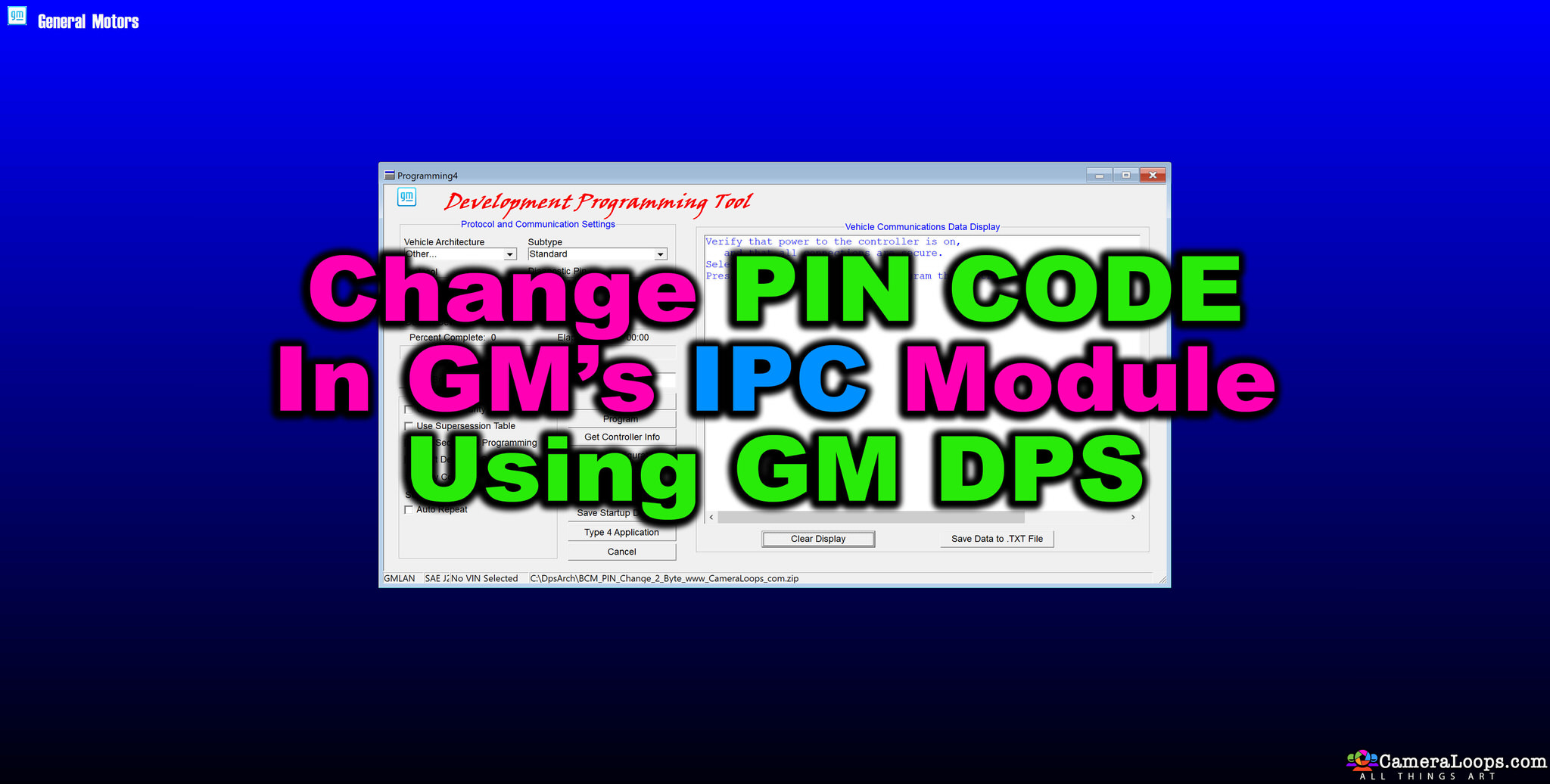
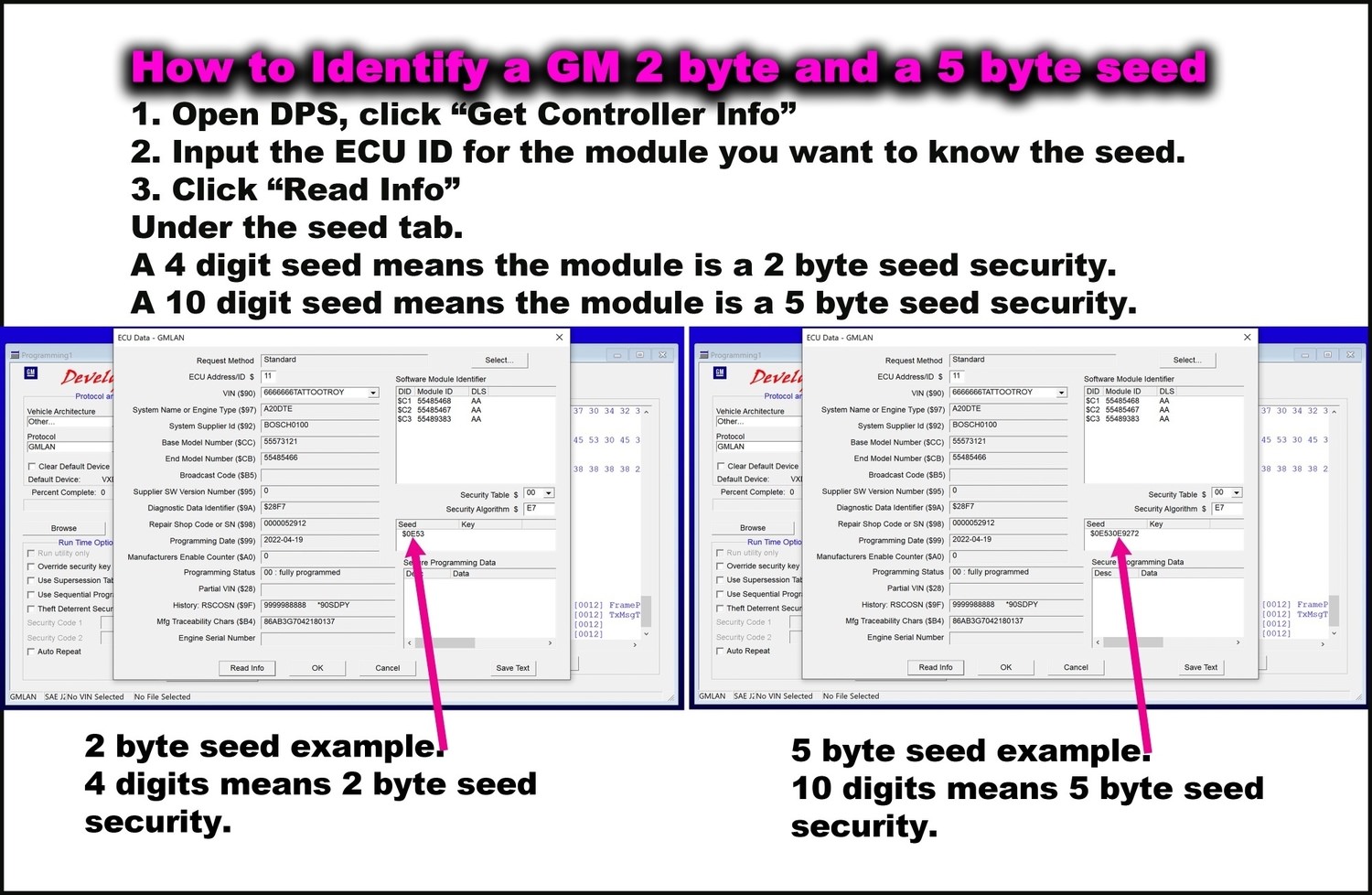
This DPS file can change the PIN CODE in Buick Envision 2017 2-Byte Seed IPC modules.
Without a pin code change in a used IPC, BCM, EBCM, and SDM you won’t be able to program those modules via GM online SPS service using the vehicle’s original PIN.
Important
- In order to change the PIN code in a used GM module, you will need to know the PIN code that’s already programmed/stored in that module. Without knowing that PIN code, you cannot change the PIN code in the modules using DPS.
-
You have to wait 12 minutes for the PIN code programming procedure to be completed by DPS.
Methods for knowing the PIN CODE stored in a used module.
Connect the used module to DPS, then use the "get Controller Info" option to know the VIN stored in the module.
You can then use this VIN to PIN service to know the PIN CODE stored in the used module.
VIN to PIN Service
Watch this video to see the process.




.thumb.jpg.9f4d13724b1c2de1592cb8d64fcb5248.jpg)





Recommended Comments
Join the conversation
You can post now and register later. If you have an account, sign in now to post with your account.