


Skip to content
Install the CameraLoops App

Browse CameraLoops via the app. Learn more.

www.CameraLoops.ru

Use the CameraLoops full-screen app on your home screen with push notifications, badges and more.

To install the CameraLoops app on iOS and iPadOS
  1. Tap the Share icon in Safari
  2. Scroll the menu and tap Add to Home Screen.
  3. Tap Add in the top-right corner.
To install the CameraLoops app on Android
  1. Tap the 3-dot menu (⋮) in the top-right corner of the browser.
  2. Tap Add to Home screen or Install app.
  3. Confirm by tapping Install.

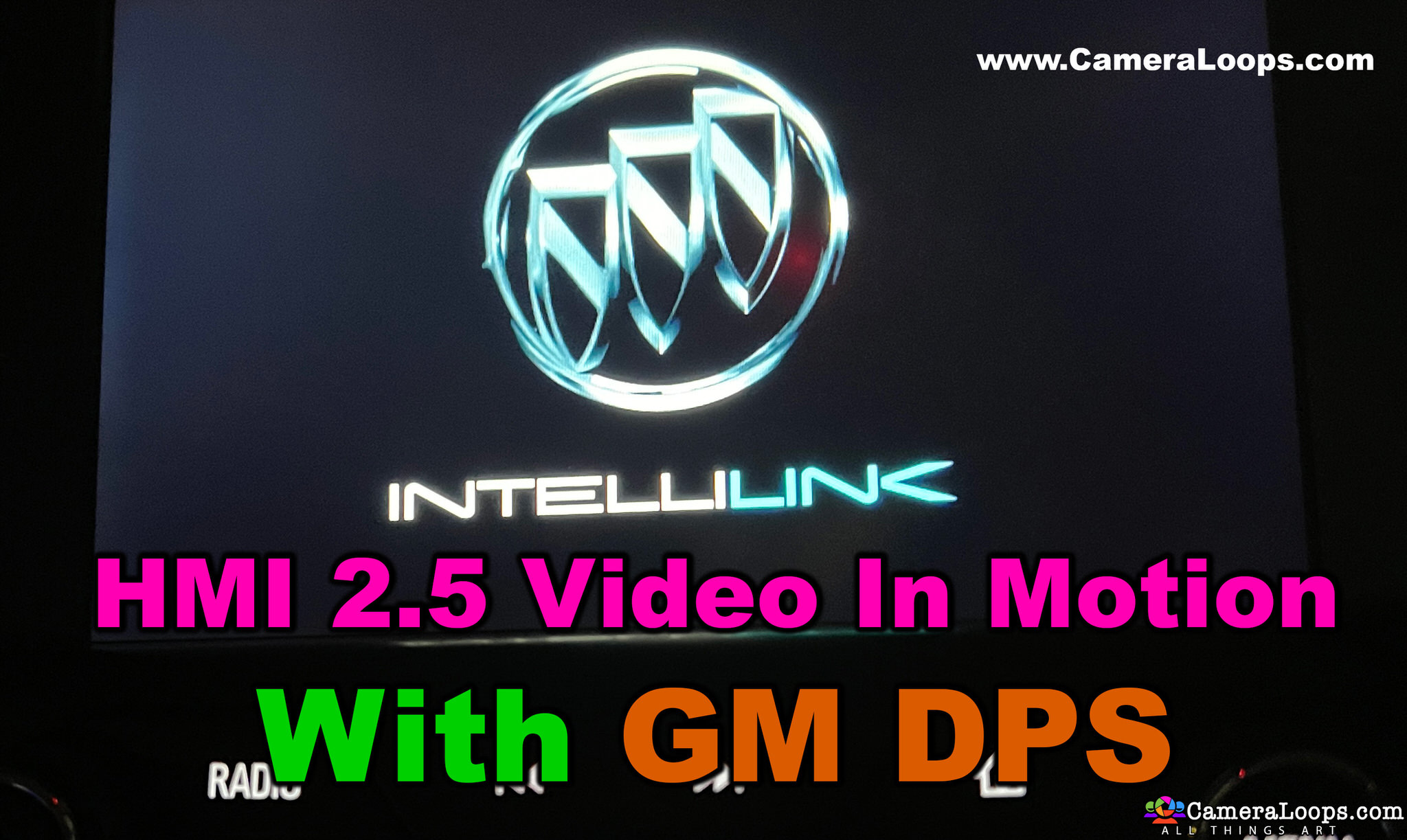
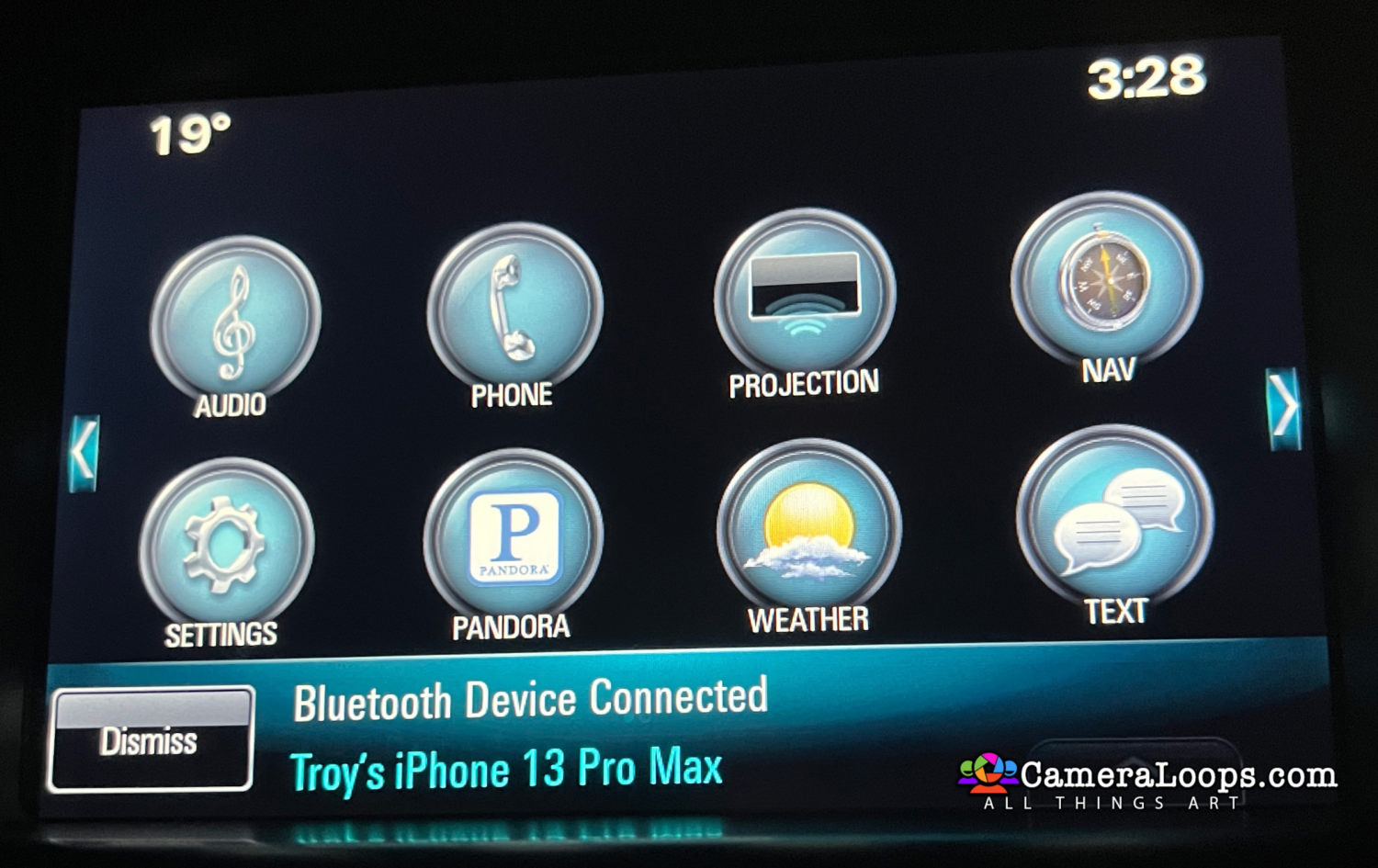
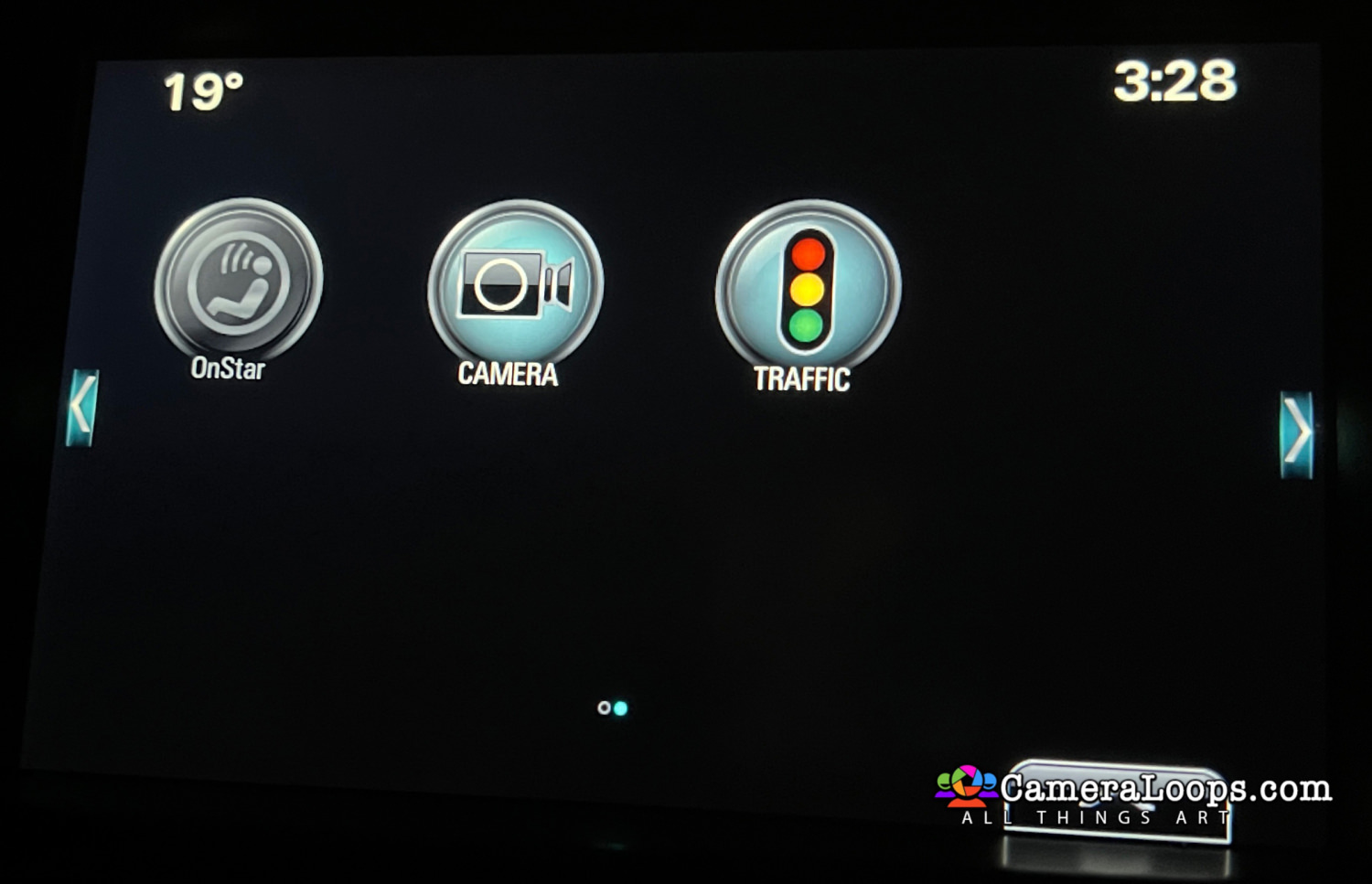
Video In Motion HMI 2.5 Buick Regal IntelliLink

$200

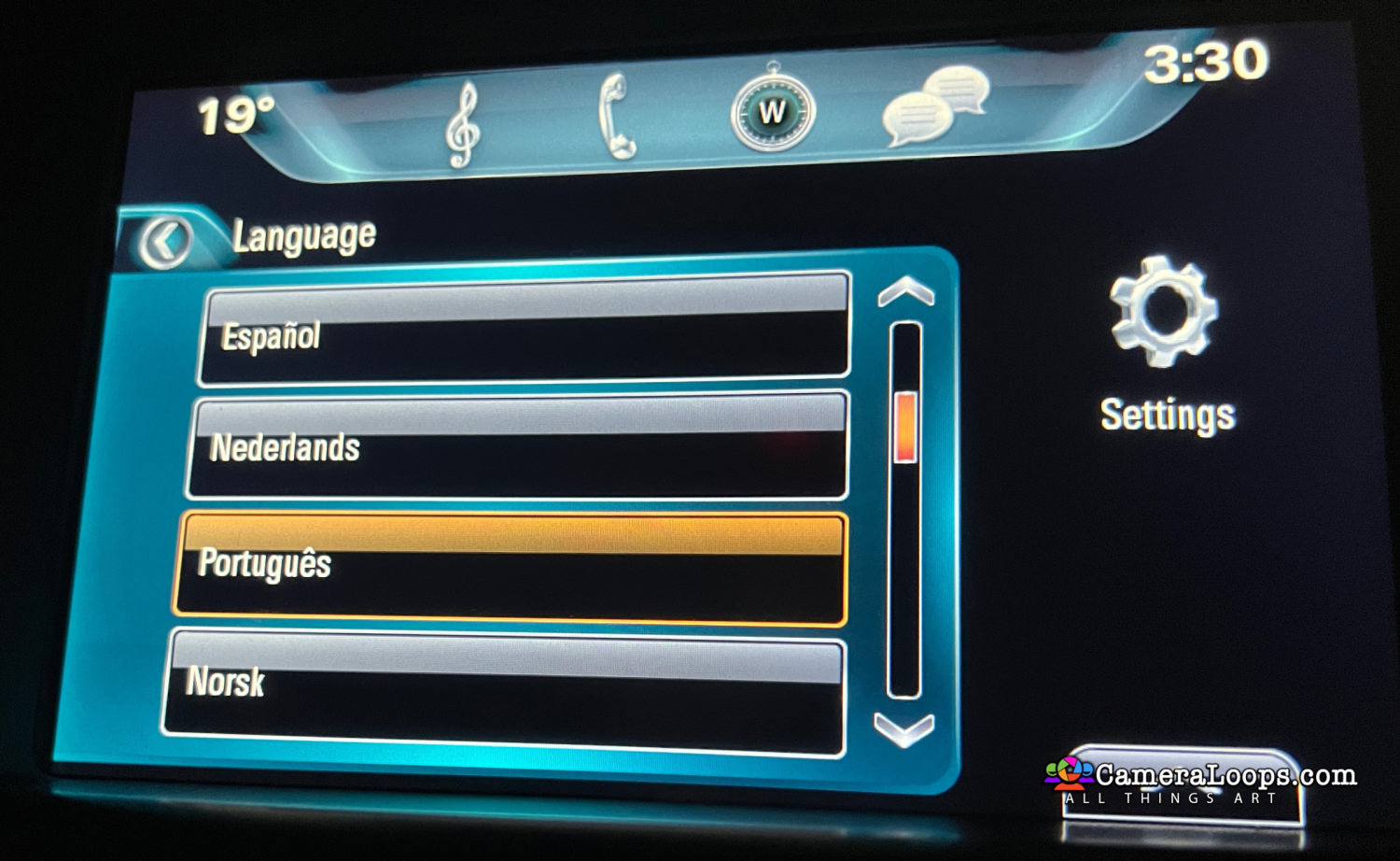
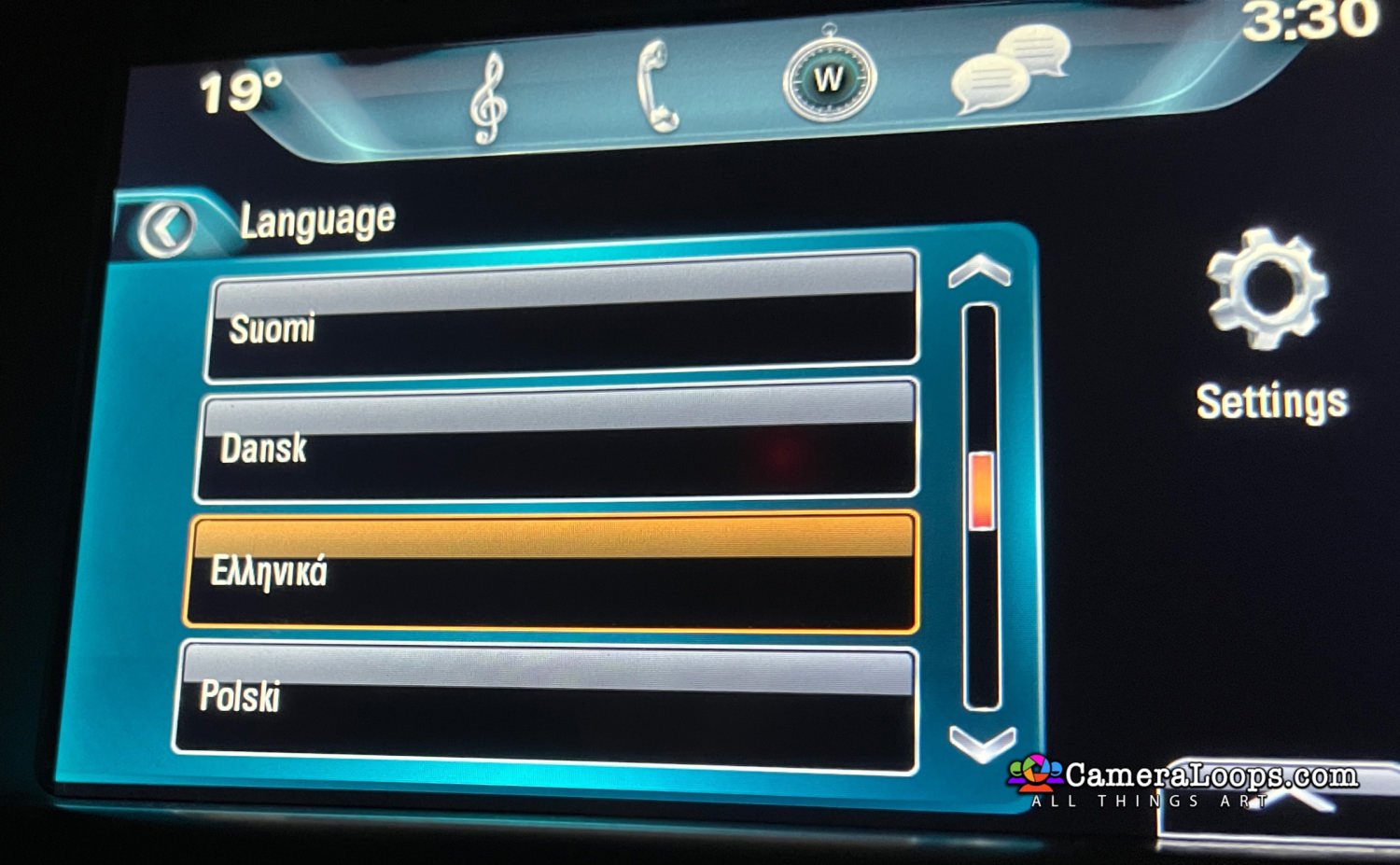
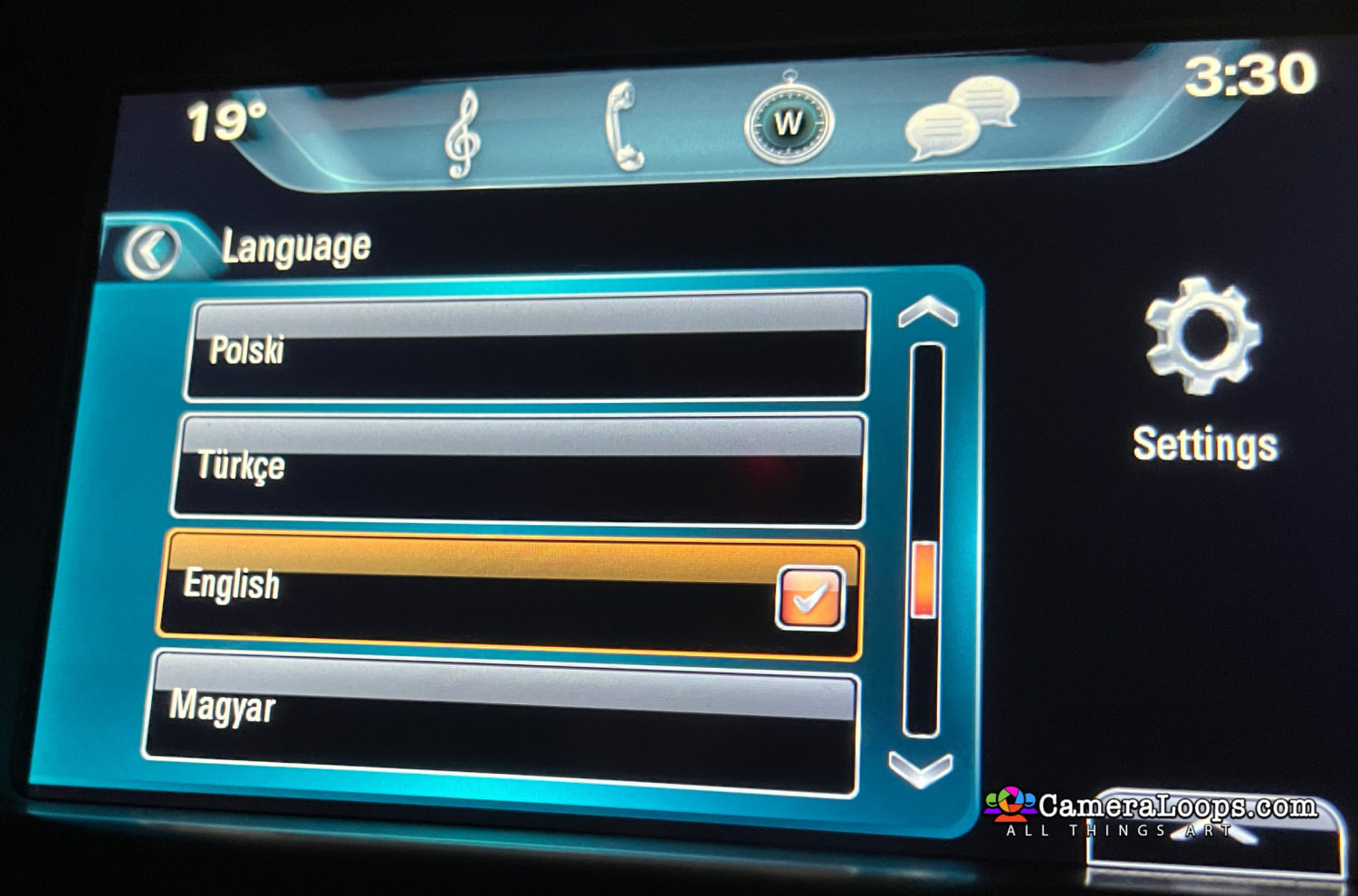
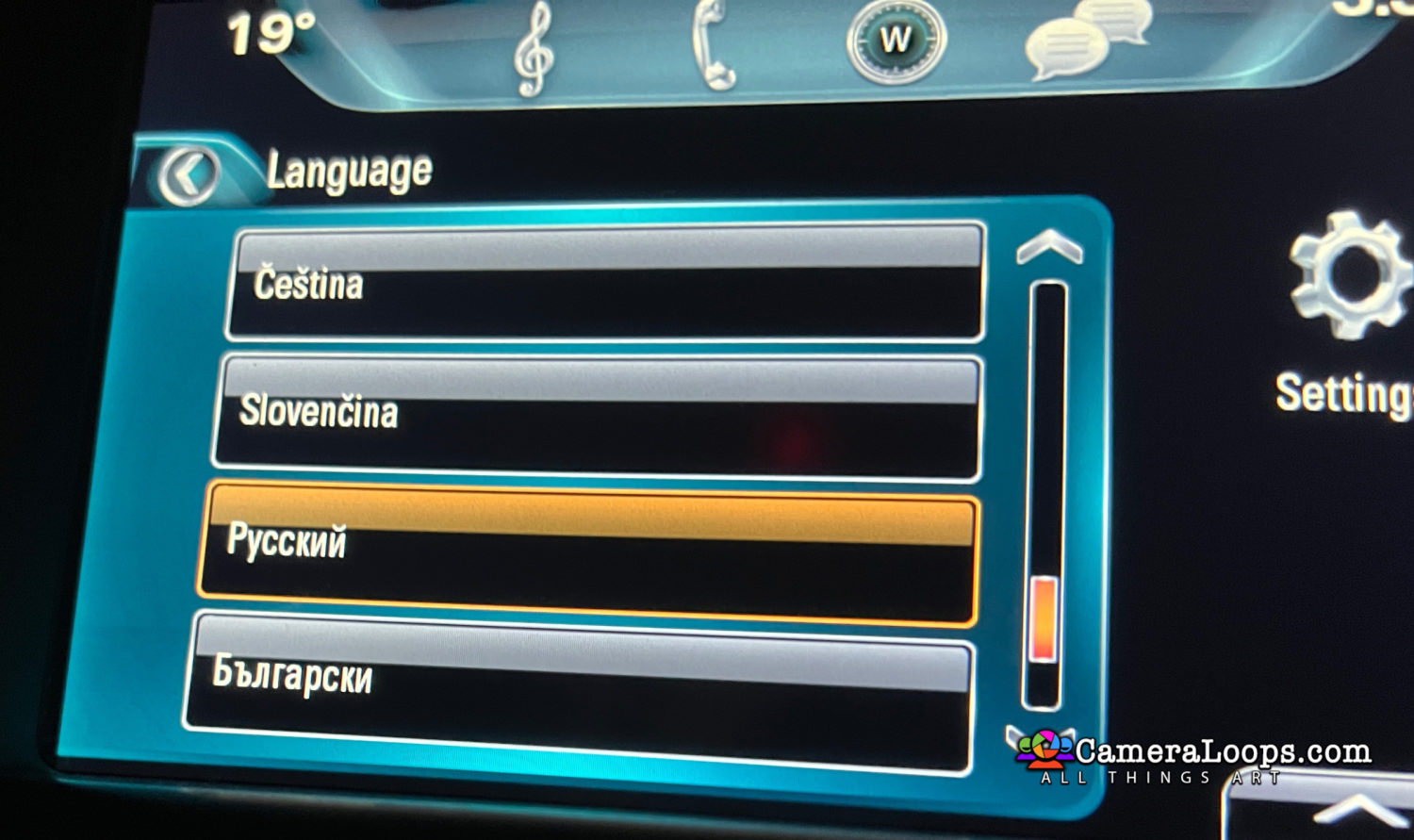
1 Screenshot

Video In Motion HMI 2.5 Buick Regal IntelliLink.

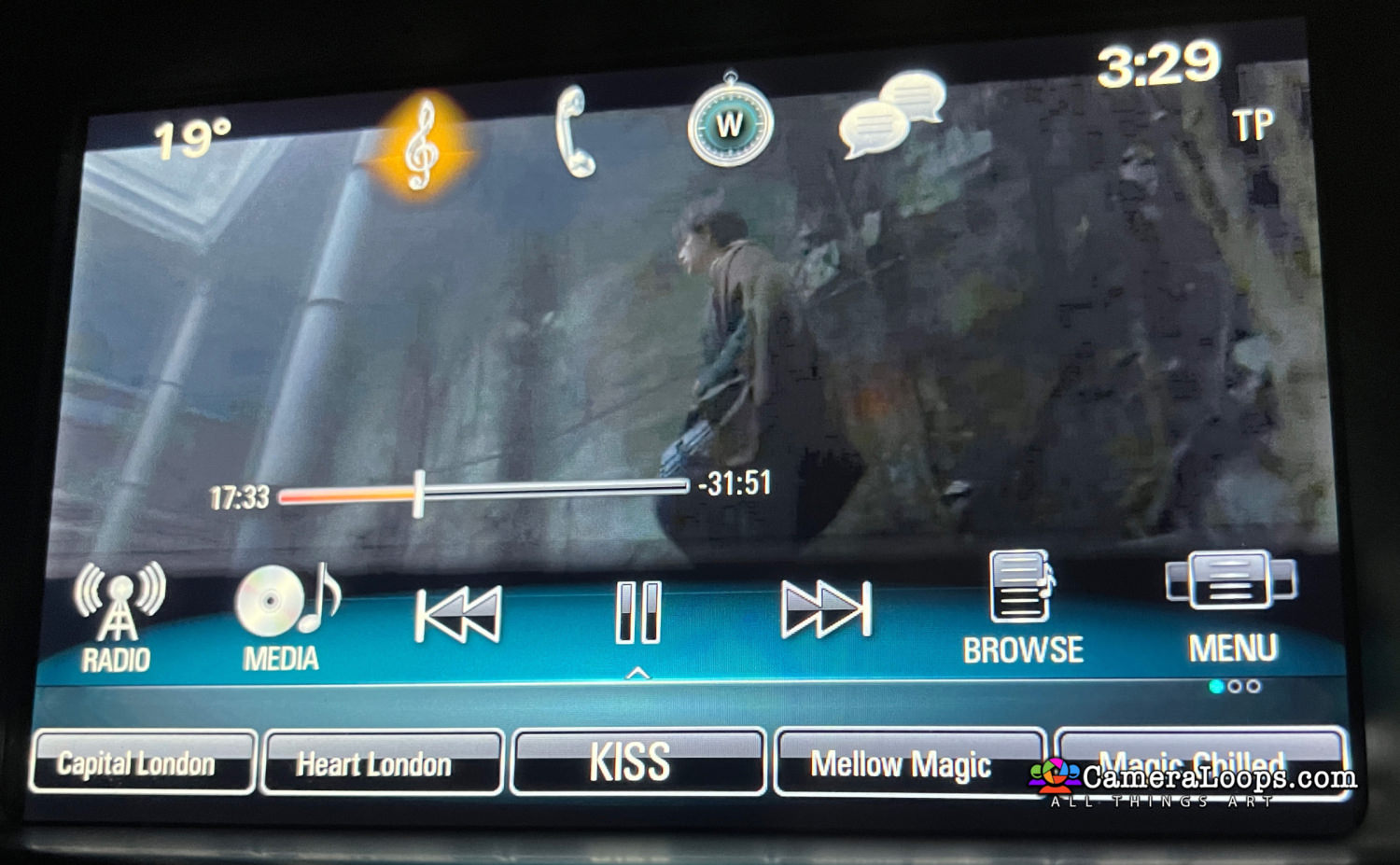
The video still plays when the vehicle is driving in drive mode.


This file can be used with the GM DPS tool to: 

Activate Video in Motion.

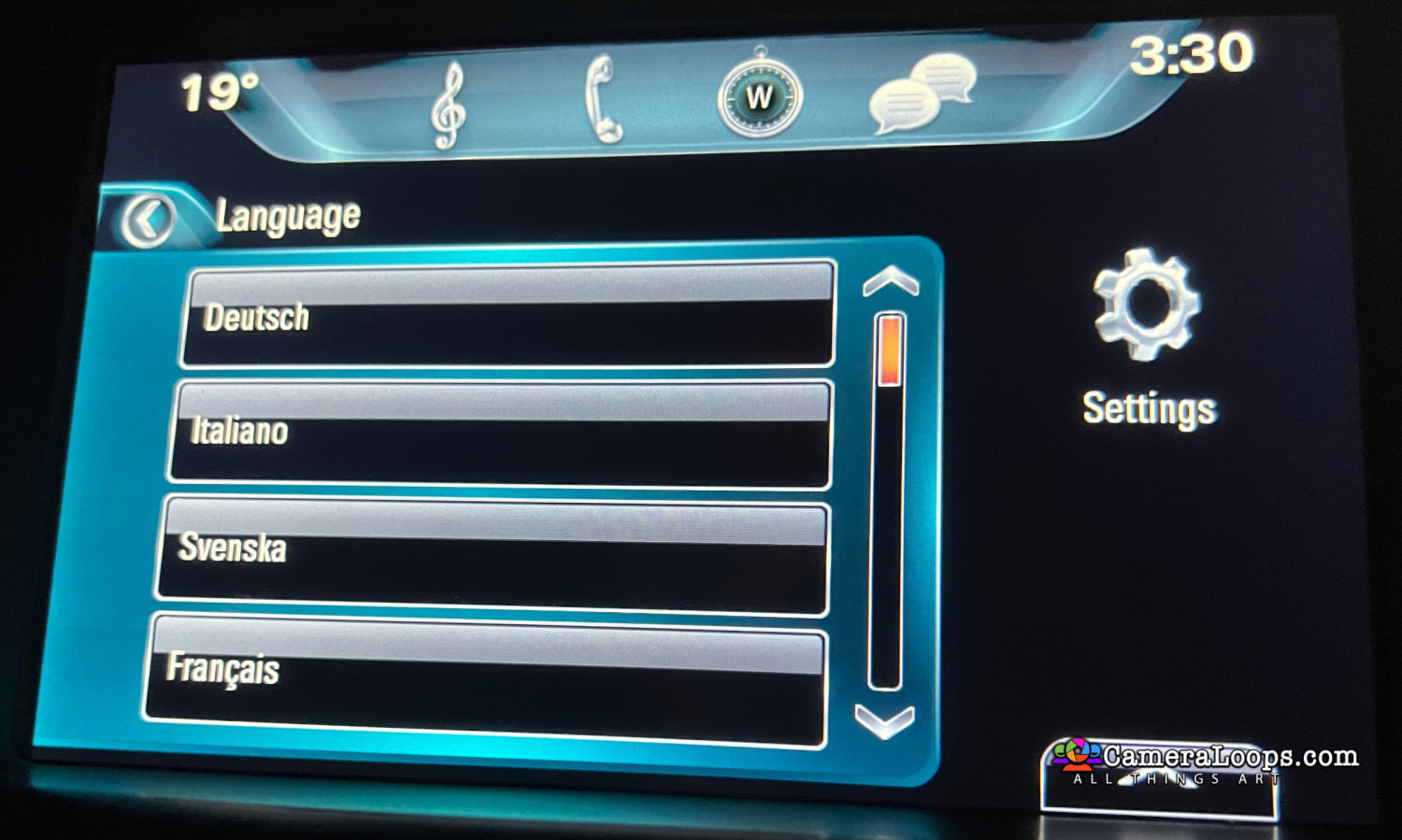
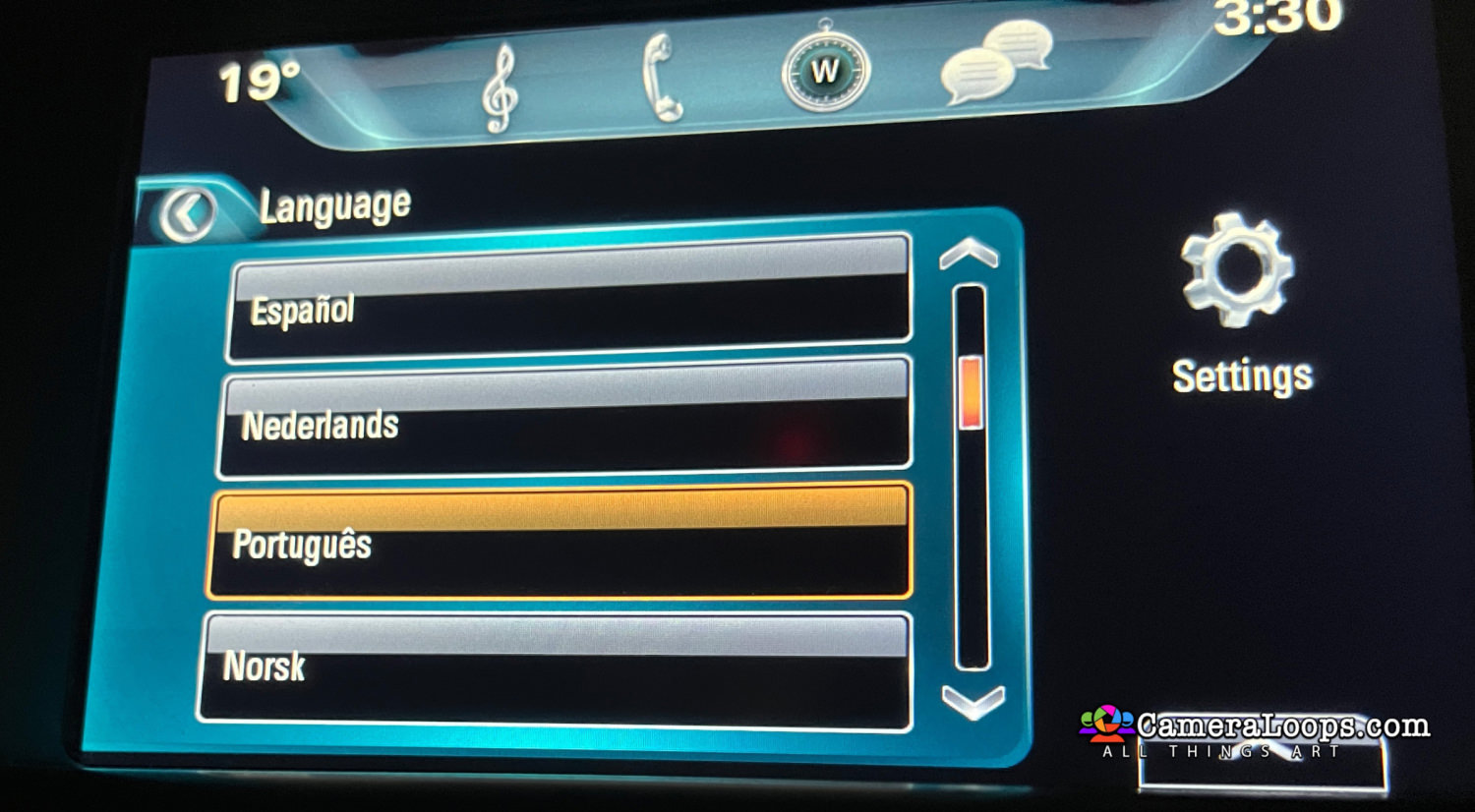
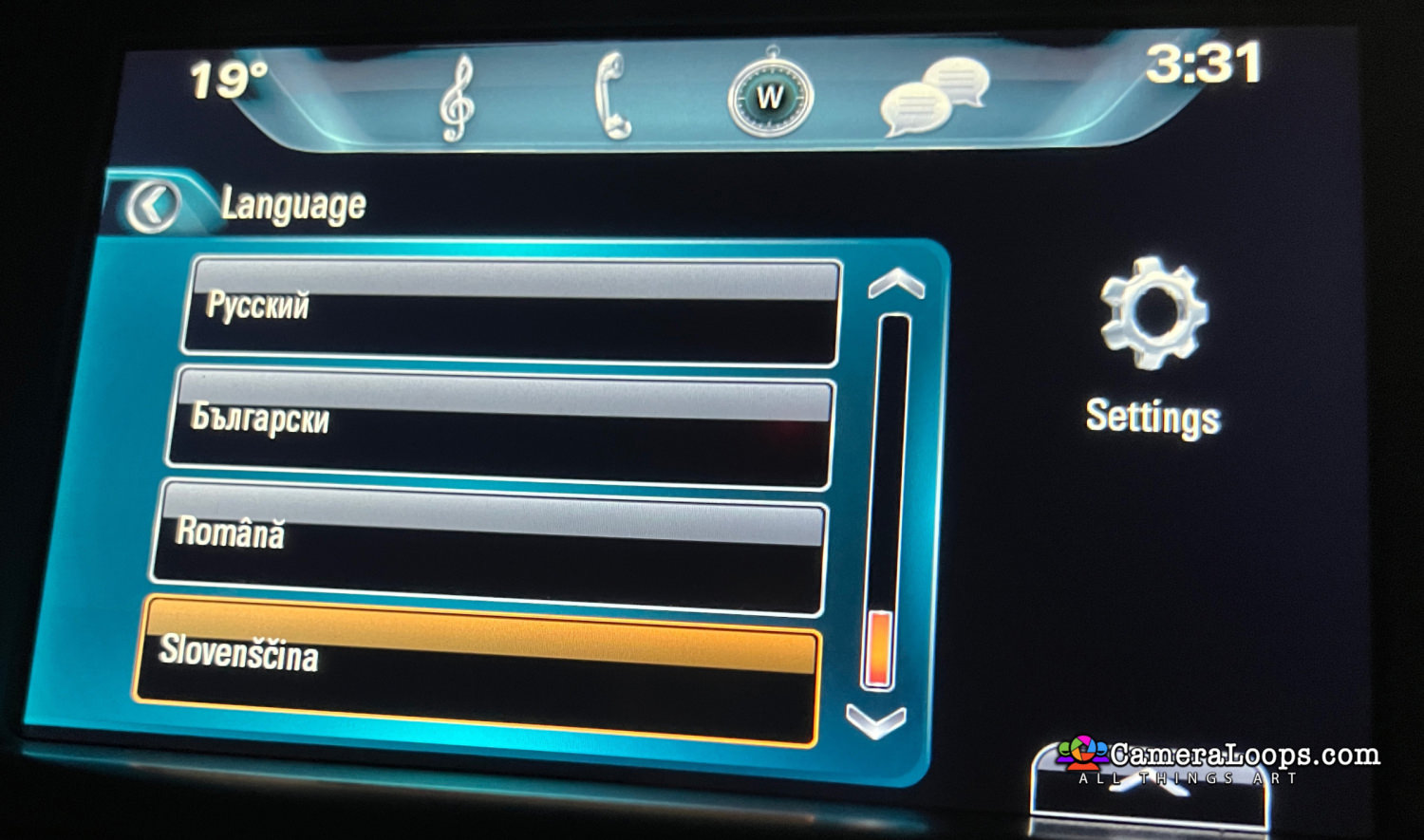
Activate Both North American and European languages on the infotainment and IPC screens. (The language selected in infotainment settings is set in the IPC).

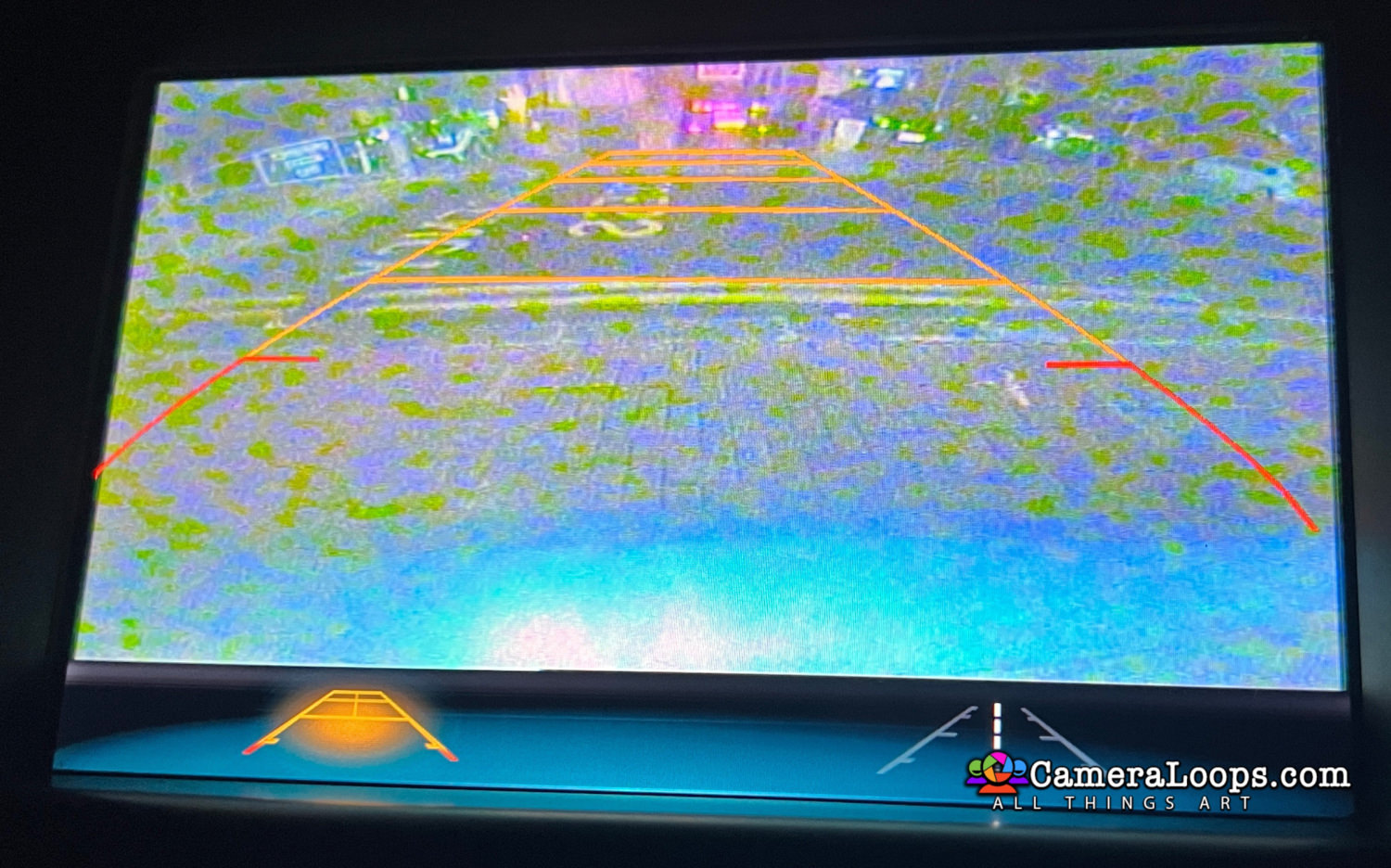
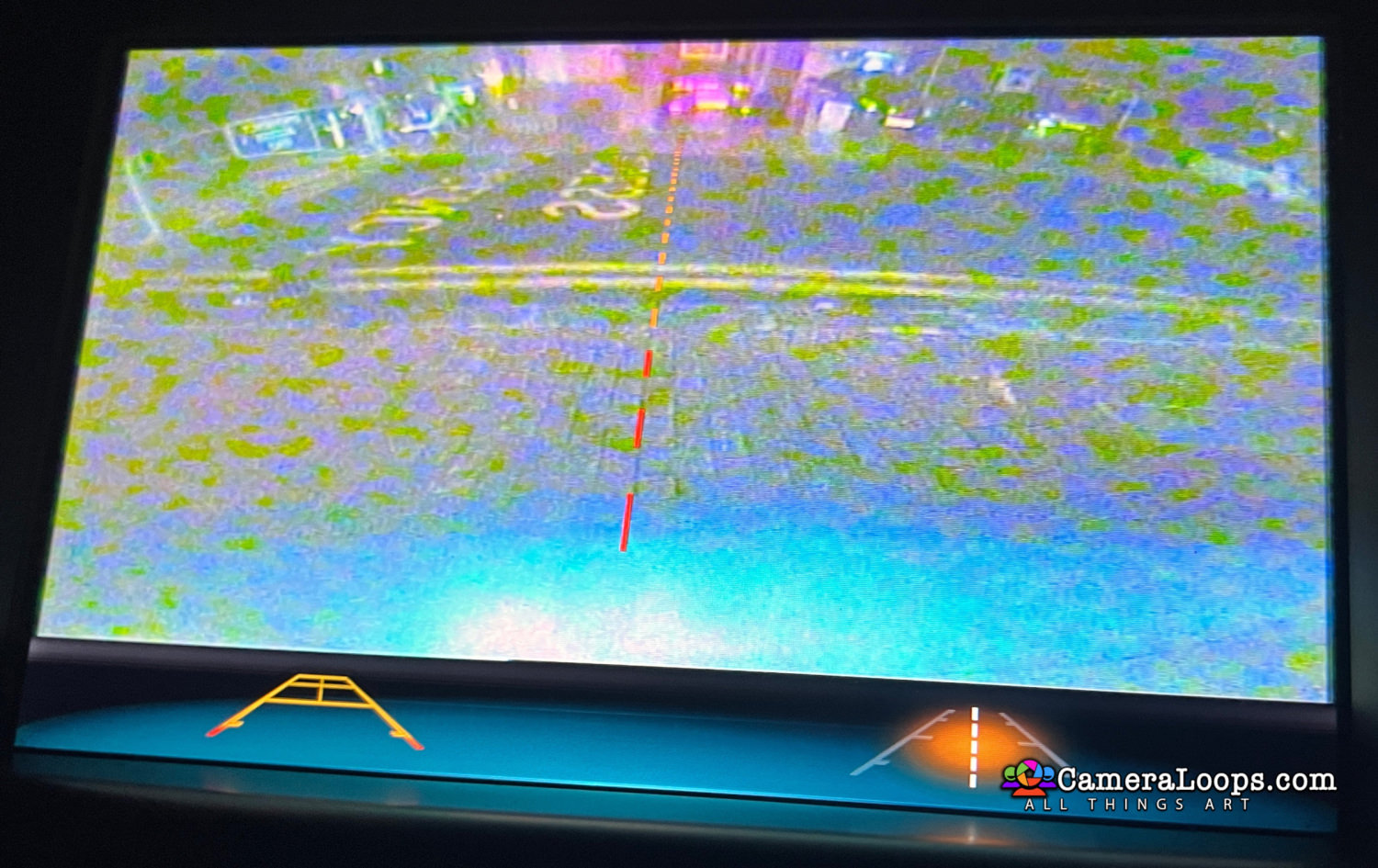
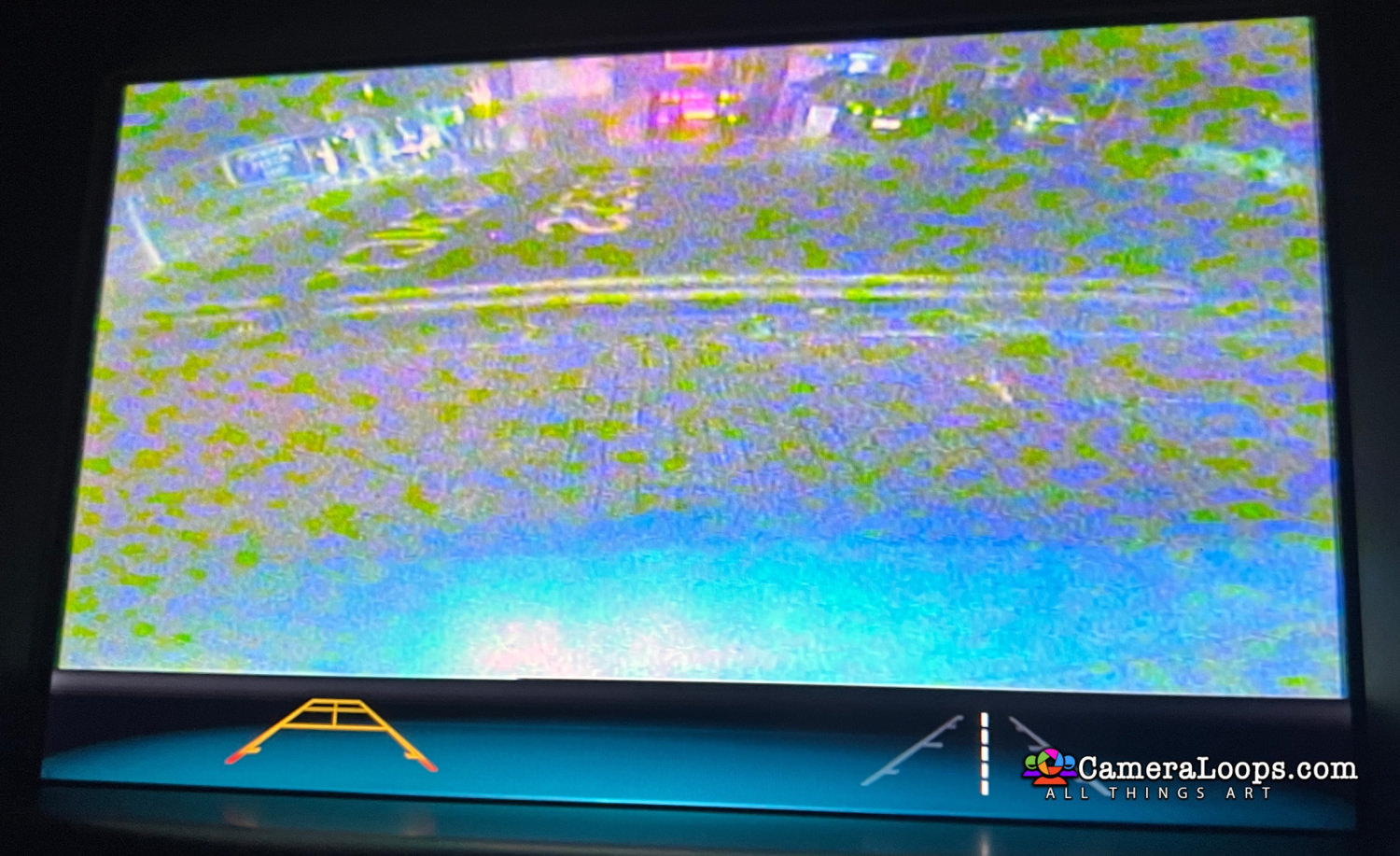
Activate reverse camera guide-lines.

Activate the reverse camera always on. (Note, an extra attachment or mod is needed to activate the reverse camera always-on feature).
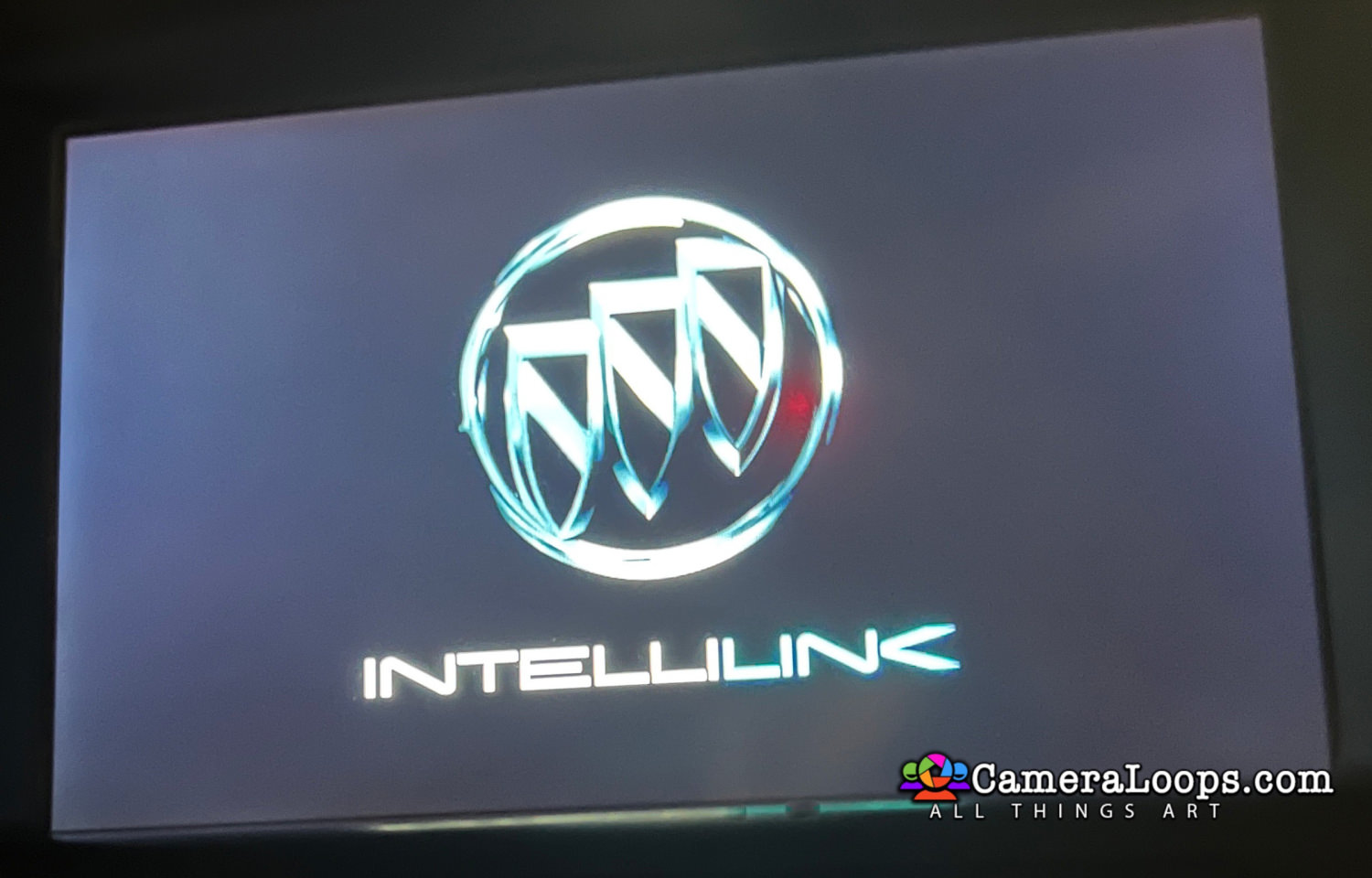


1.jpg


2.jpg


3.jpg


4.jpg


5.jpg


6.jpg


8.jpg


9.jpg


10.jpg


11.jpg


12.jpg


13.jpg


14.jpg


(The language selected in infotainment settings is also set in the IPC).
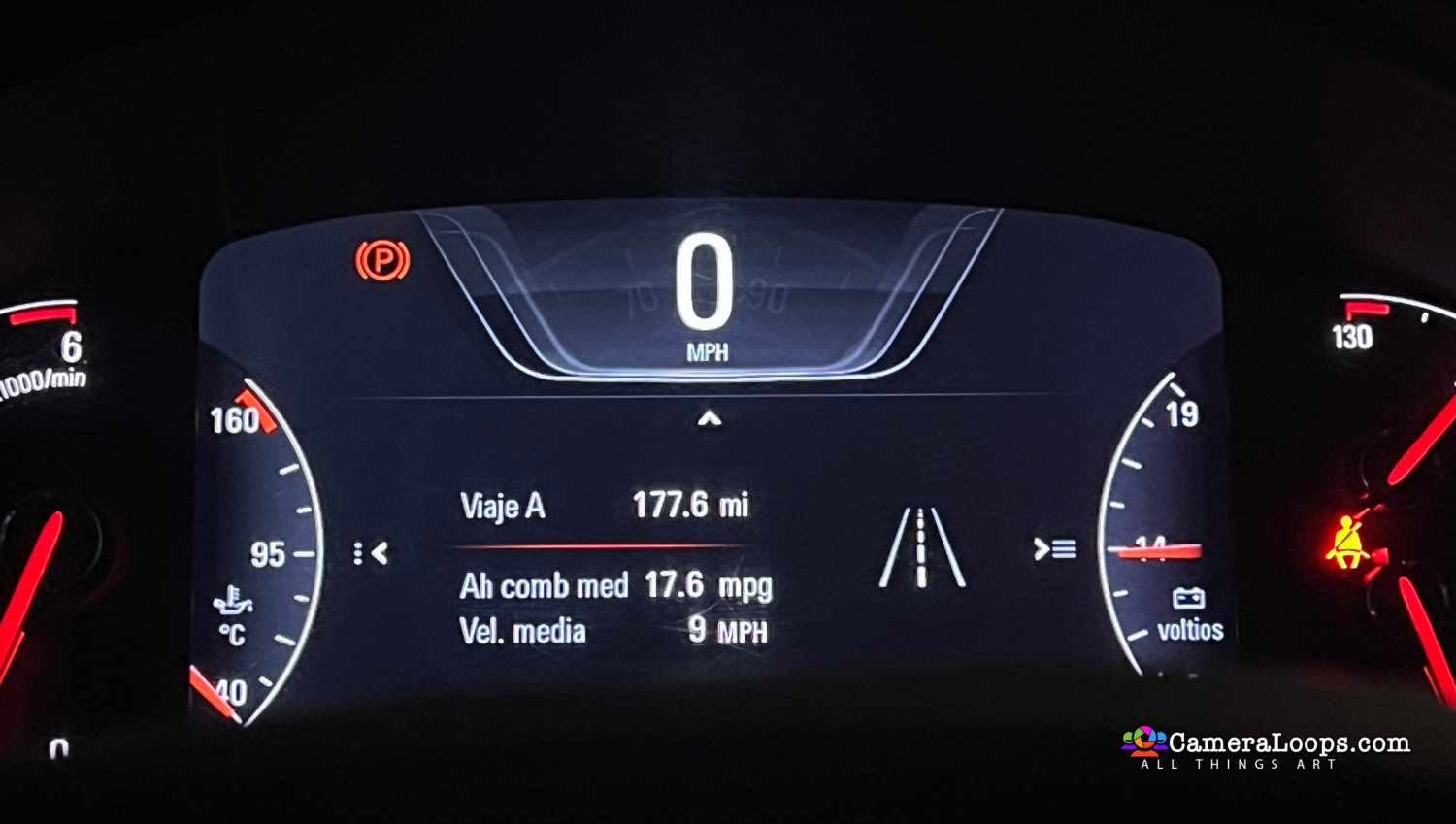
16 IPC.jpg


7.jpg


User Feedback

Recommended Comments

BullMech Enthusiast

+BullMech

+Contributor

  • Contributor

hi, is there any further update (of e.g. Silverbox) needed and available? After applying this Buick Theme, the microphone doesn't work (during phone calls, the other side doesn't hear anything and also Google voice recognition stopped working).

thank you.

Troy Grand Master

17 minutes ago, BraynV said:

hi, is there any further update (of e.g. Silverbox) needed and available? After applying this Buick Theme, the microphone doesn't work (during phone calls, the other side doesn't hear anything and also Google voice recognition stopped working).

thank you.


Can you send me the uncompressed HMI 2.5 calibration files for your vehicle?

BullMech Enthusiast

+BullMech

+Contributor

  • Contributor
4 minutes ago, Troy said:


Can you send me the uncompressed HMI 2.5 calibration files for your vehicle?

i will try to get it

Troy Grand Master

17 minutes ago, BraynV said:

i will try to get it


Sorry, send me the compressed files straight from the cache folder.

BullMech Enthusiast

+BullMech

+Contributor

  • Contributor

these theme works also in Opel Insignia, but would need to be updated as hands-free calling doesn´t work - you hear the others but nobody hears, what you say (and also voice commands via Google voice recognition doesn´t work, too).

It must be some (wrong ?) setup in this Buick theme, because as soon as I switch to Opel Intellilink, all works correctly.

Somebody commented, it can be with Onstar - as in the car I have is no Onstar and I don´t have any car with Onstar to test if that works.


One weird thing is: when I say "Hey Google" - on display immediately appears the colourful bar and Google expects commands. That means, the microphone works for the very first moment. But, from that moment, no voice commands are detected/understood.


@Troy - if you could have a look at that and do some update or a version_2 for cars with no Onstar (if that is the issue), that would be fantastic!

BullMech Enthusiast

+BullMech

+Contributor

  • Contributor
On 9/18/2024 at 11:36 AM, Troy said:


Can you send me the uncompressed HMI 2.5 calibration files for your vehicle?

I cannot get it as SPS is not giving any file if I have 2.5 attached (as originally, 2.0 was in the car)

BullMech Enthusiast

+BullMech

+Contributor

  • Contributor

do you need HMI 2.5 cal files when the Buick theme is installed? 

Join the conversation

You can post now and register later. If you have an account, sign in now to post with your account.

Guest
Add a comment...

Other files from Troy


CameraLoops™
Powered by Art
All Trademarks appearing on this website are the property of their respective owners.

Account

Navigation

Configure browser push notifications

Chrome (Android)
  1. Tap the lock icon next to the address bar.
  2. Tap Permissions → Notifications.
  3. Adjust your preference.
Chrome (Desktop)
  1. Click the padlock icon in the address bar.
  2. Select Site settings.
  3. Find Notifications and adjust your preference.
CameraLoops members who viewed this content
jingwei marcel_hack_guy chicking Enterlan Ibrahim gsmik Tarzan stensin Trabalski Opelinsignia1985 Camelot OP jouhndggdh drocars Mehmet Zeki Cengiz BullMech hussam alwan