


Skip to content
Install the CameraLoops App

Browse CameraLoops via the app. Learn more.

www.CameraLoops.ru

Use the CameraLoops full-screen app on your home screen with push notifications, badges and more.

To install the CameraLoops app on iOS and iPadOS
  1. Tap the Share icon in Safari
  2. Scroll the menu and tap Add to Home Screen.
  3. Tap Add in the top-right corner.
To install the CameraLoops app on Android
  1. Tap the 3-dot menu (⋮) in the top-right corner of the browser.
  2. Tap Add to Home screen or Install app.
  3. Confirm by tapping Install.

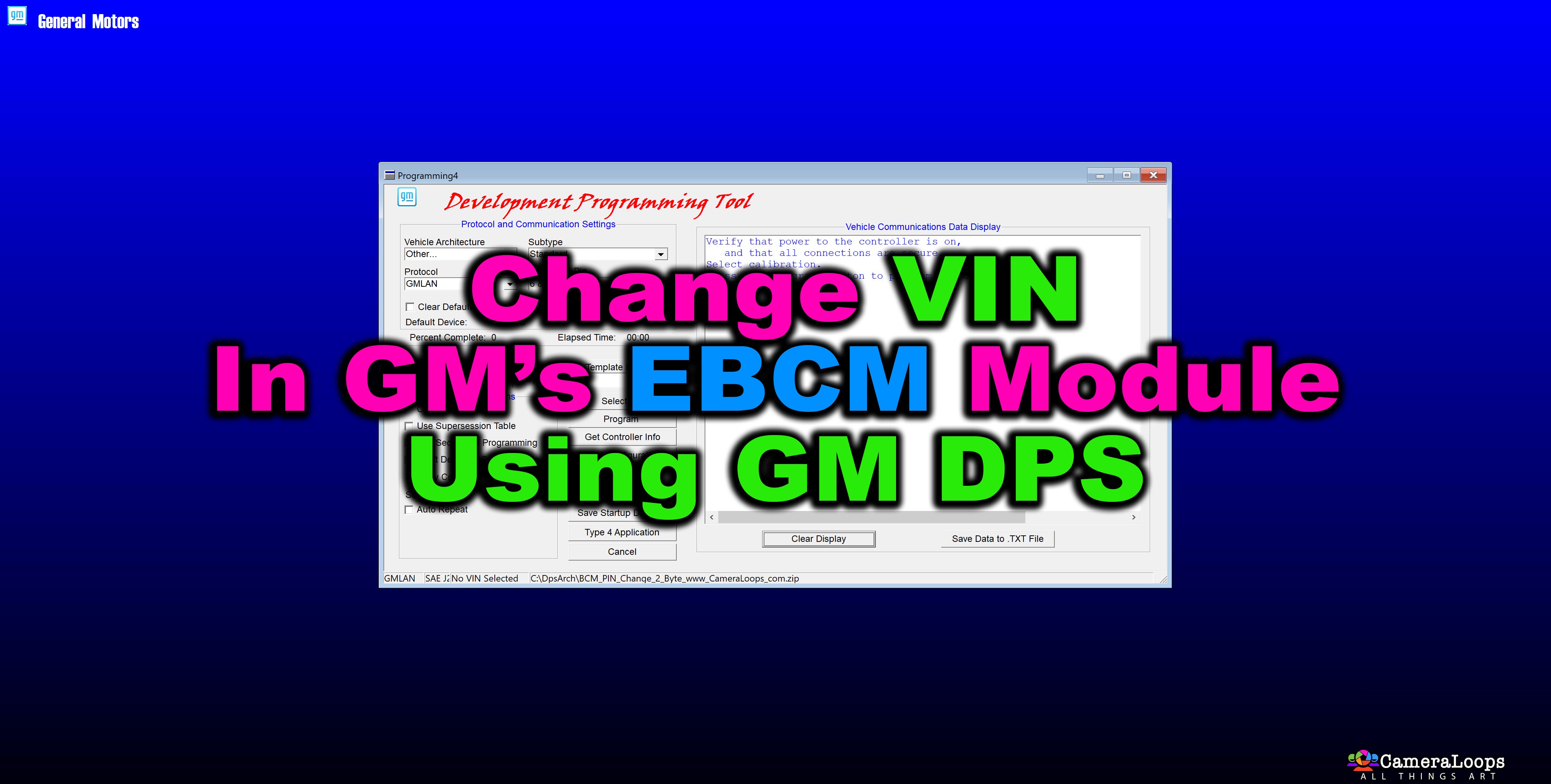
EBCM VIN Change For Chevrolet Equinox and Captiva 2011 2-Byte Seed, DPS archive

$100

1 Screenshot

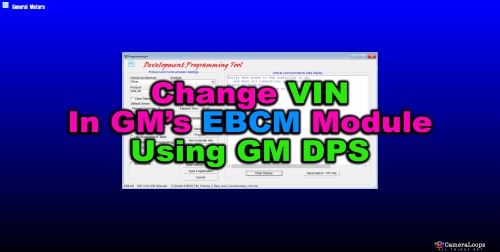
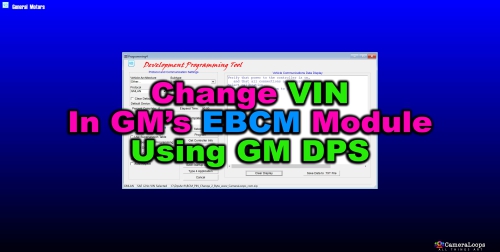
EBCM VIN change for Chevrolet Equinox and Captiva 2011 2-Byte Seed, DPS archive.

This DPS archive file can be used to change the VIN in the EBCM module.

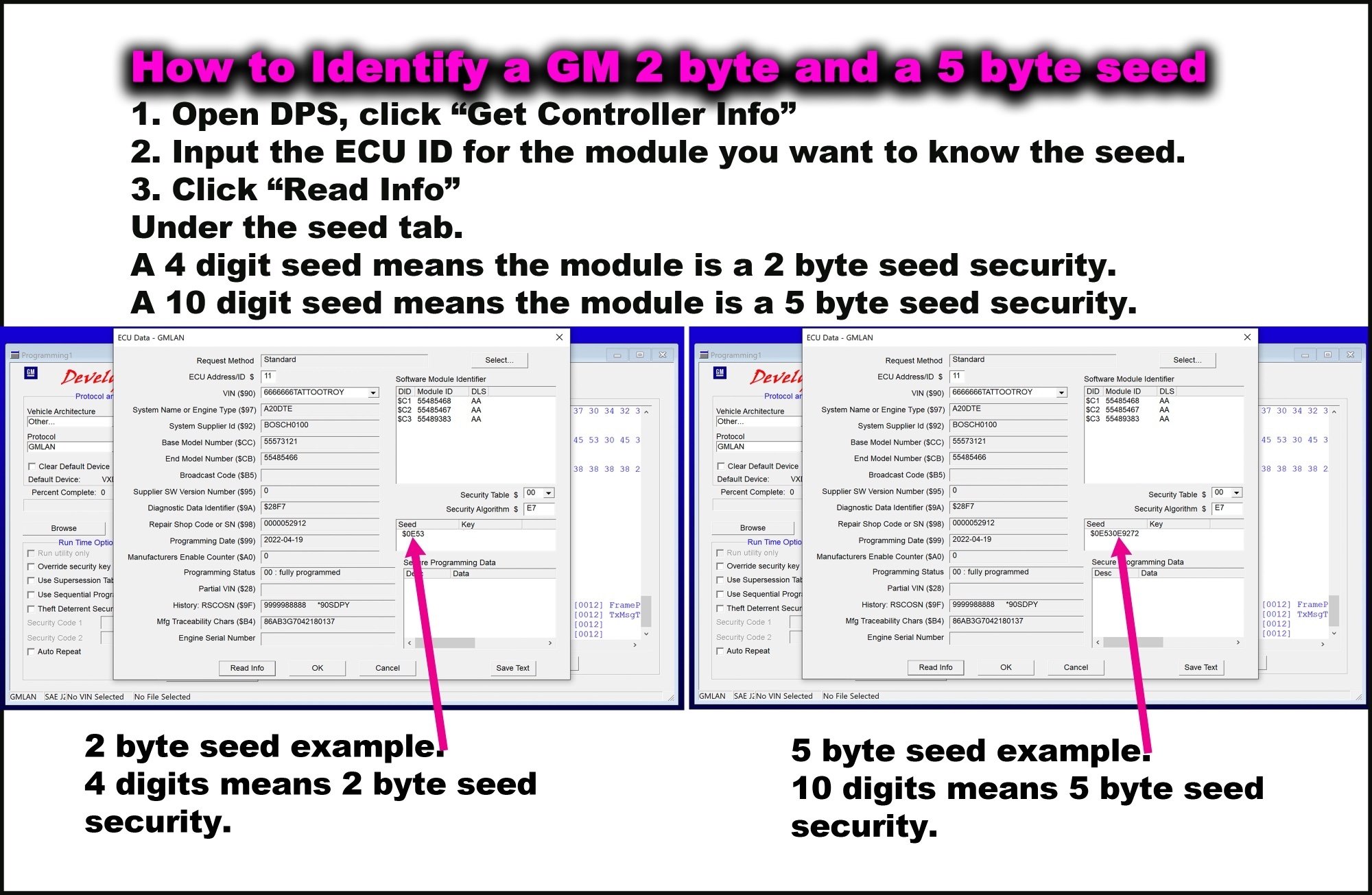
2-byte Seed key compatible.

Example video

1916242776_HowtoidentifyGM2and5byteseed.jpg.f46b4d8f85a83c349ad4f6e12b99a097.jpg


User Feedback

Recommended Comments

Proflugnut Rising Star

+Proflugnut

+Contributor

  • Contributor

Will this file work on a 2012 captive?

jamescarguy20 Rising Star

+jamescarguy20

+Contributor

  • Contributor

i tired this on a tevees type module and it doesnt work does any one have a cal file for the ATE Teeves module for 2015 Captiva EBCM Vin change

pupu14 Community Regular

+pupu14

+Contributor

  • Contributor
1 hour ago, jamescarguy20 said:

i tired this on a tevees type module and it doesnt work does any one have a cal file for the ATE Teeves module for 2015 Captiva EBCM Vin change

Can you get cal files from SPS/TLC? Then necessary VIN change file can be created...

Join the conversation

You can post now and register later. If you have an account, sign in now to post with your account.

Guest
Add a comment...

Other files from Troy


CameraLoops™
Powered by Art
All Trademarks appearing on this website are the property of their respective owners.

Account

Navigation

Configure browser push notifications

Chrome (Android)
  1. Tap the lock icon next to the address bar.
  2. Tap Permissions → Notifications.
  3. Adjust your preference.
Chrome (Desktop)
  1. Click the padlock icon in the address bar.
  2. Select Site settings.
  3. Find Notifications and adjust your preference.
CameraLoops members who viewed this content
mario cleison jouhndggdh ErikRP lowcountry Inam Ullah Alain Wei Usst Jines Feliciano JohnBoy tungnv93pt Chriscol maky nev3r Arbe_gtc pupu14 jamescarguy20 TROLL mafani gabrieltm